
How to Create a Presell Page (With Examples)
Last updated on
by
Is your website struggling to convert visitors into customers? Sometimes, people land on your sales page but they aren’t ready to buy anything yet, so there’s probably some friction in your sales funnel.
A presell page is what your visitors see before your sales page or offer, and its job is to warm up cold traffic, which are the visitors who don’t know you or your product yet. This means it explains the problem, answers the questions a visitor has, and builds enough trust that the offer makes sense by the time they reach it.
I’ll show you what makes a good presell page, some real examples, and how to build your own.
What Is a Presell Page?
A presell page is a landing page your visitors see before your product or offer page. Its job is to warm up cold traffic and get them ready to buy.
It usually sits between an ad and your product page, so you’ll also hear it called a bridge page, pre-lander, or advertorial.
Every presell page is a landing page, but most landing pages ask for something right away, like an email address or a sale. A presell page builds the case first, so your offer page has less convincing to do.
“Presell” is also a verb for selling a product before it launches, usually through preorders. That’s a separate tactic. This guide covers the page you send traffic through, which can be a sales-style page, an advertorial, a quiz, a story, or a video.
Why Create a Presell Page?
These are the three situations where I’d recommend building a presell page:
- Cold paid traffic: Someone who clicks an ad may never have heard of your brand, so a presell page gives them a reason to trust the product first.
- A product that needs explaining: If the product only makes sense once the visitor understands the problem it solves, then the presell page explains that problem first.
- A product page with low add-to-cart: When plenty of visitors view a product but few add it to the cart, then a presell page can answer their questions first.
But presell pages aren’t a magic solution. If the offer itself doesn’t fit the visitor, a presell page won’t change that, so I’d fix the offer first.
What Makes a Good Presell Page?
Before you send any traffic to your presell page, check that it does each of these jobs:
- It matches the ad or link that sent the visitor: Your headline should continue the promise the visitor just clicked on. If your ad promised faster client onboarding, then I’d open on onboarding too, so nobody wonders whether they’re in the right place.
- It has one short headline: Give the page one headline and keep it short. If you’re stuck on the wording, try one of these headline tools or a few power words.
- It’s written for the device that your traffic comes from: Make sure to check whether your visitors arrive on a phone or a desktop, and what your buyer persona prefers to read or watch. On mobile, write shorter sections and pin the call to action to a sticky button.
- It gives the visitor a reason to trust you: Place customer logos or a few real reviews near the call to action, where the visitor is deciding whether to click.
- It has one clear call to action: Give the visitor one call to action (CTA) to follow. For many SaaS companies, that’s a free trial offer, and for others, it could be visiting the product page or completing the checkout.
- It has a path for visitors who don’t click: Give visitors who aren’t ready yet a second, lower-commitment link, or catch them on the way out with an Exit-Intent® campaign.
- It avoids the hard sell: Don’t be too pushy, because a visitor you pressure into a sale might never come back. Show who you are, what you offer, and how your product solves their problem, and if the page carries a deadline, I suggest making it a real one.
Presell Page Examples
Here are four presell pages, each with one thing you can copy for your own.
1. Zendesk
Zendesk’s service page gives the visitor more than one way forward.
- A customer service headline: it opens on the problem the visitor came to solve.
- Two calls to action under a short pitch: a visitor who isn’t ready for one step still has the other.
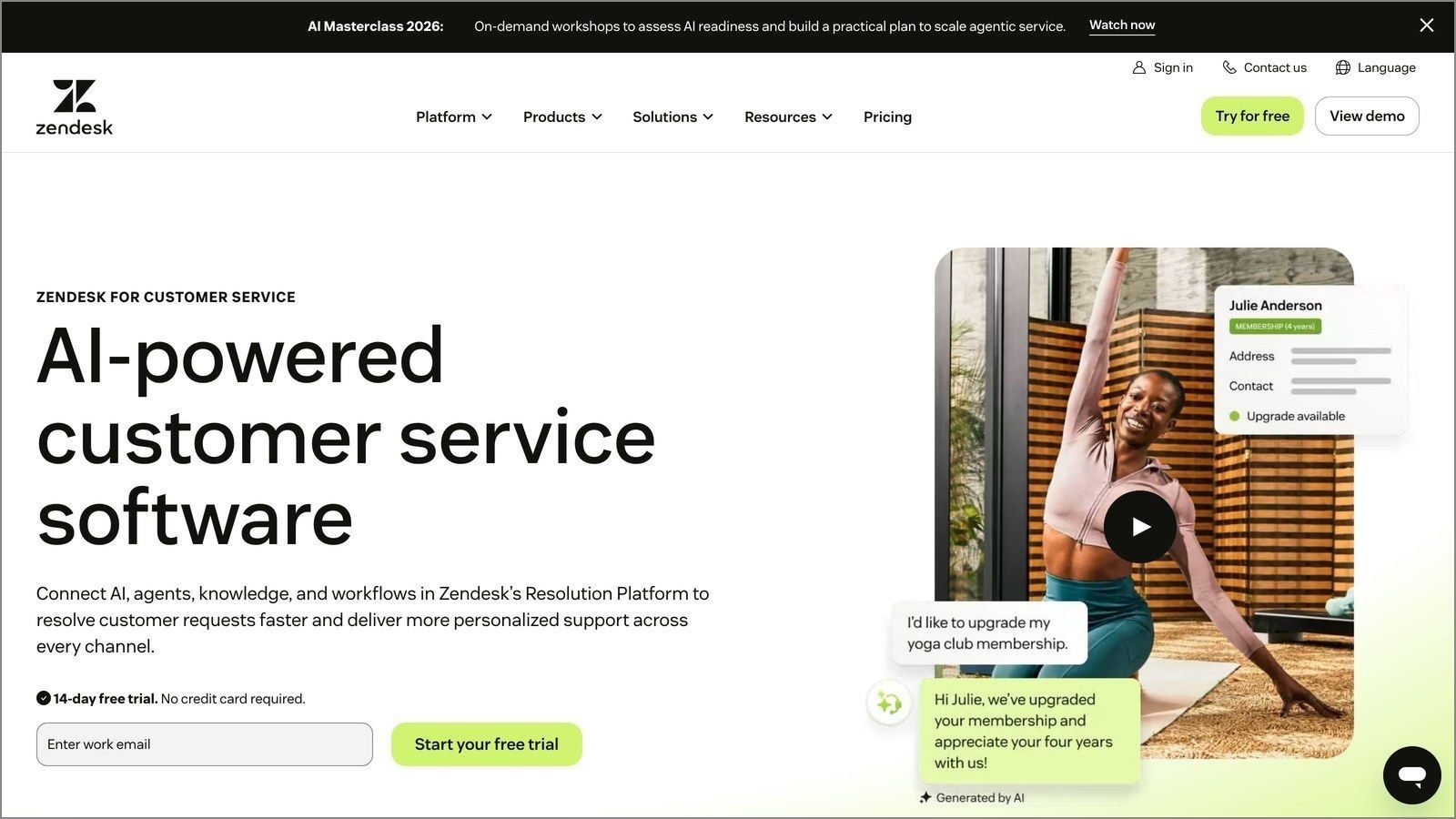
On your own presell page, you can add a second button for the reader who wants to learn more first.
2. Audible
Audible’s landing page puts the price on the first screen.
- An offer headline: it leads with what the visitor gets.
- The price in one line: a book lover tempted by the offer doesn’t have to go looking for what it costs.
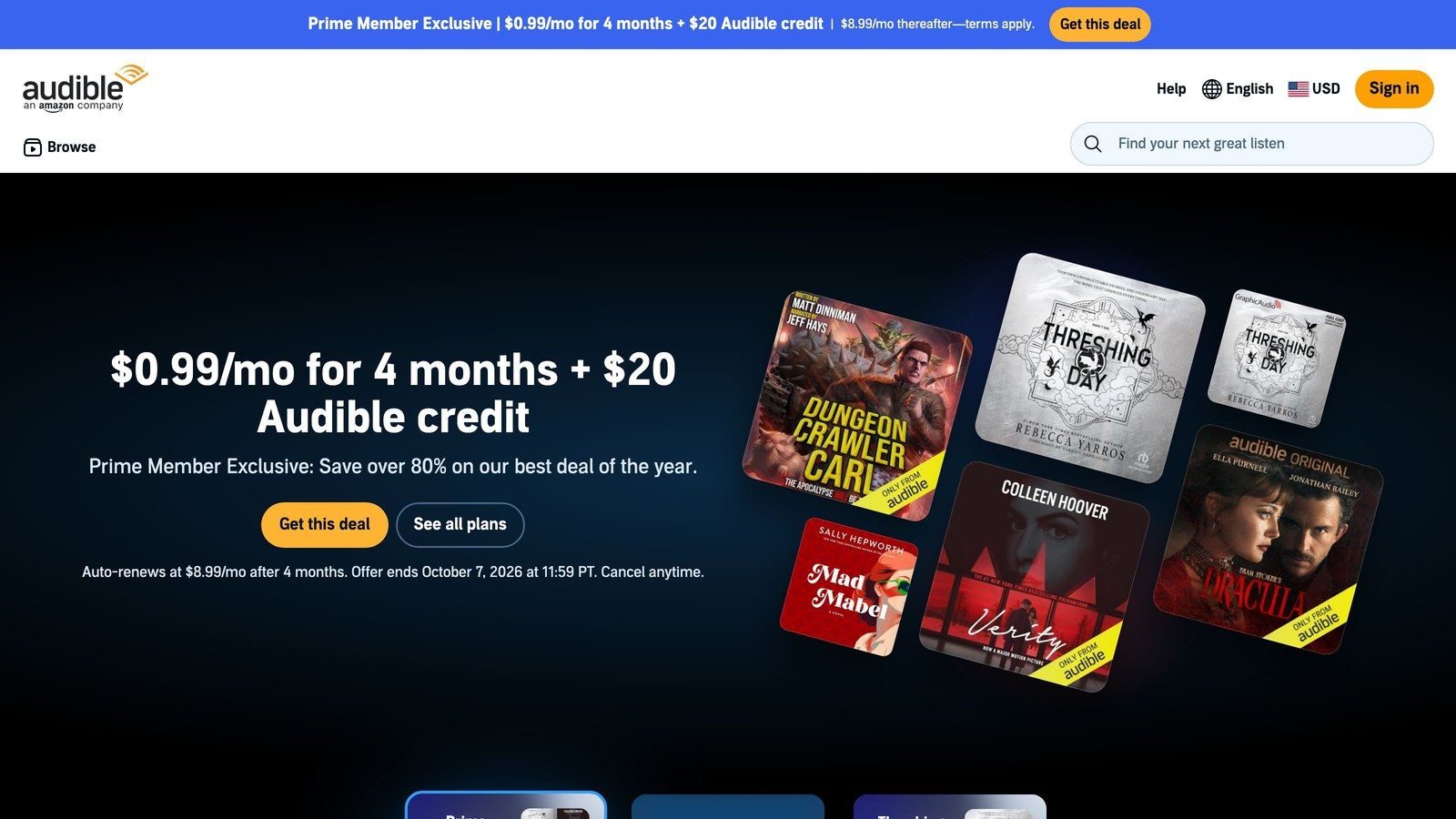
If you promote a paid product, I recommend stating the price plainly on your presell page.
3. Loom
Loom’s landing page shows the product working instead of describing it.
- A headline and a short explanation: the visitor learns what Loom does in a few lines.
- A video: Loom is in the business of recording videos, so the format is the product.
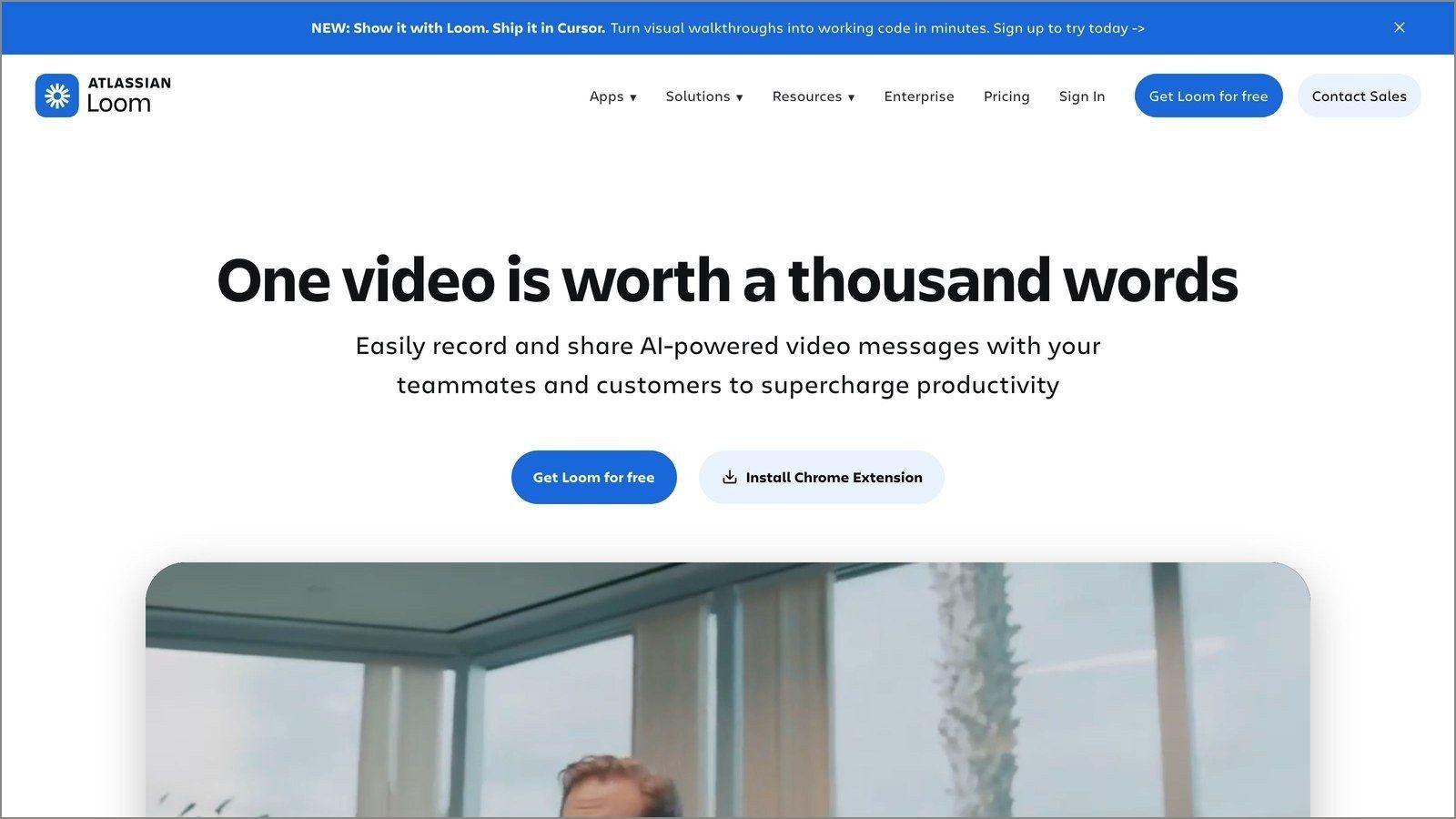
On your own presell page, add a short demo video next to the headline, and see our guide on using video in your marketing to plan one.
4. Semrush
Semrush’s landing page gives the visitor something to do before it asks for the sale.
- A search field under the headline: typing into a field is a smaller commitment than signing up.
- Calls to action beside the field: it’s the only example of the four pages where the visitor can do something besides click a button.
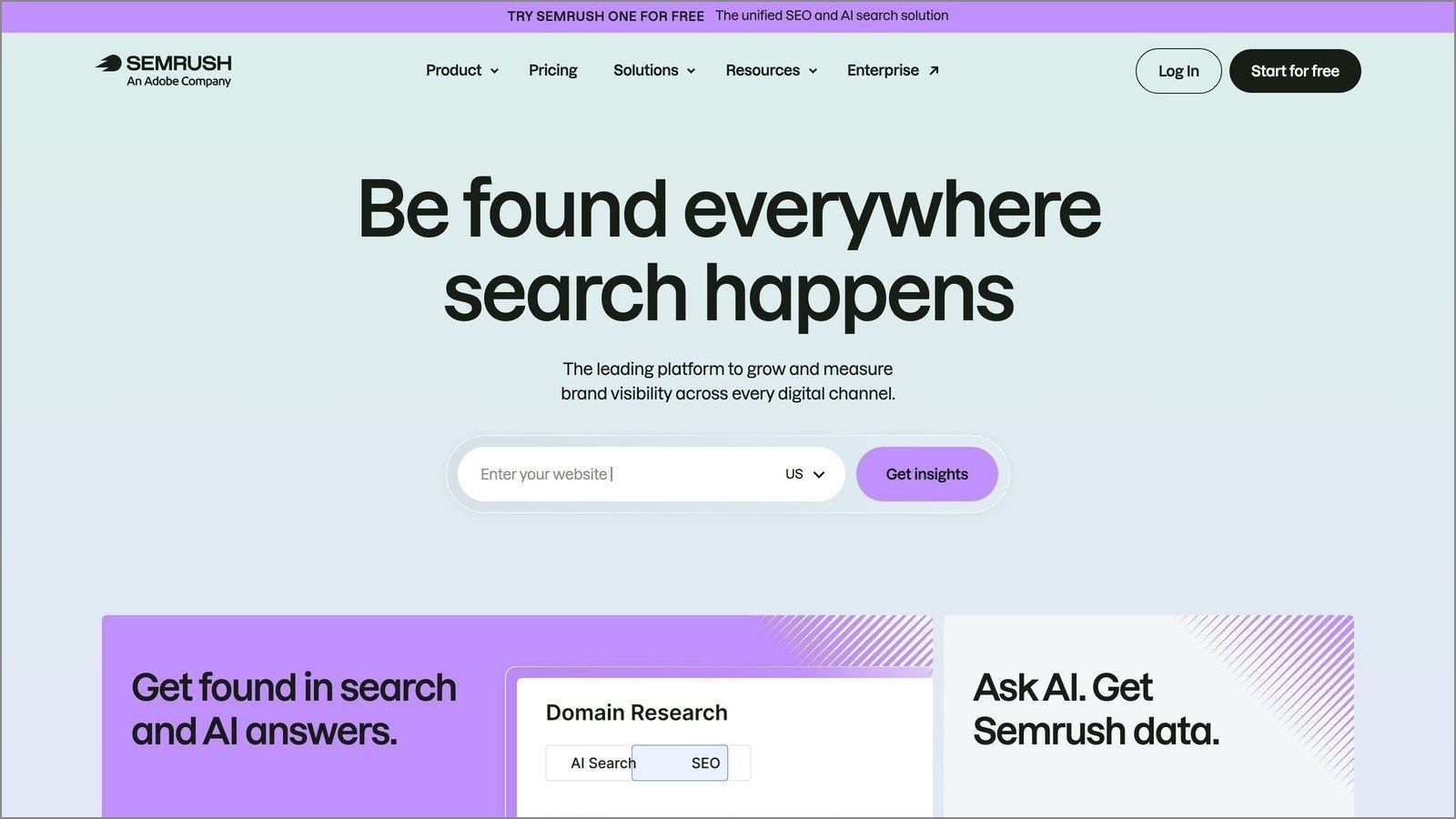
On your own presell page, I suggest one small action before the main button, like a single question or a short calculator.
How to Create a Presell Page With OptinMonster
Fullscreen campaigns come with every OptinMonster plan. So, you don’t need to upgrade to build a presell page.
The campaign shows on any website that carries the OptinMonster embed code, including Shopify and WooCommerce stores.
When I built the demo campaign for this guide, I started from the Free PDF Download template and removed the optin form. That left a headline, one line of copy, and a button that sends visitors on to the offer page you’re preselling.
Step 1: Create Your Campaign
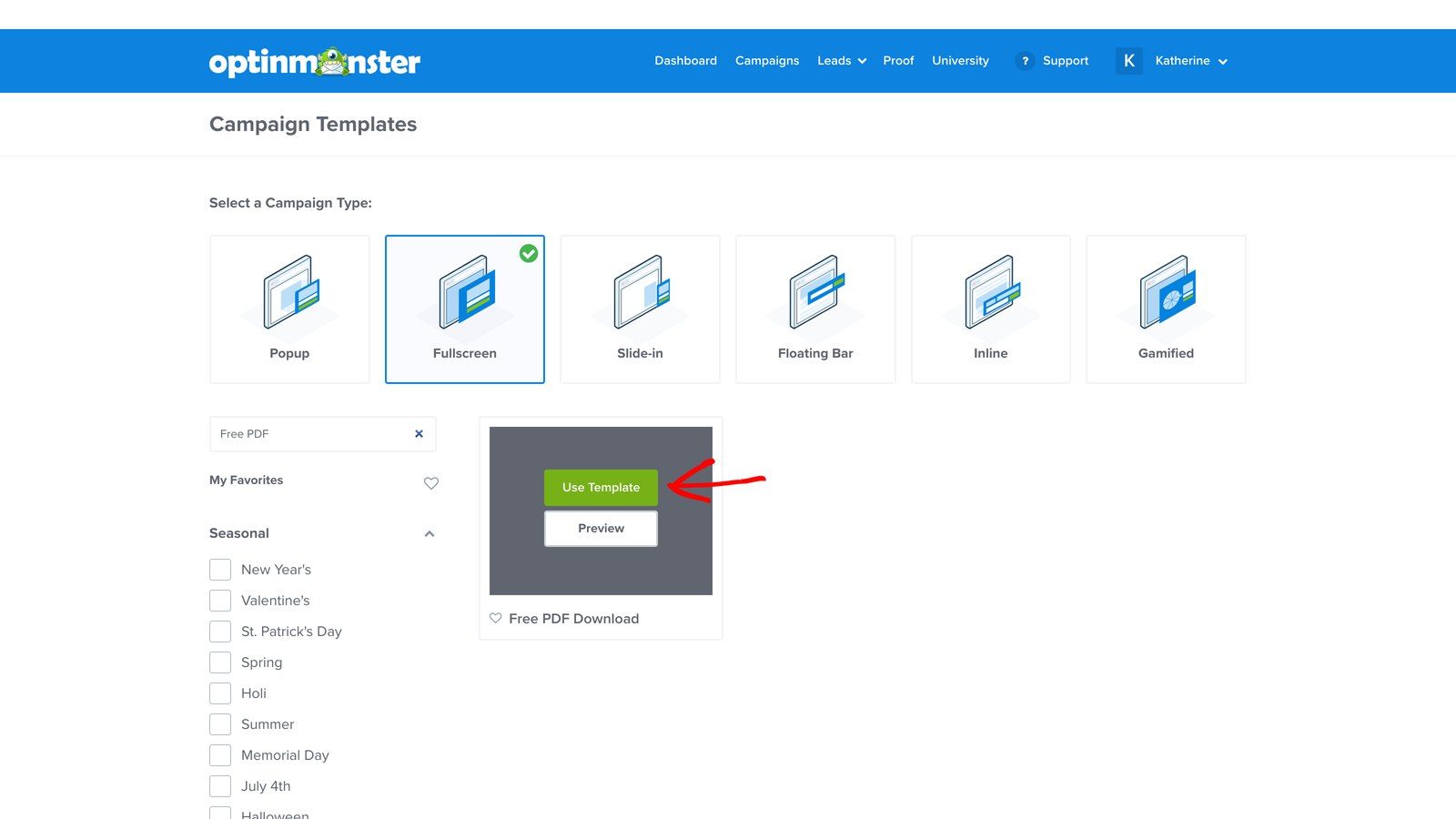
Log in to your OptinMonster account, and on the Campaigns screen, click Create New Campaign.
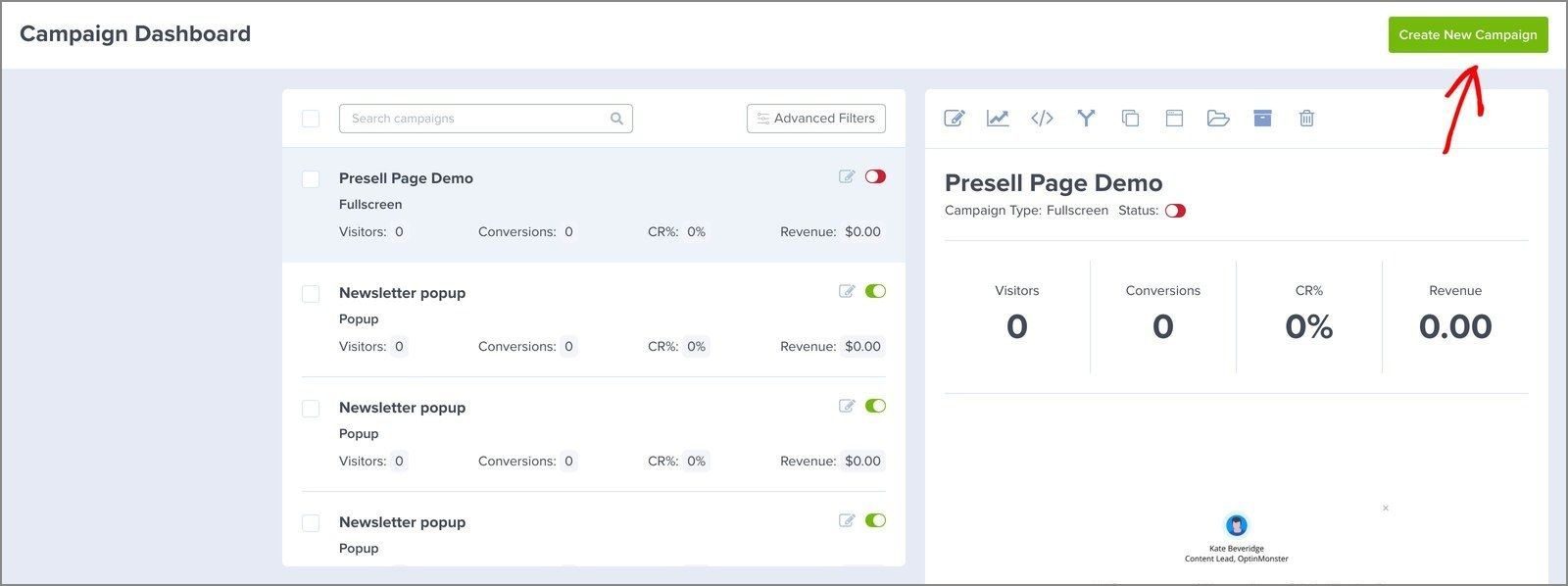
This opens the Campaign Templates screen.
Under Select a Campaign Type, choose Fullscreen.
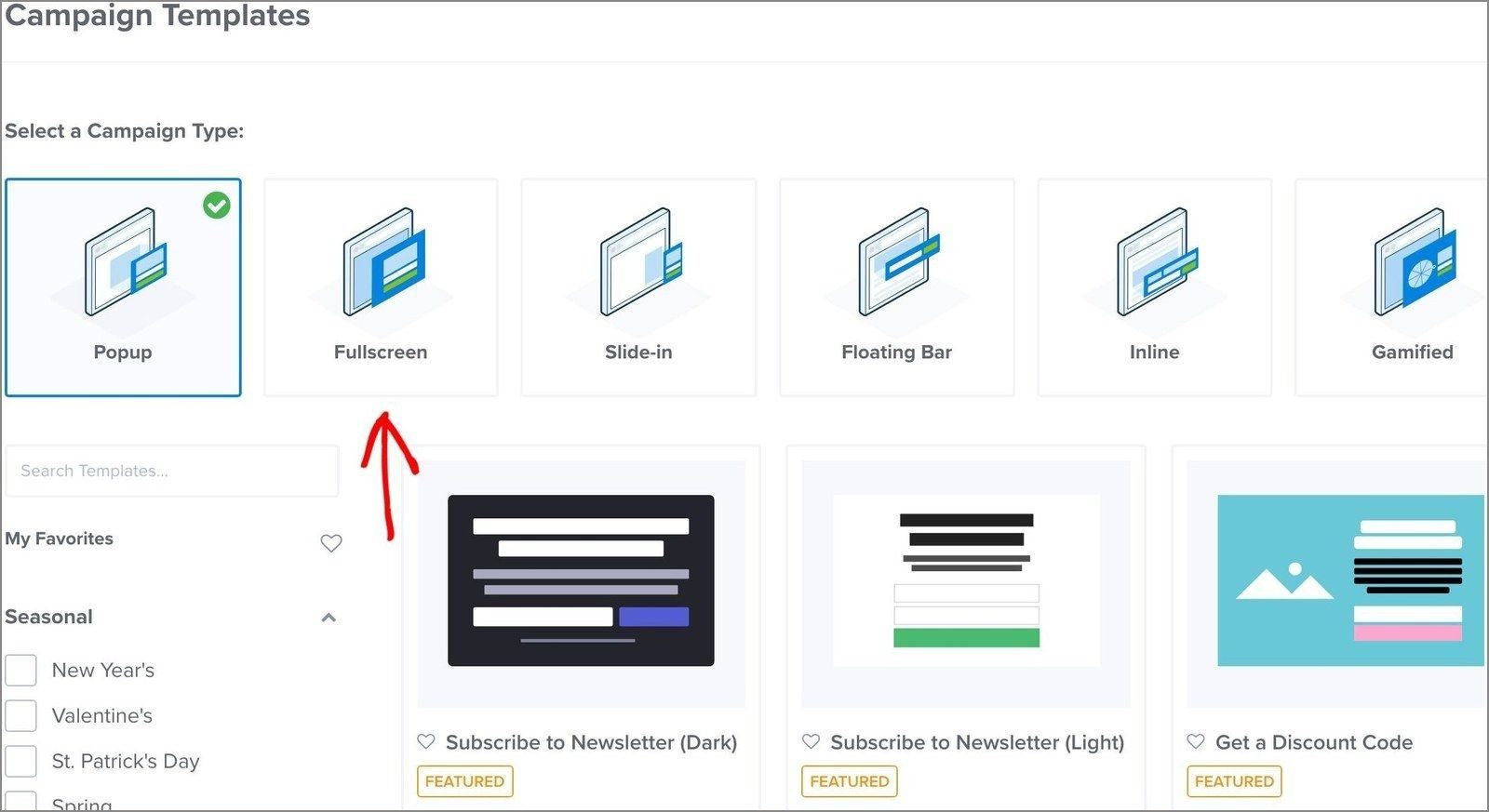
Next, pick a design, like the Free PDF Download template I used.
To find it, type Free PDF into the search box above the templates, then hover over the template card and click Use Template.
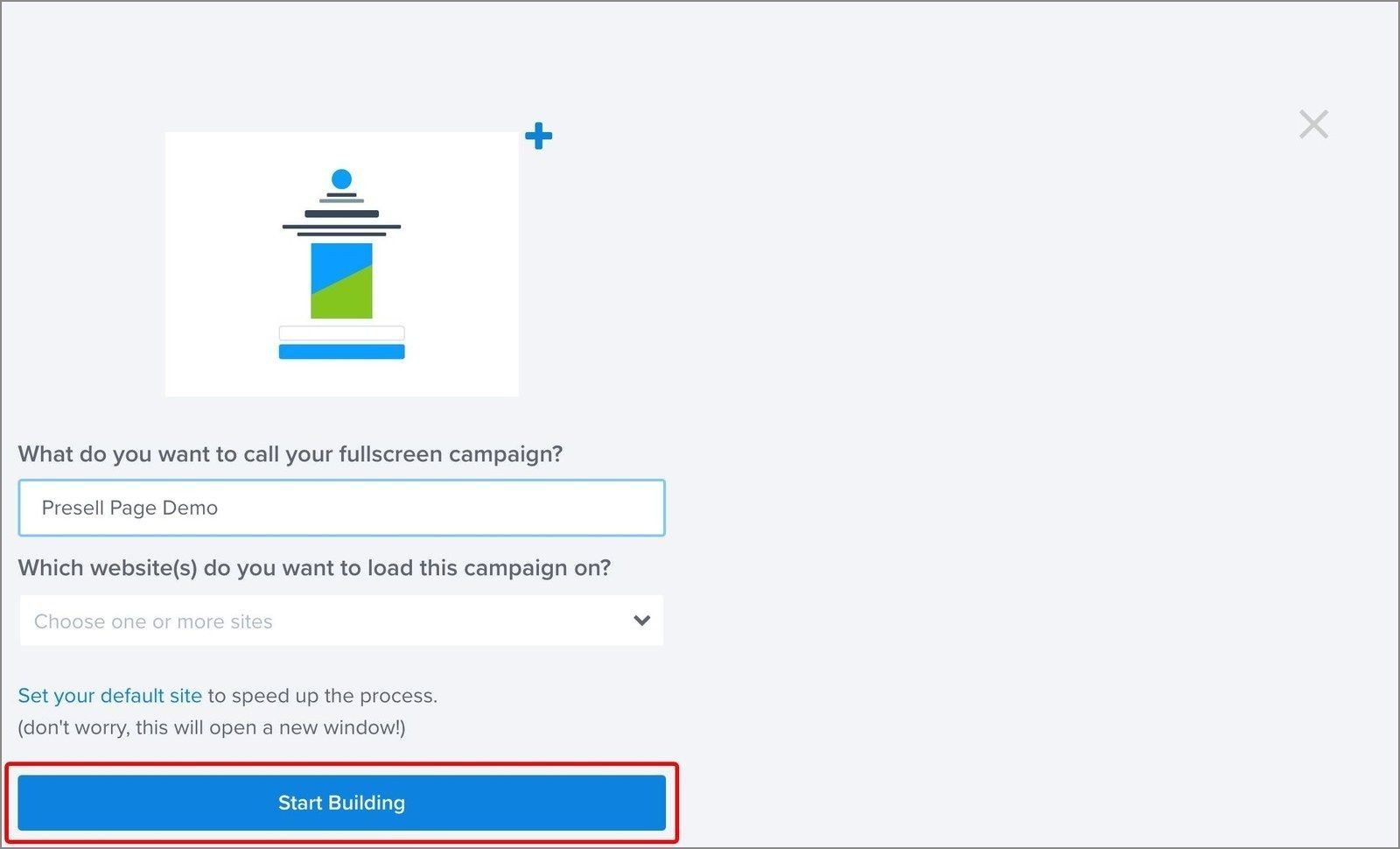
Now give your campaign a name (I called mine Presell Page Demo) and choose the website you want it to load on.
Click Start Building to open it in the campaign builder.
Step 2: Design the Template
Here’s the campaign in the builder:
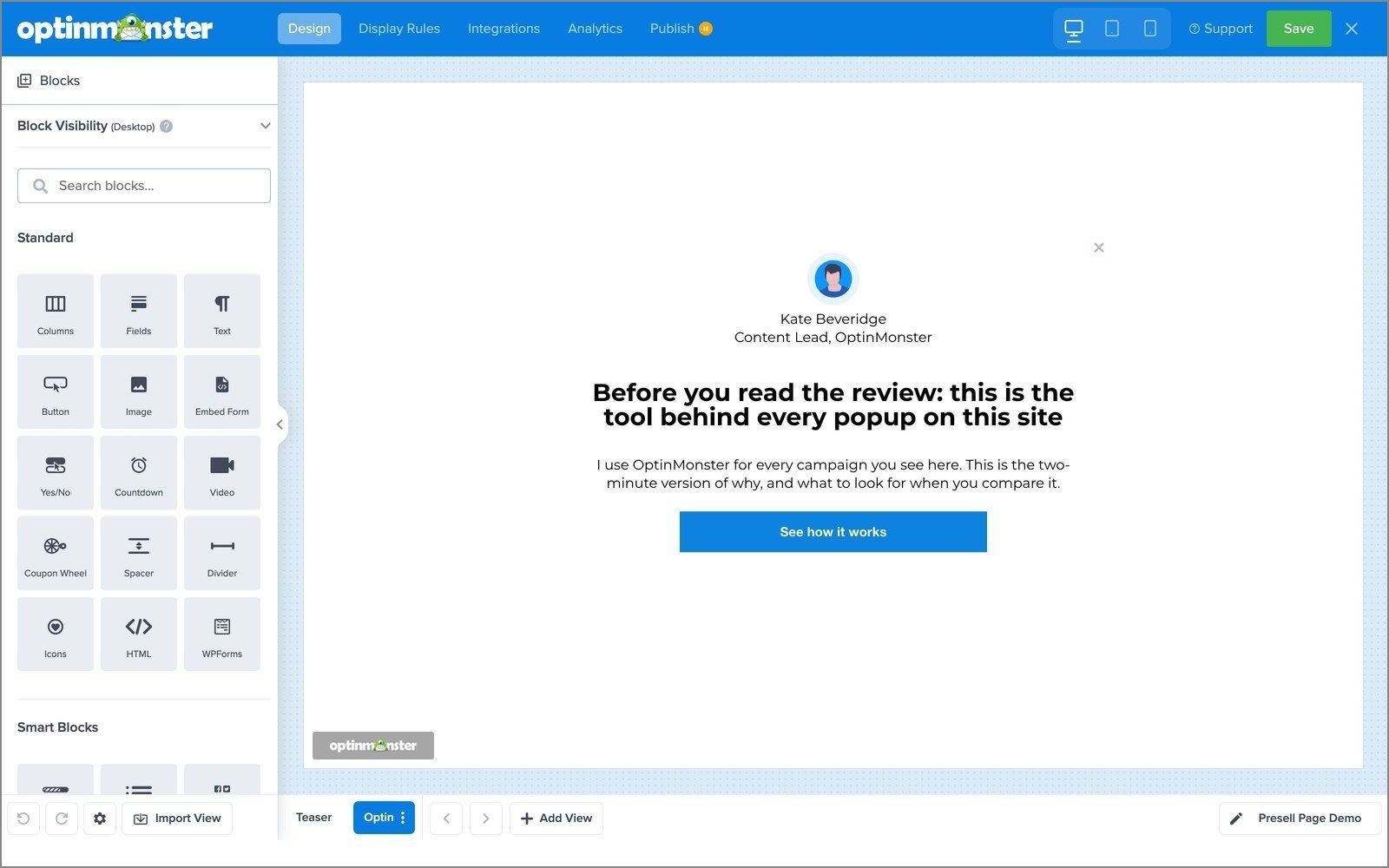
Click a text block to edit the copy, and keep it short. If the template has an image you don’t want, select it and swap in your own from the sidebar.
To add a video, drag the Video block from the Blocks panel on the left into the campaign.
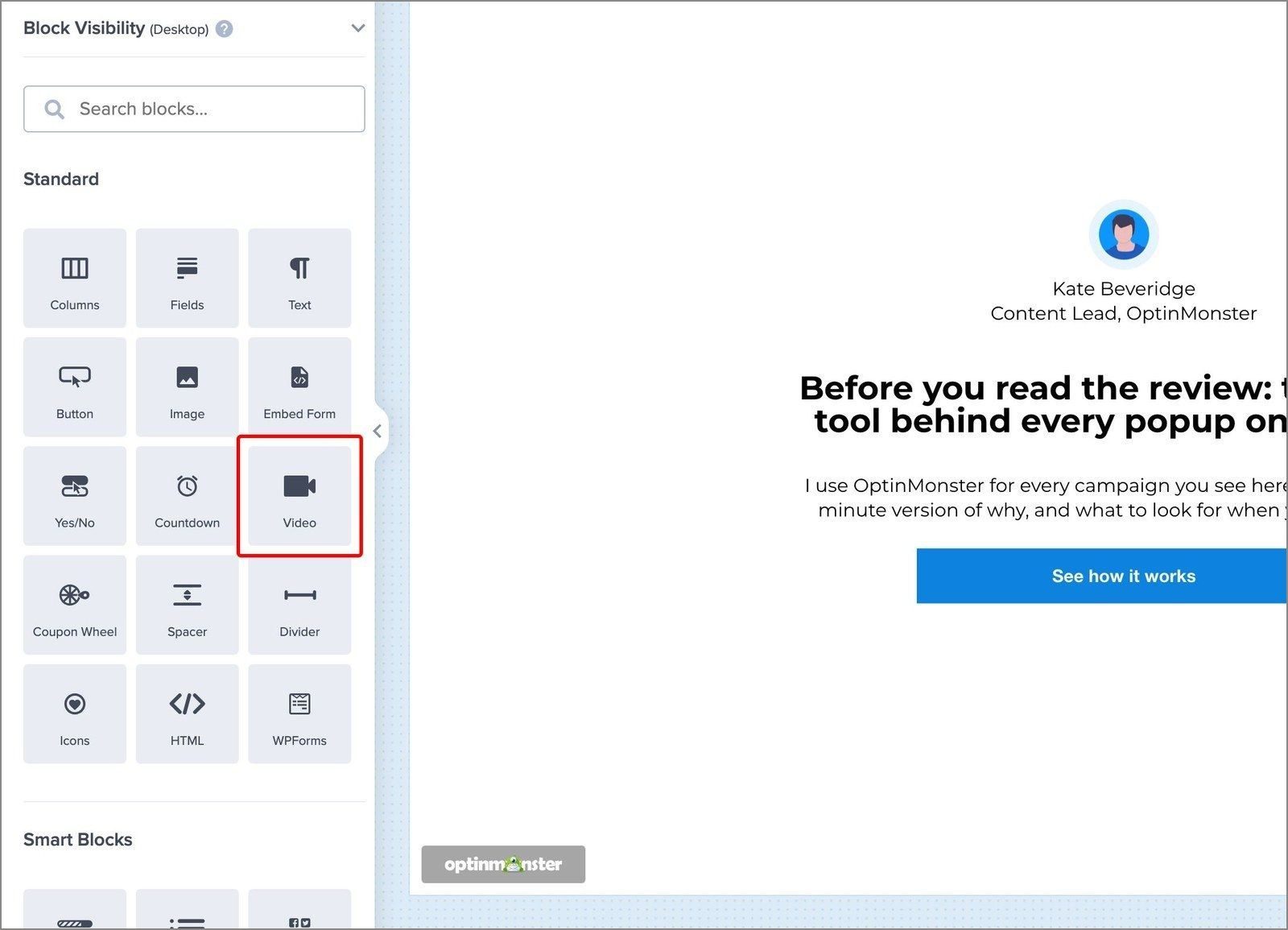
Then paste the video’s embed URL into the Hosted Video URL field, and make sure the video is public. The embed URL may differ from the one in your address bar, so if the video won’t play, see our guide on embedding a video in your campaign for full details.
Next, delete the optin form, because a presell campaign needs 1 clear CTA, not an email signup. When I built this campaign, I also removed the template’s Yes/No and Success views.
Now drag in a Button block and click it, then set Button Click Action to Redirect to a url. Paste your product page URL or affiliate link into the Redirect URL field, and change the Button Text to say where it goes.
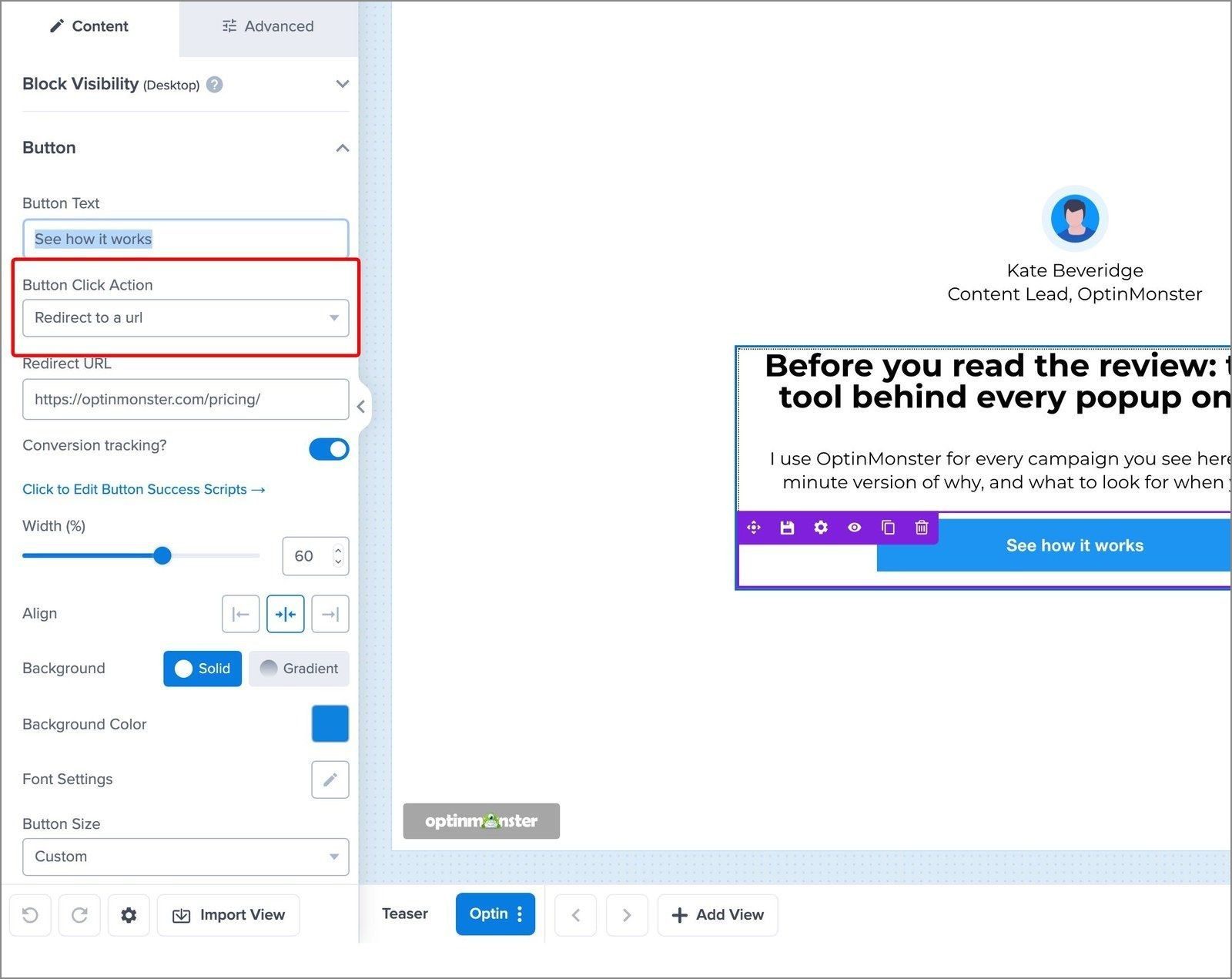
With the form gone, the button is the only thing that can count a conversion, so make sure Conversion tracking? is on in the same panel.
It was already on when I built this campaign, but if yours isn’t, see our guide on how to enable conversion tracking for full details.
Other blocks you can add include:
- Image, for brand logos that show social proof
- Icons, from the builder’s icon library
- Text and Embed Form
- Countdown, on the Pro plan and higher
Step 3: Set Display Rules
Click the Display Rules tab at the top of the campaign builder. When I built this campaign, the default ruleset already held two rules, joined by AND:
- Time on Page is at least 5 seconds, so the campaign appears 5 seconds after a visitor lands on the page.
- Page Targeting has current URL path set to is any page, so it can appear on every page of your website.
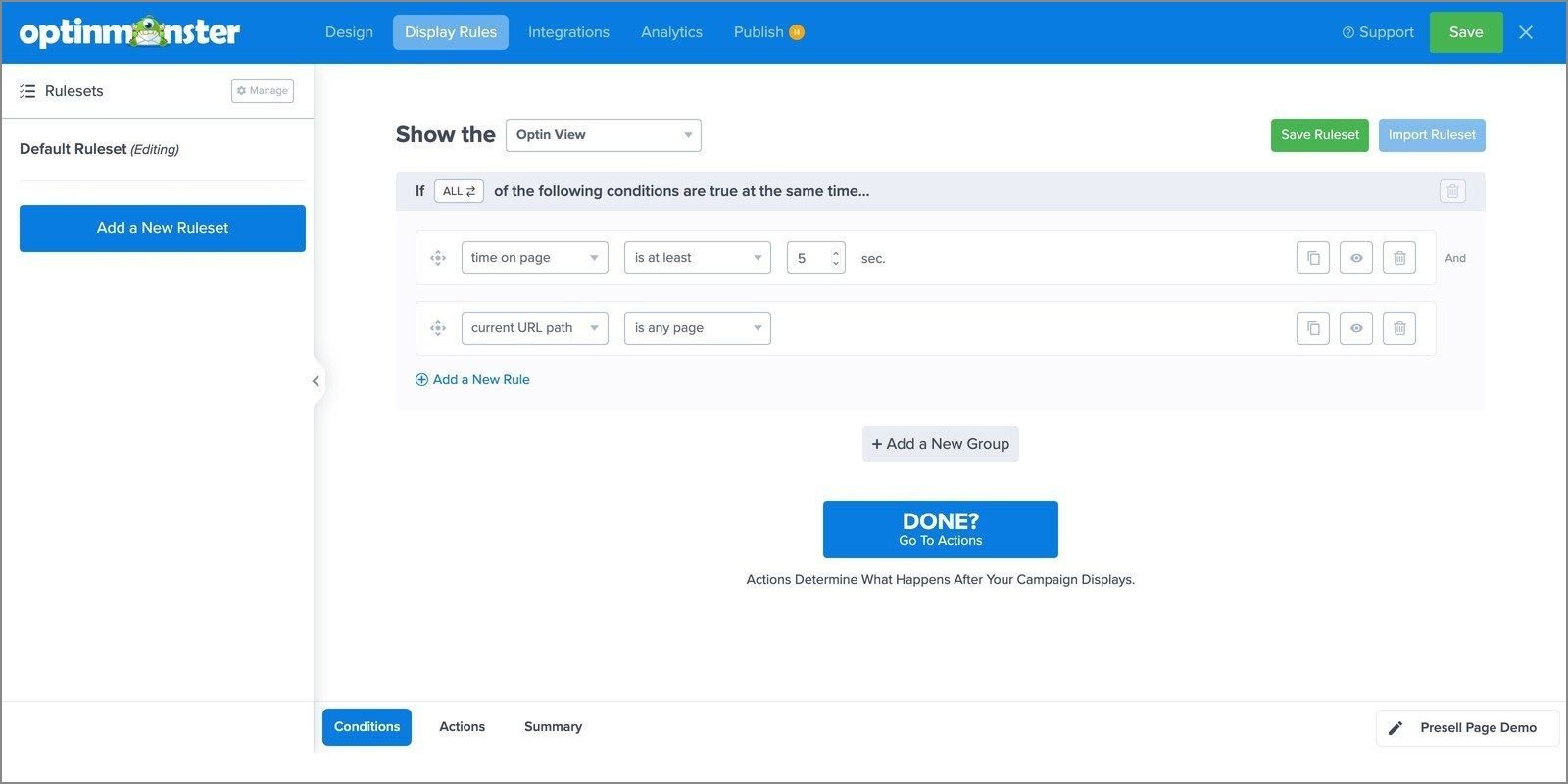
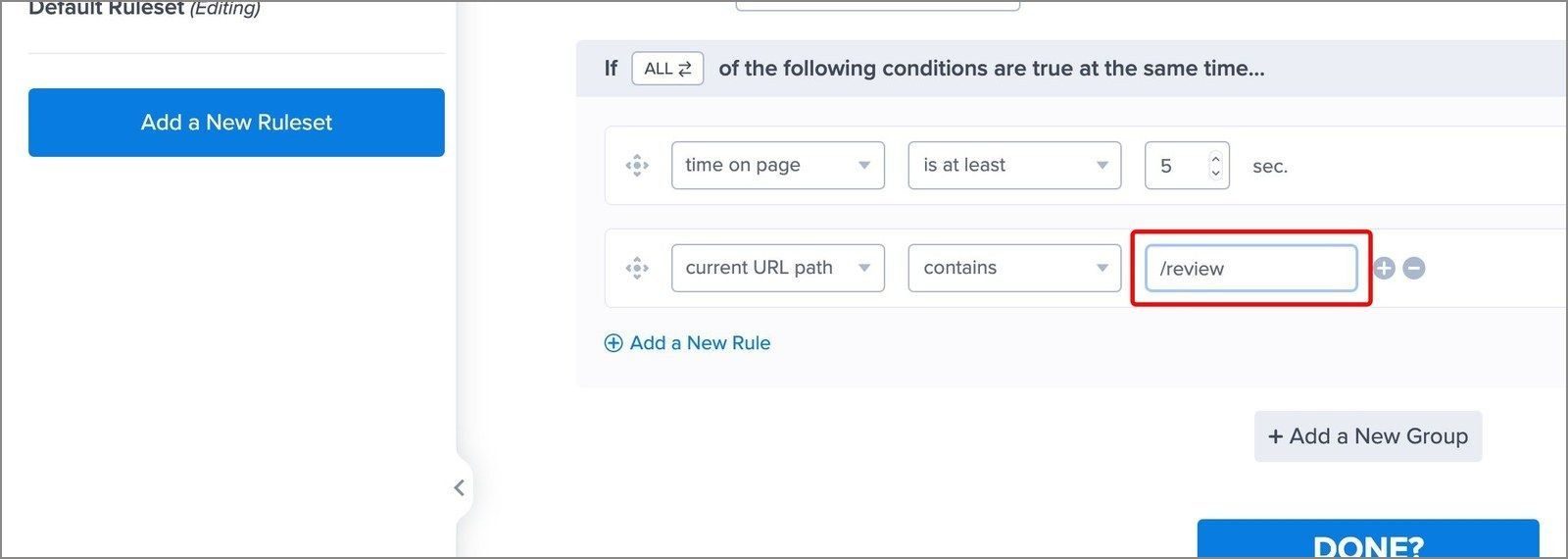
To narrow the Page Targeting rule to the pages where your product or affiliate link appears, click the is any page dropdown next to current URL path and select contains. Then enter the URL slug of those pages.
For instance, say you have an eCommerce store that sells school supplies, toys, and board games.
Your product pages might use URL paths such as:
- www.mysite.com/school
- www.mysite.com/toys
- www.mysite.com/games
So, for a presell page about toys, you’d use the 2nd URL slug and add /toys in the field next to contains.
The same rule works on a blog. With /review in the field, the campaign only shows on posts whose URL contains /review, such as your product reviews:
In our case study with FitSmallBusiness, they matched each offer to the content a reader was viewing through Display Rules. The case study calls that setup “as simple as adding category slug to display rules.”
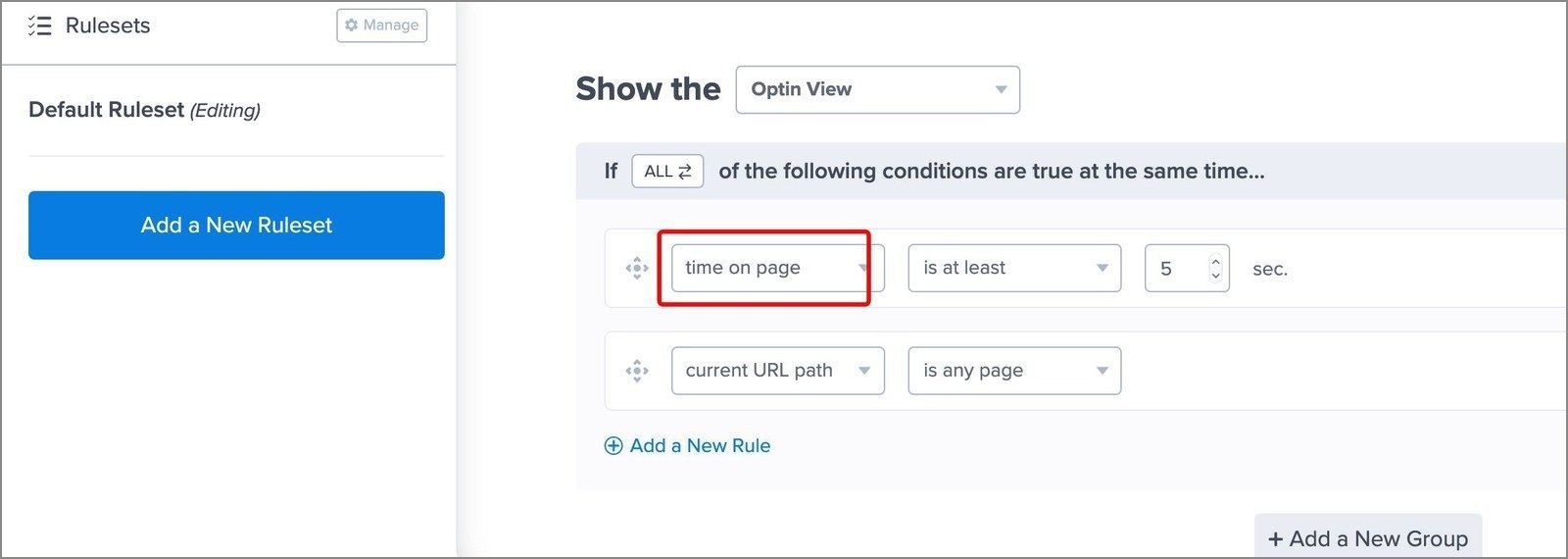
To change the 5-second delay, edit the number of seconds in the Time on Page rule:
A Fullscreen campaign that returns on every visit gets in the way. So, use the Cookie Settings in the ruleset’s Actions tab to set when it comes back after a visitor converts or closes it.
The same tab has two Fullscreen settings. Close on background click sets whether a click outside the campaign closes it, and Display a page slide makes it slide down from the top of the screen as a welcome mat.
Step 4: Publish the Campaign and Connect Your Website
Open the Publish view and read through the publish summary, a checklist of things to review before visitors see the campaign. You can also use Preview or the Live Site Inspector to test the campaign.
When you’re happy with it, set Publish Status to Publish. Then click Save at the top of the builder.
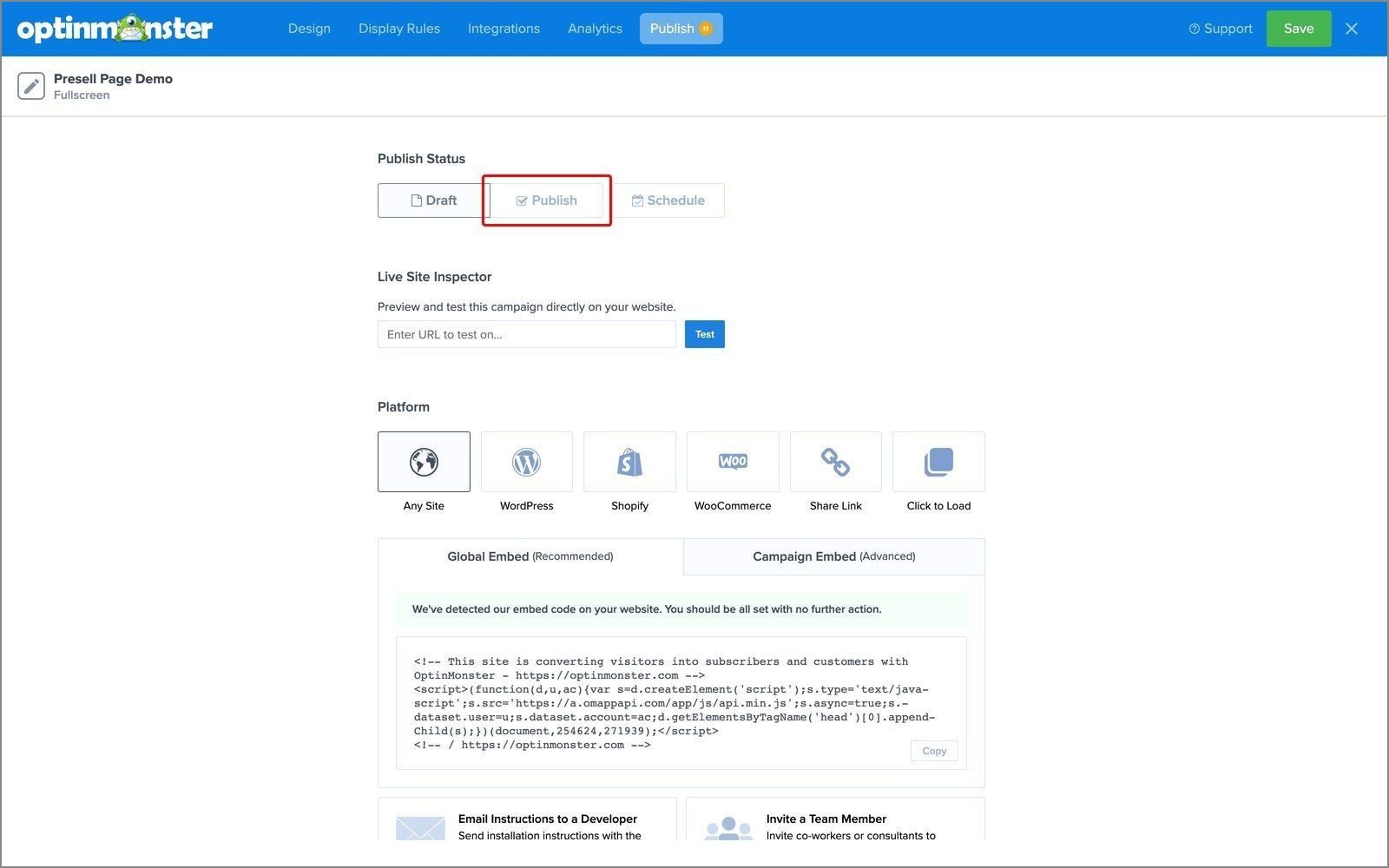
If OptinMonster isn’t on your website yet, pick your platform from the tiles in the Publish view, then add the embed code or, on WordPress, use the OptinMonster plugin.
For full details, see our guide on creating your first campaign.
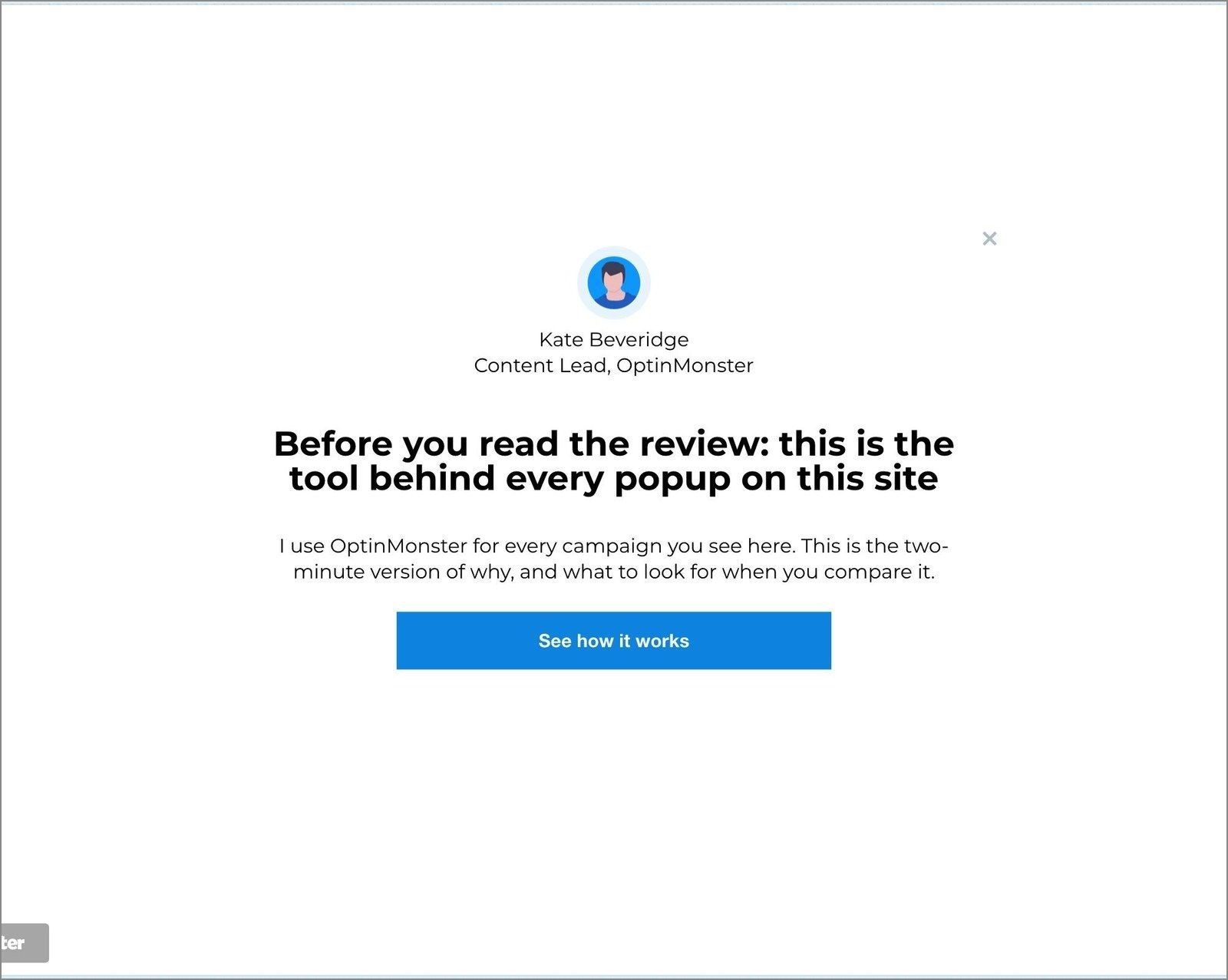
Here’s the finished presell campaign from my demo site:
How to Use a Presell Page When You Have Nothing to Sell
If you’re a blogger with no product of your own, then you can still use a presell page. The product you presell is just somebody else’s, through affiliate marketing.
If you’re making money through your blog, then you’re probably preselling already. A product review or a comparison post teaches readers about the products in your niche and recommends the ones that pay you through affiliate links.
If you don’t want to write a stack of new reviews, there’s a faster option. You can show a Fullscreen popup only on the posts where your affiliate link already appears.
The headline needs to name the problem the product solved for you, and you can use the button to send the reader to the product through your affiliate link. In our case study with Adam Enfroy, one Exit-Intent® campaign promoting an affiliate offer converted at 2.36%.
Want your first presell campaign built for you?
Our conversion experts will design 1 free campaign for you, so you can start from a presell page that’s already built.
Presell Page FAQs
What does presell mean?
To presell means to build a buyer’s interest and trust before they reach the sales page, though people also use the word for selling something before it launches, such as taking preorders. In marketing, a presell page is between an ad or link and the product page and answers the questions a cold visitor has, so they arrive ready to buy.
Is it presell or presale?
Both are real words, but presell is a verb for warming a buyer up before the sale, which is why marketers call the page that warms up ad traffic a presell page. A presale is a sale that opens before the official launch, like early access to tickets or a new product.
Ready to Create a Presell Page?
Start with one presell campaign and watch its conversion count for a week before you build the next. Compare OptinMonster plans and pick the one that fits your business needs.
Disclosure: Our content is reader-supported. This means if you click on some of our links, then we may earn a commission. We only recommend products that we believe will add value to our readers.
Add a Comment