
7 Social Proof Popup Examples (That Actually Work)
Last updated on
by
TL;DR
A social proof popup shows your visitors that other people already trust you.
A notification popup streams real activity, like “Sarah just signed up,” in a corner of the page. On the other hand, a lead-capture popup carries the proof inside it, like a subscriber count, a review score, or a customer quote.
Are you getting traffic to your site but nobody wants to convert?
That’s the gap that a social proof popup can fill. A first-time visitor to your website doesn’t know you, so they look for a sign that other people bought, signed up, or left happy before they will decide anything.
I’ll show you 7 social proof popup examples in this post. Most of them are campaigns we run on our own website, so I can tell you why we built each one the way we did. I’ll also cover the one situation where I’d tell you not to run a social proof popup at all.
What Is a Social Proof Popup?
A social proof popup is any popup whose job is to show a visitor that other people already trust you. The proof could be in the form of a live signup notification, a customer count, a star rating, a media logo, or a quote from a happy customer.
Social proof works because a first-time visitor can’t tell whether your company or product is worth trusting, so they look at what other people decided. A popup shows them those decisions while they’re still deciding, instead of on a reviews page that they may not open.
A notification popup is a small card in the corner of the page that streams real activity as it happens. And a lead-capture popup with proof in it is a normal optin campaign with a trust line or a quote added to the design.
Any of the campaigns in our guide to the types of popups can contain this kind of social proof, which I’ll show you in this guide.
7 Social Proof Popup Examples
Now, let’s take a look at the most effective social proof popup examples.
You build five of the seven examples below in OptinMonster itself, and the first two need TrustPulse, which is our live notification tool. Notifications are better for the pages where people decide to buy, and proof inside a popup suits anywhere you already ask for an email address.
1. A Recent Activity Notification on the Pricing Page
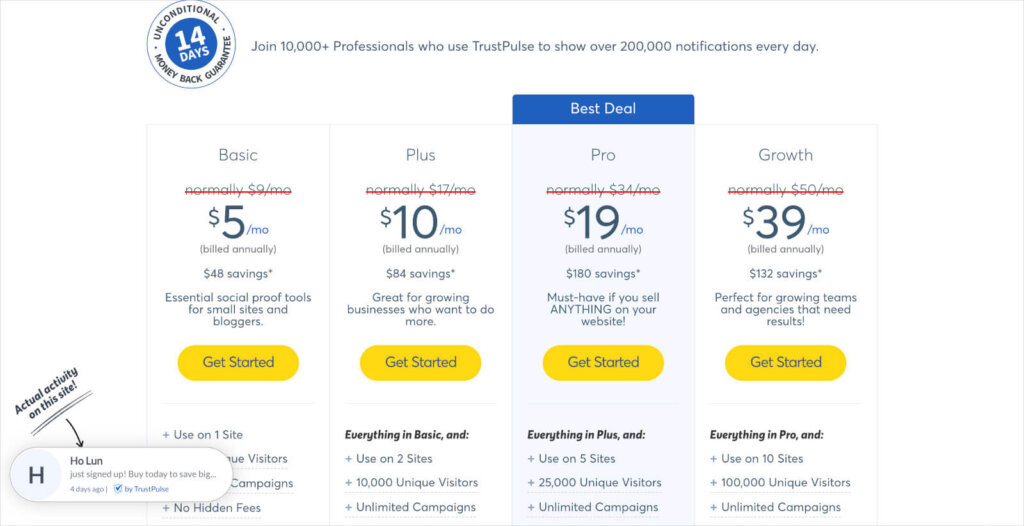
A recent activity notification is a small card in the corner of the page that shows real signups as they happen. This is highly effective because it shows social proof and can also trigger fear of missing out (FOMO).
We show these popups on our pricing pages because that’s where many users are asking themselves whether they can truly trust our product. A popup showing a signup that just happened, from a real customer, answers that exact question without us having to do anything extra.
The easiest way to set up live sale notifications on your website is with TrustPulse. Just make sure to include the real name and action in the popup so that it doesn’t read as generic or fake.
For full details, see our guide on how to use a recent sales popup.
2. An “On Fire” Popup for Anonymous Actions
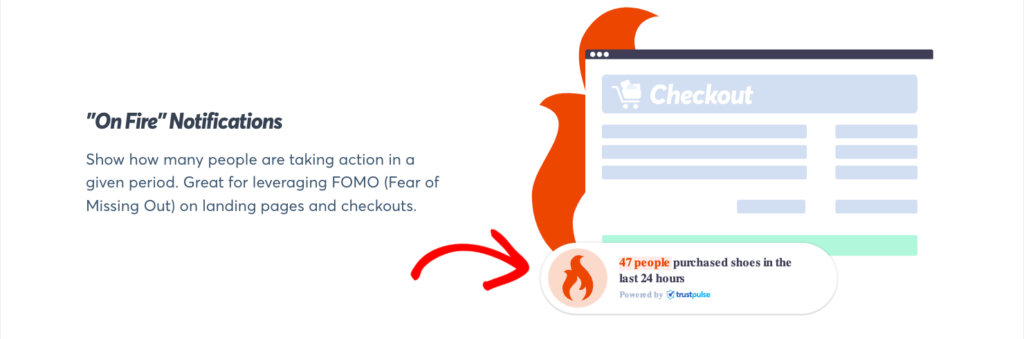
An On-Fire notification is a single popup that shows the number of people who did something on your website in a set period, like 43 signups in a day. This works when the action is anonymous, because the running total still shows social proof without naming anybody.
For example, it’s a good option for showing actions that don’t capture a name, like adding a product to the cart or clicking a demo button. Plenty of visitors never fill in a form, so a count is the only honest way to show that those clicks are happening.
In TrustPulse, this is the On-Fire campaign type, and the setting that matters is Number of days to aggregate. Just make sure to pick a window your site can actually fill, because a low number like 3 actions over 7 days looks worse than no popup at all.
For full details, see TrustPulse’s guide on how to create an On-Fire campaign.
3. A Subscriber Count Inside the Newsletter Signup Popup
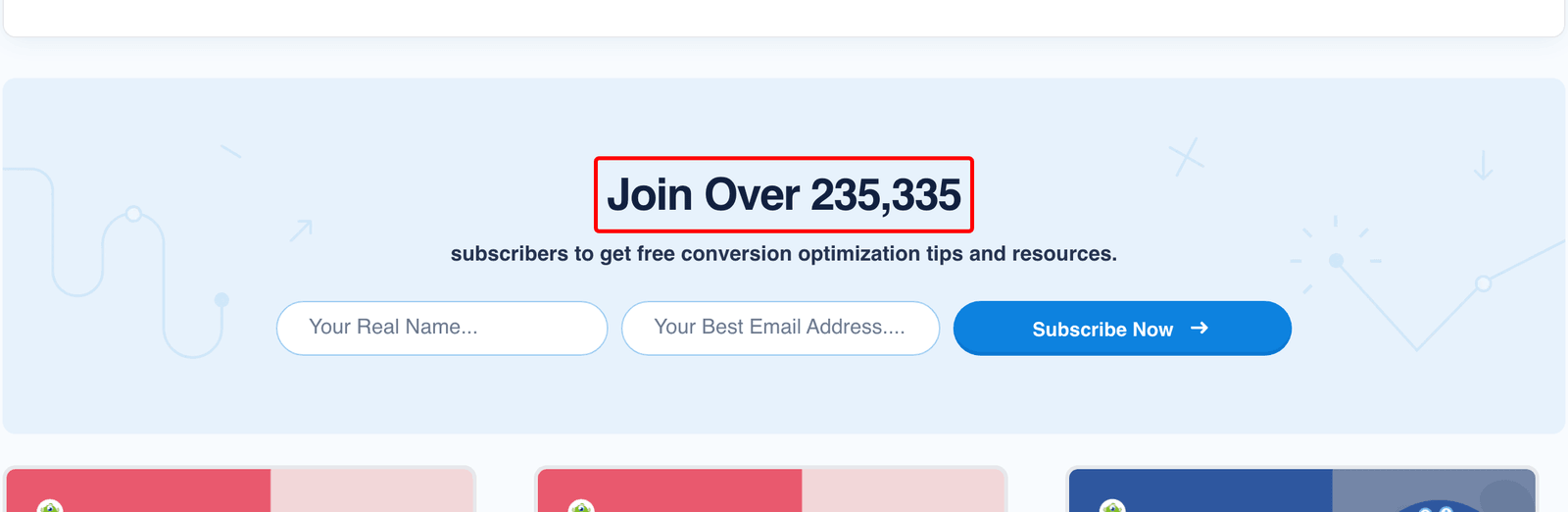
A subscriber count is a line of text inside the optin itself, showing the number of people who have already joined your mailing list. This works as social proof because that number tells a reader other people judged the newsletter worthy of handing over their email address.
For example, we show this social proof in our blog’s newsletter popup, with the heading “Join Over 235,335 subscribers to get free conversion optimization tips and resources.” We keep the number exact rather than rounding it, because an exact figure is harder to fake and readers trust it more.
To set this up easily in OptinMonster, simply add a Text block above the optin fields. Just make sure the count comes before the offer, so that it’s the first thing that anyone reads.
For full details, see our guide to email popup best practices.
4. Trust Lines Inside an Exit-Intent® Popup
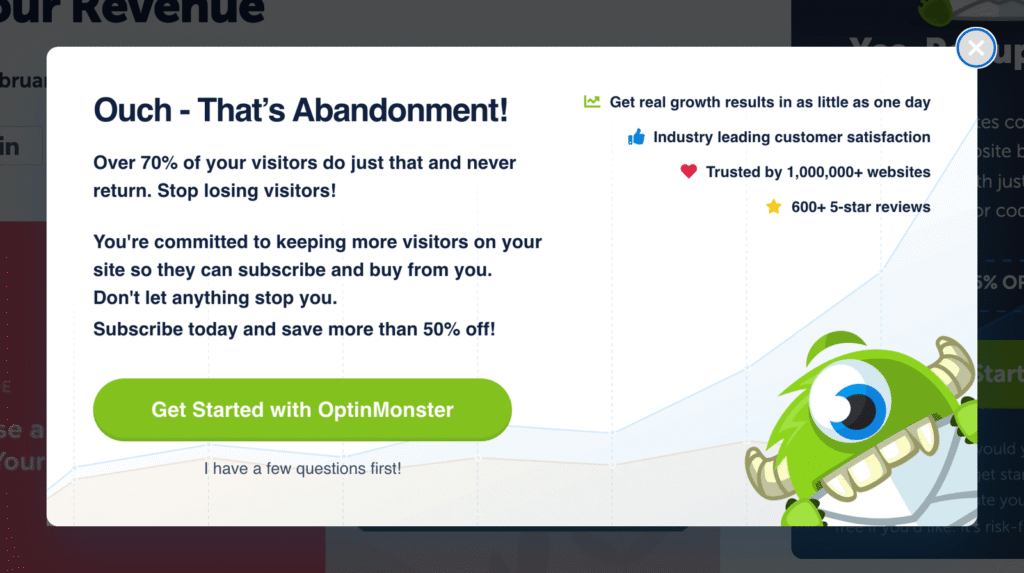
Trust lines are a short list of proof points placed under the button within a popup, usually a few words each. This social proof works well because a visitor who is already leaving will likely read four short lines when they wouldn’t read a paragraph.
We show these on our own exit popup, which fires when someone moves to leave the page. Two of the lines read “Trusted by 1,000,000+ websites” and “600+ 5-star reviews”, so the offer and the proof are visible at the same time.
In OptinMonster, you can easily build them with a Text block, or an Icons block if you want checkmarks beside each one. Keep in mind that Exit-Intent® needs a Pro or Growth subscription.
For full details, see our guide to Exit-Intent® popup examples and how the technology works.
5. One Customer Quote Under the CTA Button
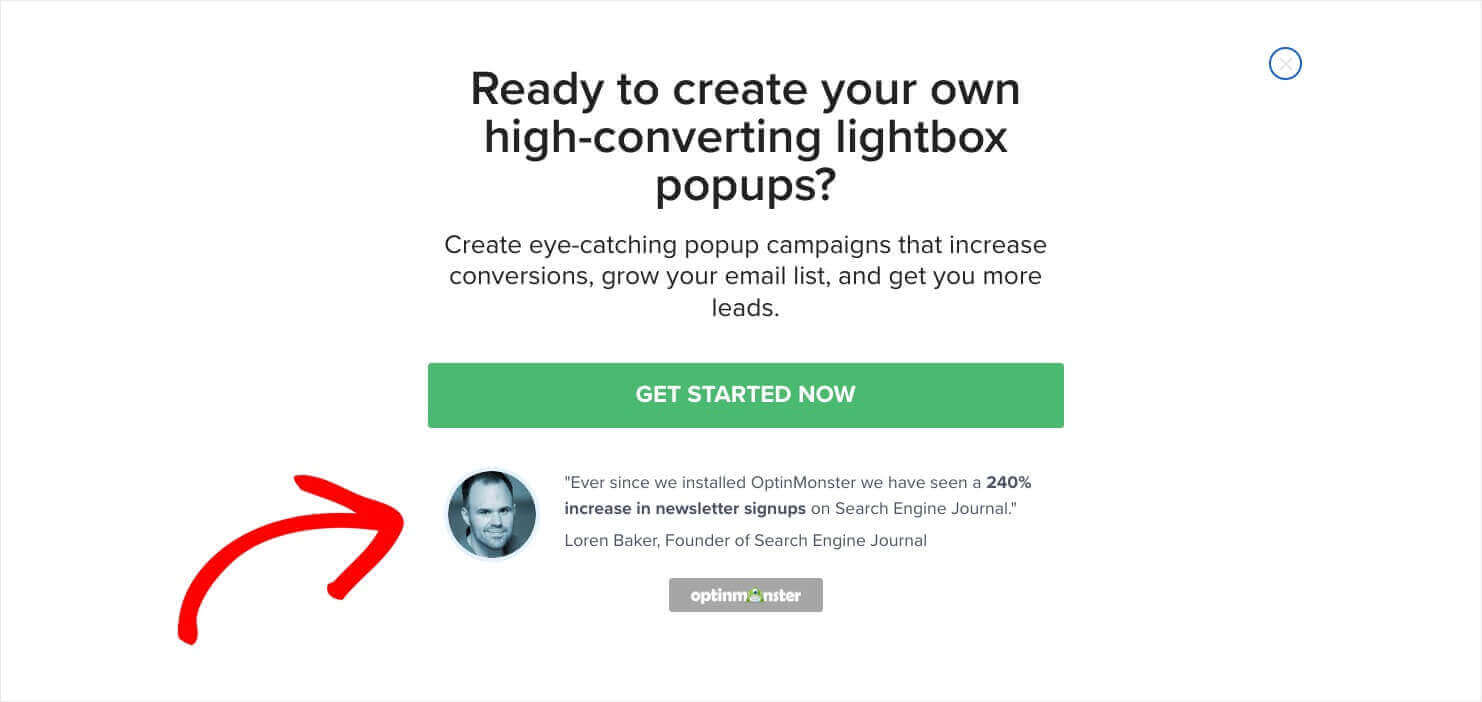
A testimonial popup includes one customer quote, placed directly under the call to action. This works well for a website without a big number of users yet, because one named customer can carry more weight than a count of just 300 subscribers.
For example, we show one of our own customer testimonials under the button in a popup on our website. A reader deciding whether to use our product wants to hear from somebody who already did, in their own words.
In OptinMonster, you can set up the quote using a Text block, with the customer’s name and company underneath it. Just make sure to pick a quote that names a result, and add their photo if you have permission to use it.
For more information, see our guide to customer testimonial examples and how to get them.
6. A Quote and a Count in a Floating Bar
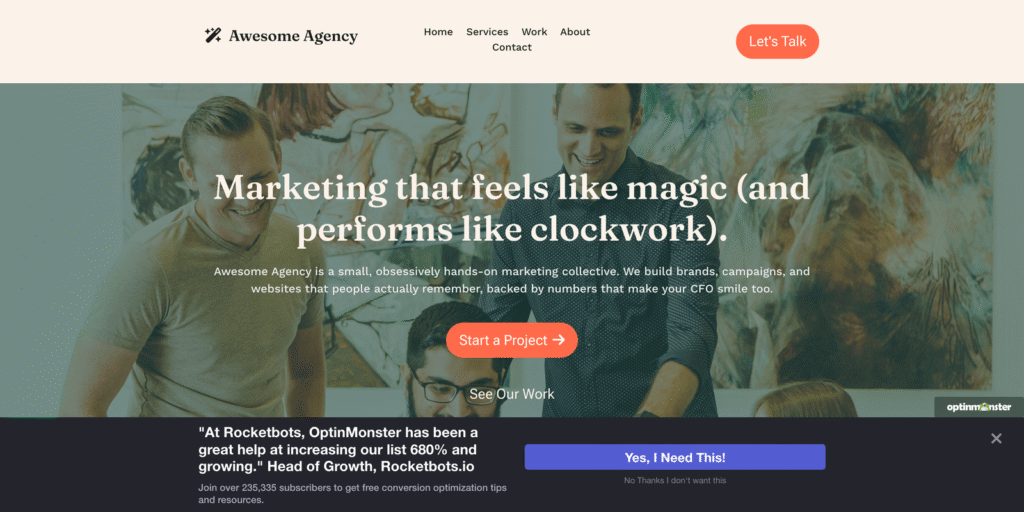
A floating bar is a strip at the top or bottom of the screen that shows off your social proof without covering the page. This works on the pages where a lightbox popup would cost you more than it earns, like a product page or a checkout.
It’s also a good fit for a long tutorial, or any page somebody came to read, because the bar stays visible while the user keeps scrolling.
I recommend pairing one customer quote with a subscriber count and a single button, so that the whole thing is still readable at a glance. It’s also a good idea to name where the quote comes from, whether that’s Google, G2 or your own store, so that a visitor can go and check.
For more information, see our guide on how to add a floating bar.
7. Proof Shown Only to New Visitors
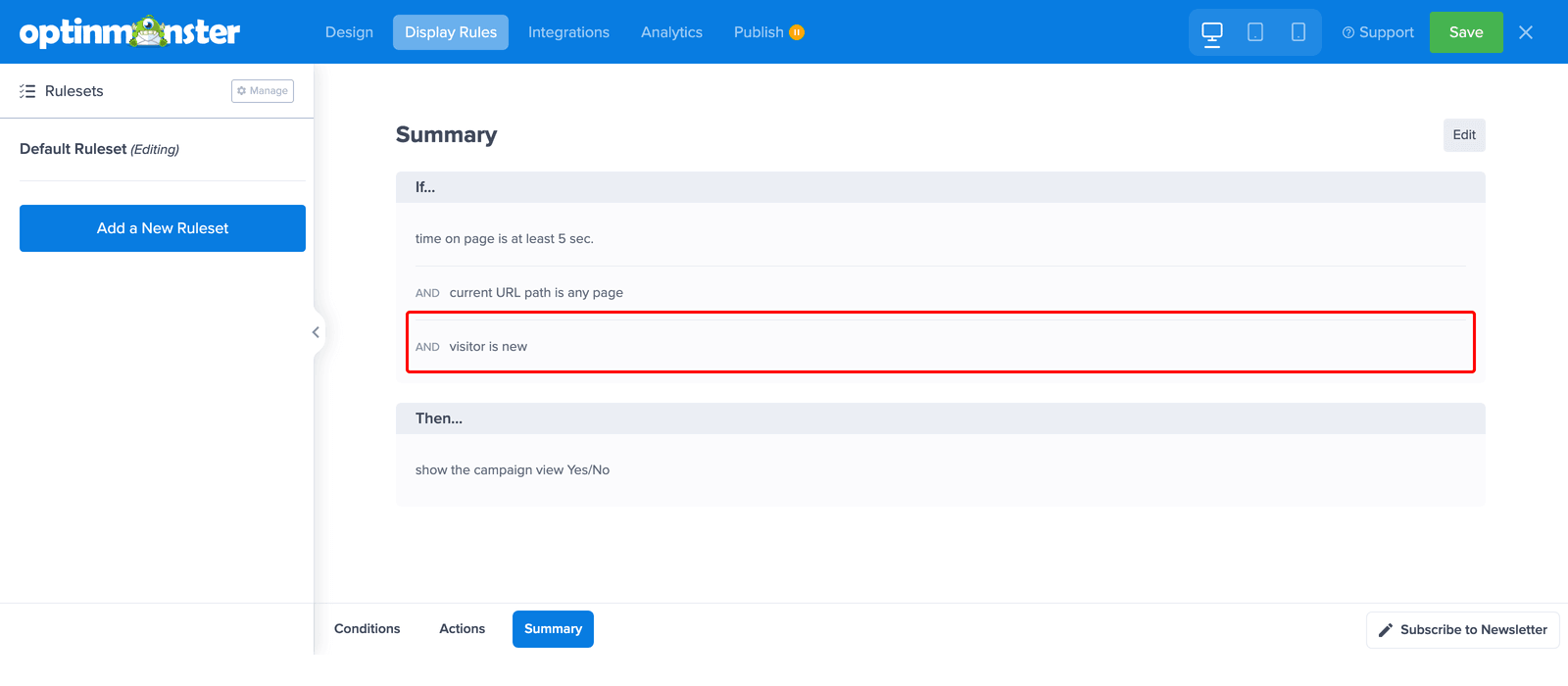
A New Visitor rule shows your proof popup only on somebody’s first session. This works because social proof is designed for people who don’t know you yet, so a customer on their fifth visit may just read it as noise.
You can pair this display rule with any of the six social proof popup examples above to make it more impactful on first-time visitors.
In OptinMonster, you add it in the Display Rules view and even add a delay of a few seconds so that it doesn’t show up immediately. You could also add a referral rule, so visitors arriving from a review site see a popup that names that site.
For full details, see our guide on how to use display rules.
When Not to Use a Social Proof Popup
Now, there are some cases when it’s not the best idea to include social proof in your popups. Before you switch on an activity feed, check your own numbers against a simple test. Would they impress you on somebody else’s website?
Here are some examples:
- Your store gets a couple of orders a day. A recent activity feed shows the same two names for hours, and people spot it fast. I’d use one customer quote instead, which works at any size.
- Your site is brand new. You have no activity worth showing yet. I’d collect a few real reviews first and add the popup after that.
- On mobile the popup lands on a buy button. A shopper taps the popup instead of the button. Make sure to keep it in a corner, and give it a few seconds before it appears.
How to Add Social Proof to a Popup in OptinMonster
It’s super easy to create a social proof popup in OptinMonster. All you need is an OptinMonster account and a campaign, which can be any of the 700+ templates.
- Open the campaign in the builder. The Design view shows your blocks and settings on the left and a live preview on the right.
- Drag a Text block from the left sidebar onto the preview, above or below your button. Type the proof line: a count, a rating, or a quote.
- For star ratings or checkmarks, drag an Icons block instead and pick the icon from the library. For a customer photo or a logo, use an Image block.
- Click any block in the preview to edit its copy, size, or color in the left pane.
- Open the Display Rules view and add the rule that decides who sees it: a page, a time delay, Exit-Intent®, or New Visitor.
- Open the Publish view, set the status to Live, and check that you’ve assigned the campaign to your website.
For a full walkthrough, see our guide on how to create a newsletter popup.
Social Proof Popup FAQs
What is an example of social proof?
A newsletter form headed “Join Over 235,335 subscribers” is social proof. So is a notification reading “Sarah from Ohio just signed up,” a star rating with its review count, or a quote beside a buy button.
What’s the difference between a social proof popup and a social proof notification?
A social proof notification is a small card in the corner of the page that shows real activity, like recent signups, as it happens. A social proof popup can also be a normal optin popup with a trust line or testimonial built in, and it works at any size.
Do social proof popups look fake?
They look fake when the activity is thin or invented, like a purchase feed on a store that gets two orders a day. Show only real activity, aggregate sparse events into a count, and use a single customer quote until your volume can carry a feed.
Get Started With Social Proof Popups
Make sure to pick the social proof popup example that matches your volume. If your site has steady signups or sales, a notification feed on the pricing or checkout page is the fastest win.
If it doesn’t, then a subscriber count or one customer quote inside the popup you already run will do more than a feed ever could.
Ready to put your proof where visitors decide? Get started with OptinMonster today.
Disclosure: Our content is reader-supported. This means if you click on some of our links, then we may earn a commission. We only recommend products that we believe will add value to our readers.
One response to “7 Social Proof Popup Examples (That Actually Work)”
-

Adding a real subscriber count to the opt-in form worked really well for our blog conversions. Have you tested whether showing exact live sale notifications or fnf an aggregated count performs better on high-traffic checkout pages?

Add a Comment