By default, all OptinMonster campaigns appear on all devices. But we’ve made it super simple to create campaigns that appear ONLY on mobile devices using these templates specifically designed to convert better for mobile users.
In this article, you’ll learn how to create a campaign that appears only on mobile phones using one of our mobile-only templates.
Before you start, this feature is available with a Pro and higher subscription.
Before you start, mobile-only templates will show on mobile phones by default with no option to show them on other devices.
Before you start, while mobile-only templates are designed just for mobile, you can target any other campaign to be shown on specific devices using our Device Targeting display rule.
Create Mobile-Only Campaign
When you create a campaign in OptinMonster you can optimize the design and target only mobile traffic on your site using our mobile templates.
To create a mobile-only campaign, follow these steps:
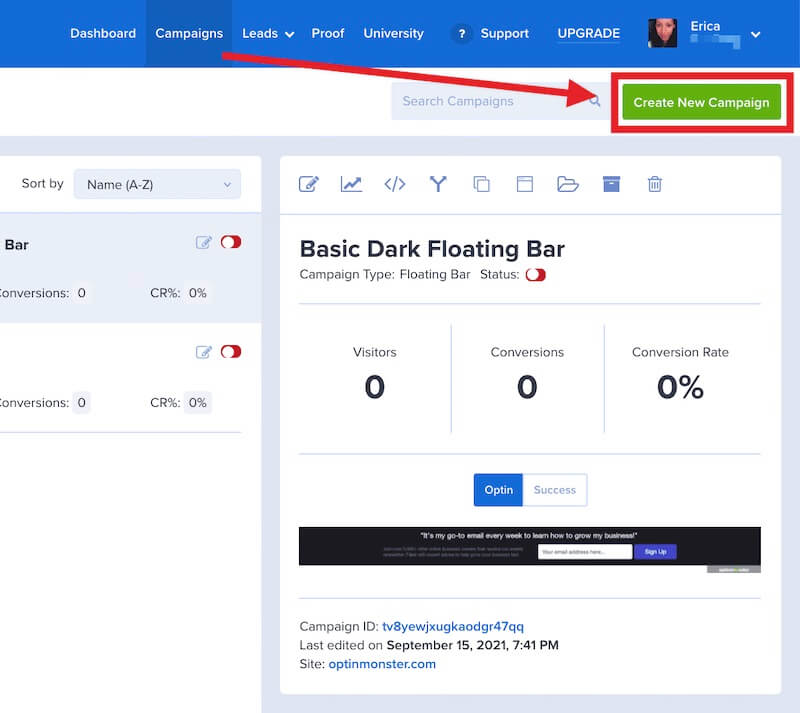
- From the Campaigns screen, select the Create New Campaign button.

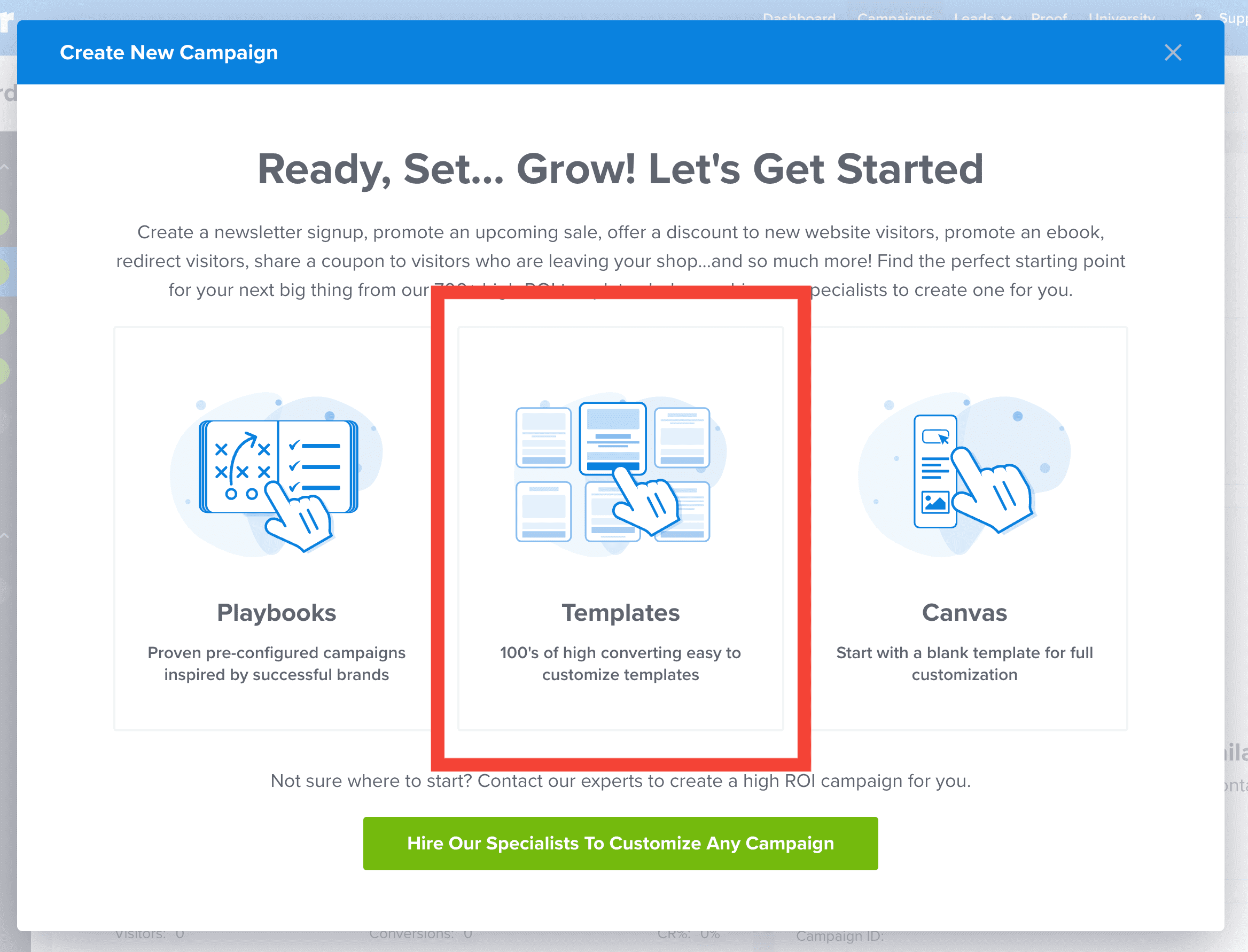
- From the modal, select Templates as the type of campaign you’d like to create.

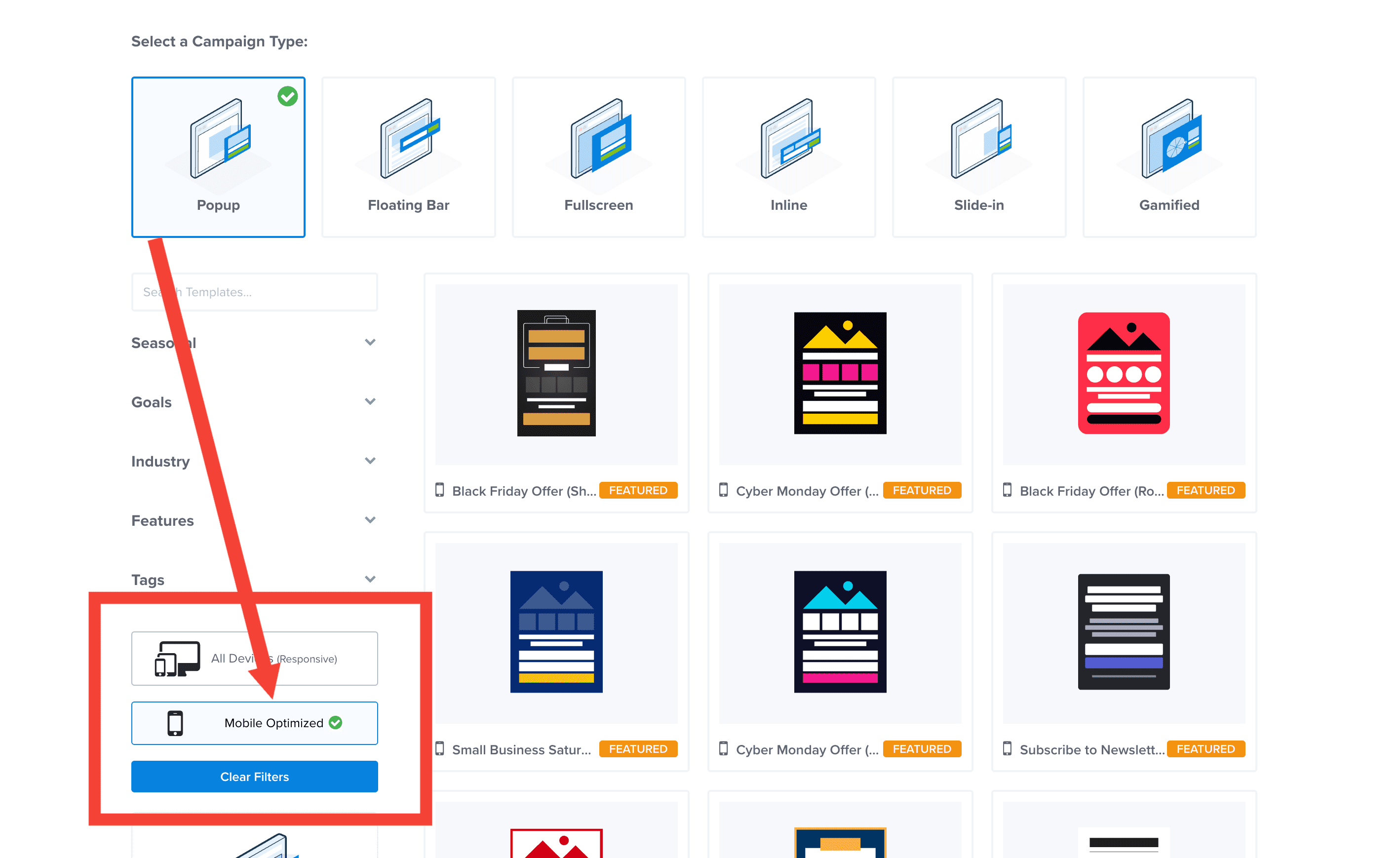
- On the next screen, once you’ve selected the Campaign Type, filter the templates available using the Mobile Optimized option.
- Choose the template you wish to use for your campaign and proceed with creating your campaign as usual.
- Your new mobile campaign will show only on mobile phones with no option to target other devices.
Convert to Mobile-Only
You can also convert any existing campaign to be mobile-only.
To convert a campaign to mobile-only, follow these steps:
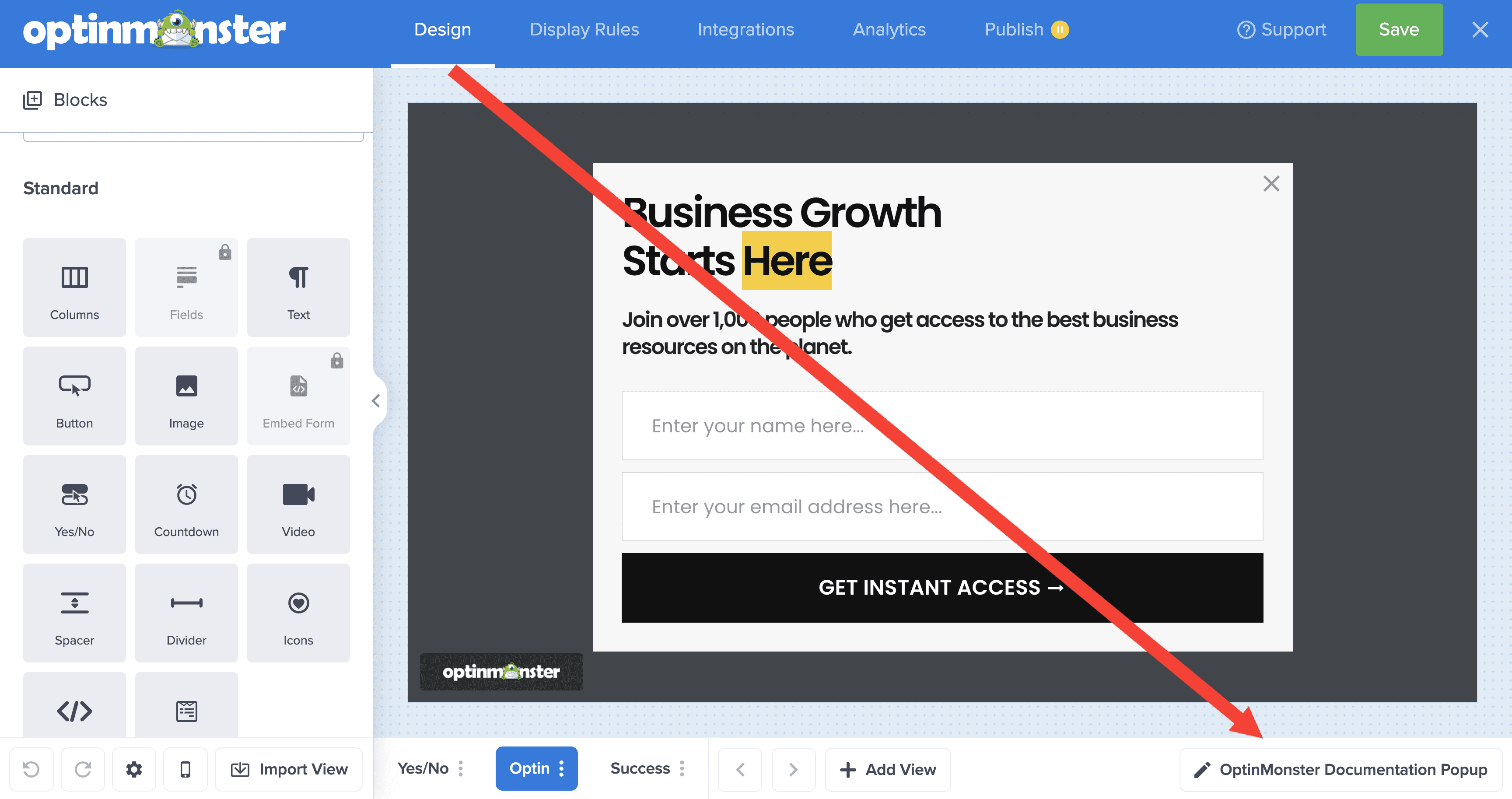
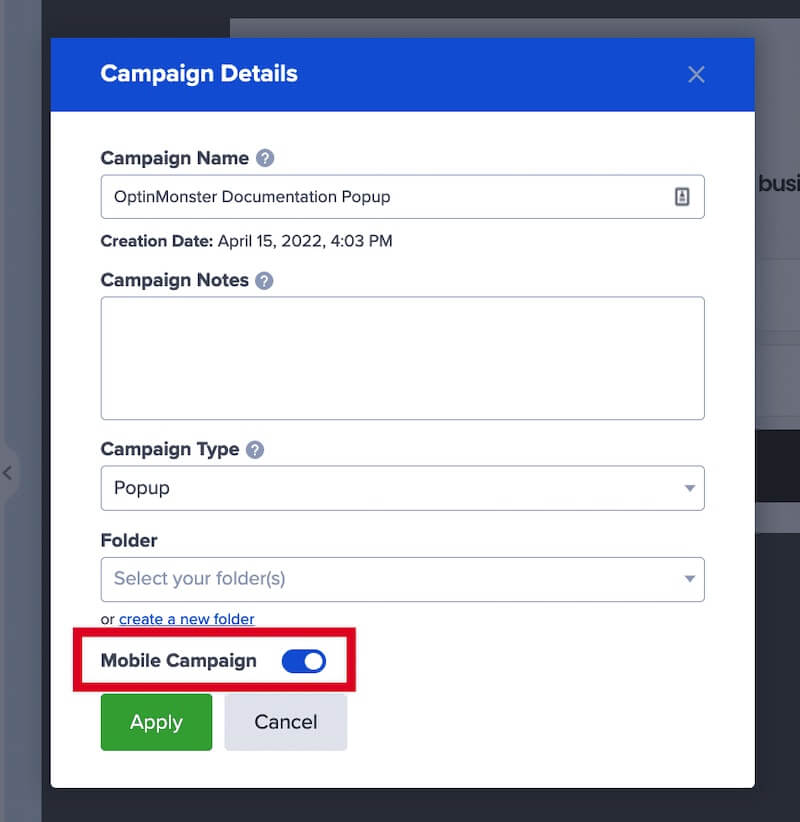
- In the campaign builder, select the Campaign Details in the bottom footer bar.
- A popup modal will appear where you can enable Mobile Campaign.

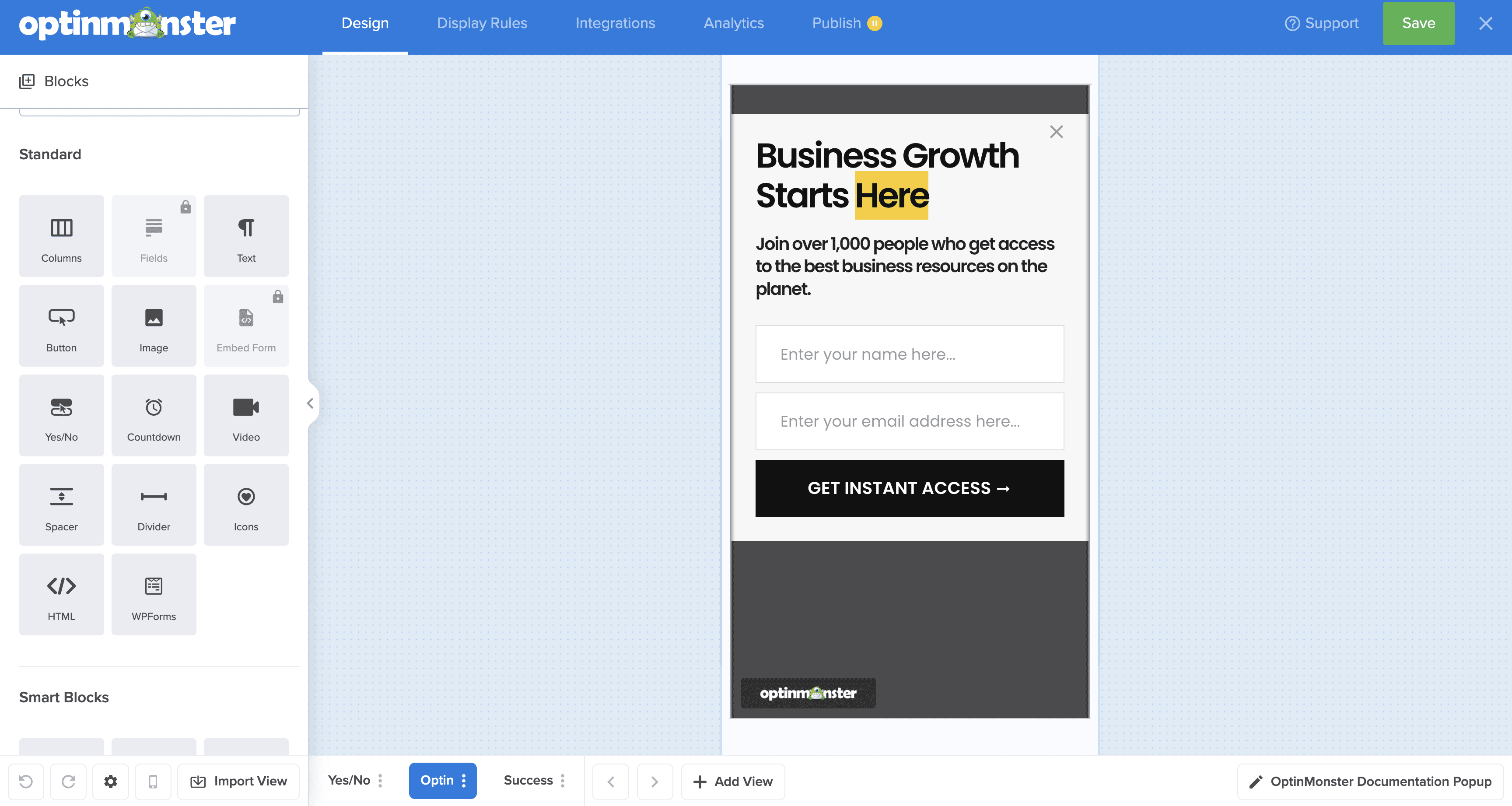
- Once applied, your campaign will update to appear within the bounds of a mobile phone preview in the builder, like this:
- When you’re finished, Save your campaign.
- Your campaign will now show only on mobile phones by default.
Designing for Small Screens
A campaign that looks great on a desktop monitor can feel cramped on a phone. Here are the design choices that make the biggest difference on a small screen.
Single-Column Layouts
Our mobile optimized templates use a single column, and that’s the layout we recommend building with. On a phone, OptinMonster stacks the columns of a row on top of each other for you, so a two-column design won’t sit side by side for your mobile visitors anyway. When you build in one column from the start, you’re the one deciding the order your content appears in.
Spacing and Padding
Padding that looks generous on a desktop leaves very little room for your content on a phone, so we recommend keeping it light. OptinMonster already relaxes the row padding on a Popup campaign to a percentage of the screen for small devices, and heavy padding of your own on top of that eats into the space your message needs. Where a setting lets you pick between PX and %, the percentage is the safer choice, because it scales with the screen instead of staying fixed at one size.
Campaign Width on Phones
The Max Campaign Width setting, found under View Styling in the builder’s Settings panel, is shared across the Desktop, Tablet, and Mobile views. On a phone, OptinMonster sizes your campaign to 90% of the screen width and centers it, which takes priority over whatever value you have entered there. That means narrowing this setting won’t change what your mobile visitors see, so there’s no need to adjust it on their behalf.
Note: If you need a width on phones that’s different from the automatic one, you can set it yourself by adding Custom CSS to your campaign.
FAQs
Can I convert a mobile-only campaign back to a standard campaign?
Yes! Just follow the steps in the previous section, toggling the Mobile Campaign option off and saving the change. Please note that you may need to edit the campaign’s design to fit your needs after converting to or from mobile-only.
Do I have to have a campaign specifically for mobile traffic?
Not at all. If it better fits your workflow and goals you can instead create a standard campaign. If your campaign is not mobile-only, it will show on all devices by default and you can use the Display Rules to target the campaign to Desktop, Tablet, and/or Mobile Phone.
We typically recommend creating a separate campaign just for mobile visitors so you can better control the design on small devices and track the conversion rate specific to mobile traffic.
How do I stop my campaign for Desktop traffic from also showing on Mobile?
You can control which devices your standard campaigns appear on using the Display Rules.
Troubleshooting
Why does my campaign design look weird after I’ve converted it?
You may need to adjust the campaign design after converting to or from mobile-only. This is not necessary if you create a mobile-only campaign from the start and do not convert because the design is already optimized for small screens.
Our pre-made mobile optimized templates use a single-column layout since this is best for small screens. The campaign you wish to convert to mobile may have a template with two or more columns.
Before you convert a campaign, we recommend you add a single column to the campaign, move all content within that column, and remove the previous multi-column block before proceeding.
This will ensure there is no unexpected whitespace above, below, or between elements in your campaign once converted to mobile-only.
Why is my campaign not showing in Safari’s private browsing mode?
If your campaign is not showing in Safari’s private browsing mode and your site has the OptinMonster embed code loaded via Google Tag Manager (GTM), it is likely due to Apple’s new Advanced Tracking and Fingerprinting Protection, which is enabled by default in Safari’s private browsing mode on iOS 17.
This protection appears to block Google Tag Manager, preventing the OptinMonster embed script from loading and causing campaigns to fail to display. You can Reduce Protections in a private browsing tab, and your OptinMonster campaigns should appear as Google Tag Manager is unblocked.
To avoid this issue, we recommend adding your OptinMonster global embed code directly to your site. This approach bypasses Safari’s privacy restrictions entirely and ensures campaigns will load, even when the default protections are enabled.