Do you want to grow your email list and recover more sales from your OpenCart store? OptinMonster works on any website where you can add our embed code, including OpenCart, so you can show popups, floating bars, and other campaigns to your shoppers. In this article, you’ll learn how to add OptinMonster to your OpenCart store.
Before You Start
Here are some things to know before you begin:
- This guide uses the menus in OpenCart 4. If you’re on an older version, some menu names and screens may look a little different.
- You’ll need to log in to your OpenCart admin area with a user who can edit your store’s design and settings.
- OpenCart has everything you need built in. You can add OptinMonster to your whole store with the Theme Editor, or to a specific page with the HTML Content module.
Copying Your Embed Code
After you’ve created a campaign in OptinMonster, you’ll want to embed it on your OpenCart store.
To copy your embed code, follow these steps:
- In the OptinMonster campaign builder, navigate to the Publish view and copy the Global Embed or Campaign Embed code.

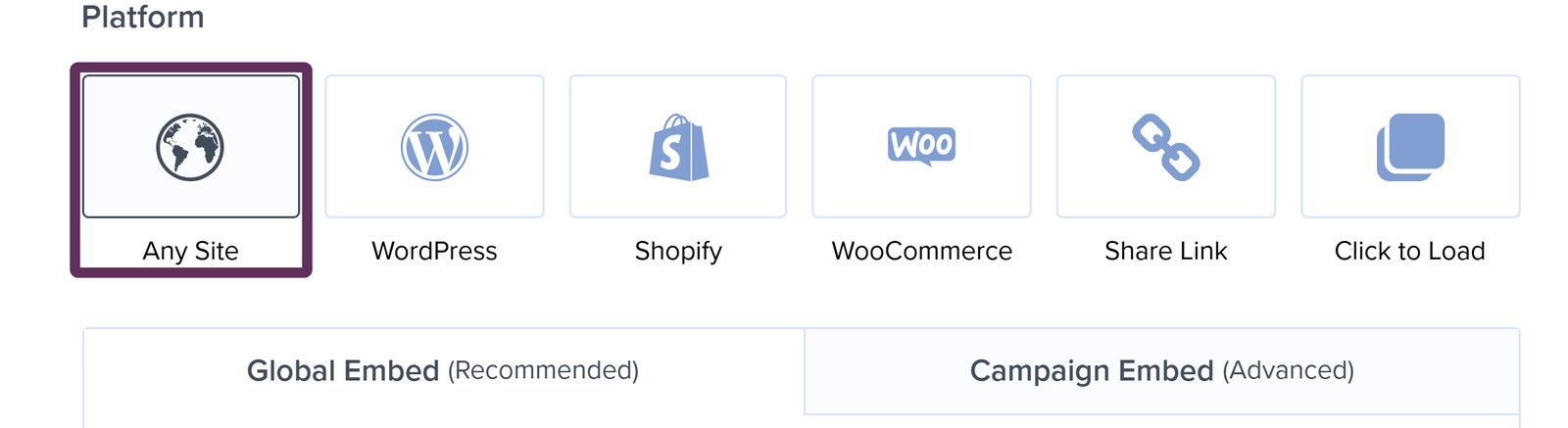
Note: To show a campaign on just 1 page, like an Inline campaign inside your page content, use the Campaign Embed (Advanced) code instead. We’ll cover that in the Embedding a Campaign on a Specific Page section.
Using the Theme Editor
OpenCart’s Theme Editor lets you add the embed code to your store’s footer template without installing anything.
To add the embed code with the Theme Editor, follow these steps:
- First, navigate to Design > Theme Editor in your OpenCart admin area.

- Next, click the blue + button (Add New).
- Then, choose your store from the Store dropdown.
- After that, select common/footer from the Choose Template list.

- In the Code box, scroll to the bottom of the template and paste your embed code just before the closing
</body>tag. In the default template, it’s on the last line, written as</body></html>.
- Now, make sure the Status toggle is turned on, so your change goes live on your store. It’s on by default.
- When you’re finished, click the Save button (the disk icon).
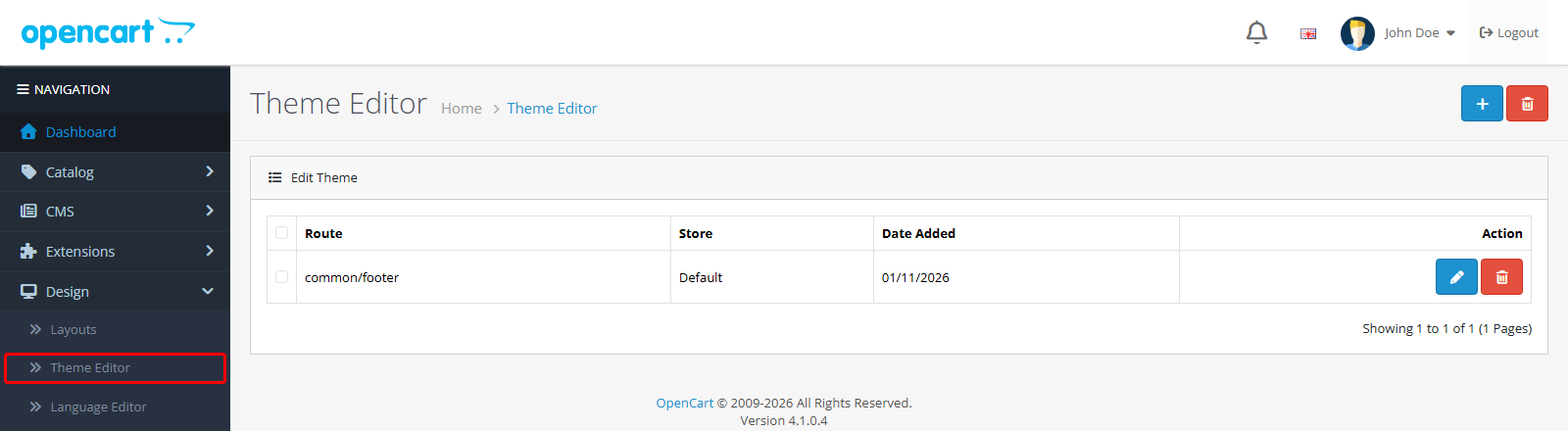
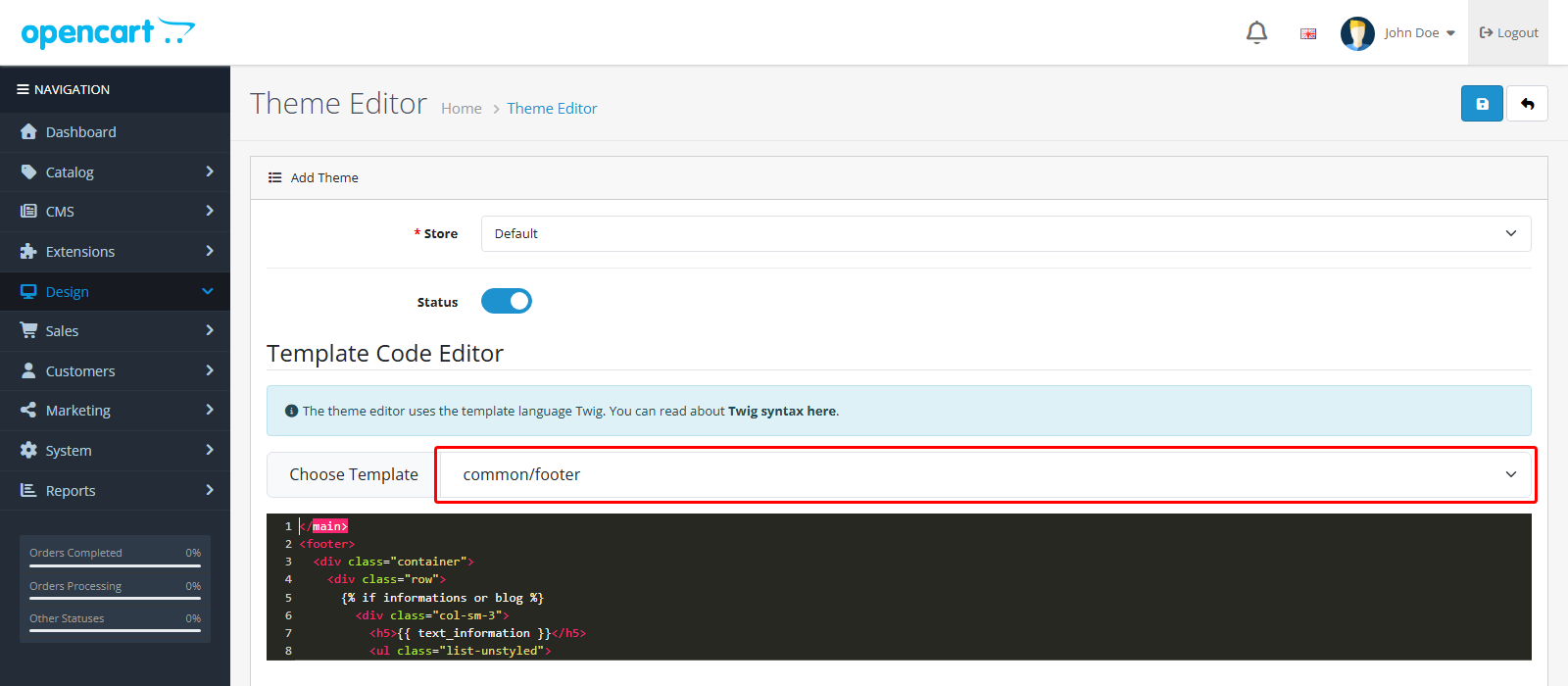
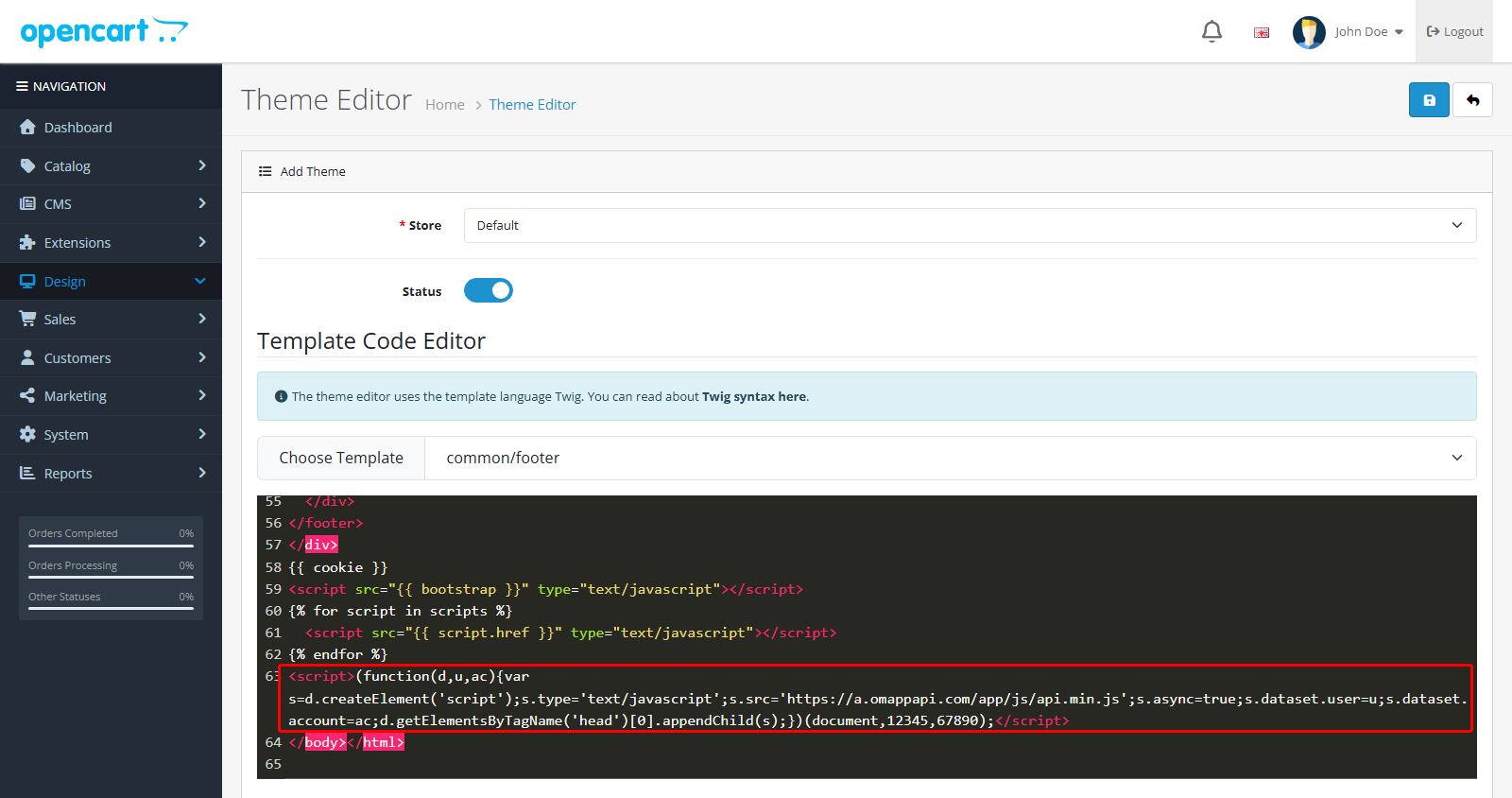
Note: The Theme Editor saves your changes as a separate copy, so your original theme file stays untouched. If you need to edit the embed code later, open your saved template from the list instead of adding a new one.
Using a Code Extension Instead
If you don’t want to edit a template, you can add your embed code with a custom code extension from the OpenCart Marketplace, like Custom Code CSS and Javascript.
Important: This is a paid, third-party extension that OptinMonster doesn’t maintain. For help installing or using it, reach out to the extension’s developer.
Embedding a Campaign on a Specific Page
When you add an Inline campaign, you’ll need to place its embed code inside the page content where you want it to show up. You can also use this method to show any campaign on just 1 page of your store.
To embed a campaign on a specific page, follow these steps:
- First, copy the Campaign Embed (Advanced) code from your campaign’s publish settings.
- Next, navigate to Extensions > Extensions in your OpenCart admin area.
- Then, choose Modules as the extension type.
- After that, find HTML Content in the list.

- Next, click the blue + button for HTML Content to add a new module.
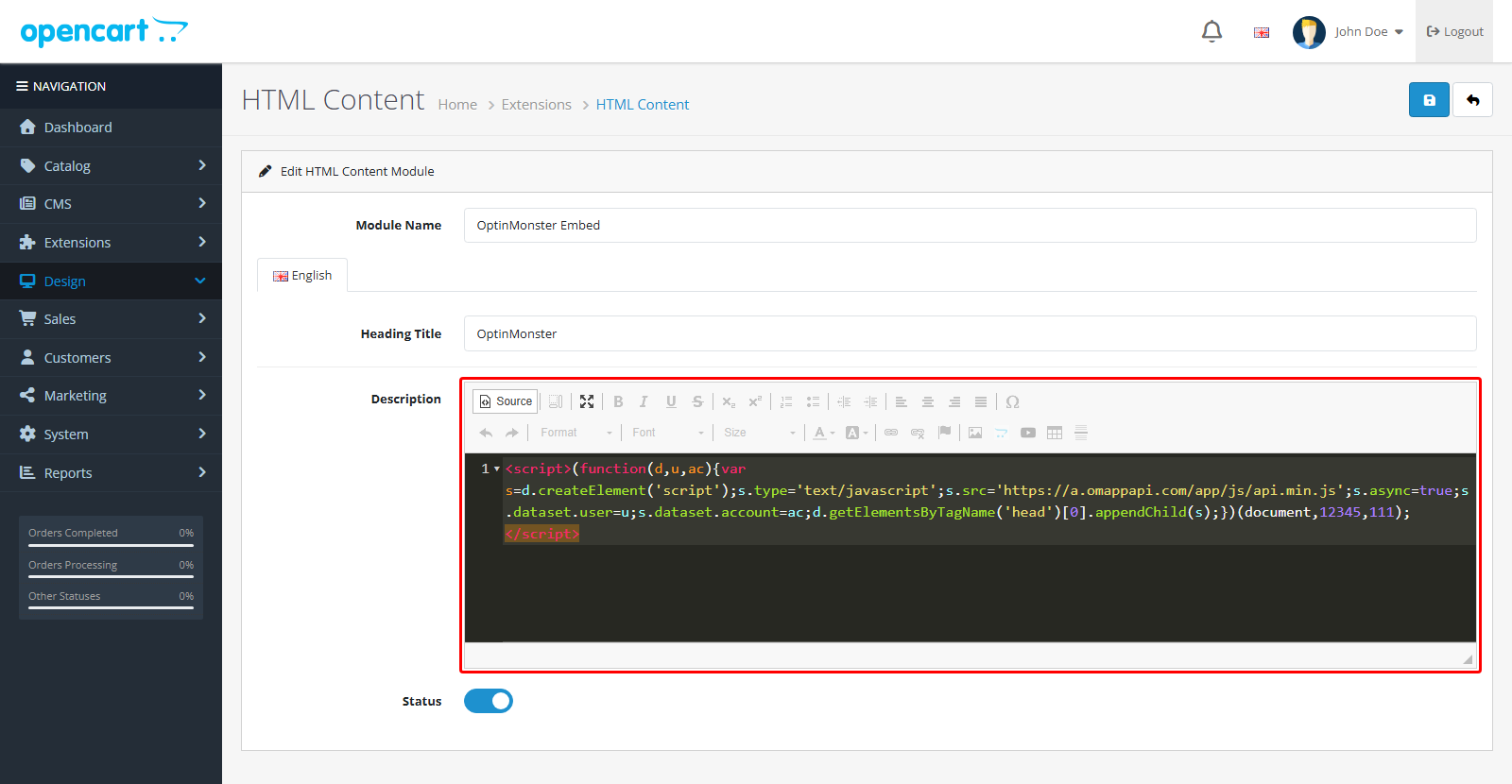
- Now, enter a Module Name.
- In the Description editor, click the Source button.
- Then, paste your embed code.

- Next, turn on the Status toggle.
- Then, click Save.
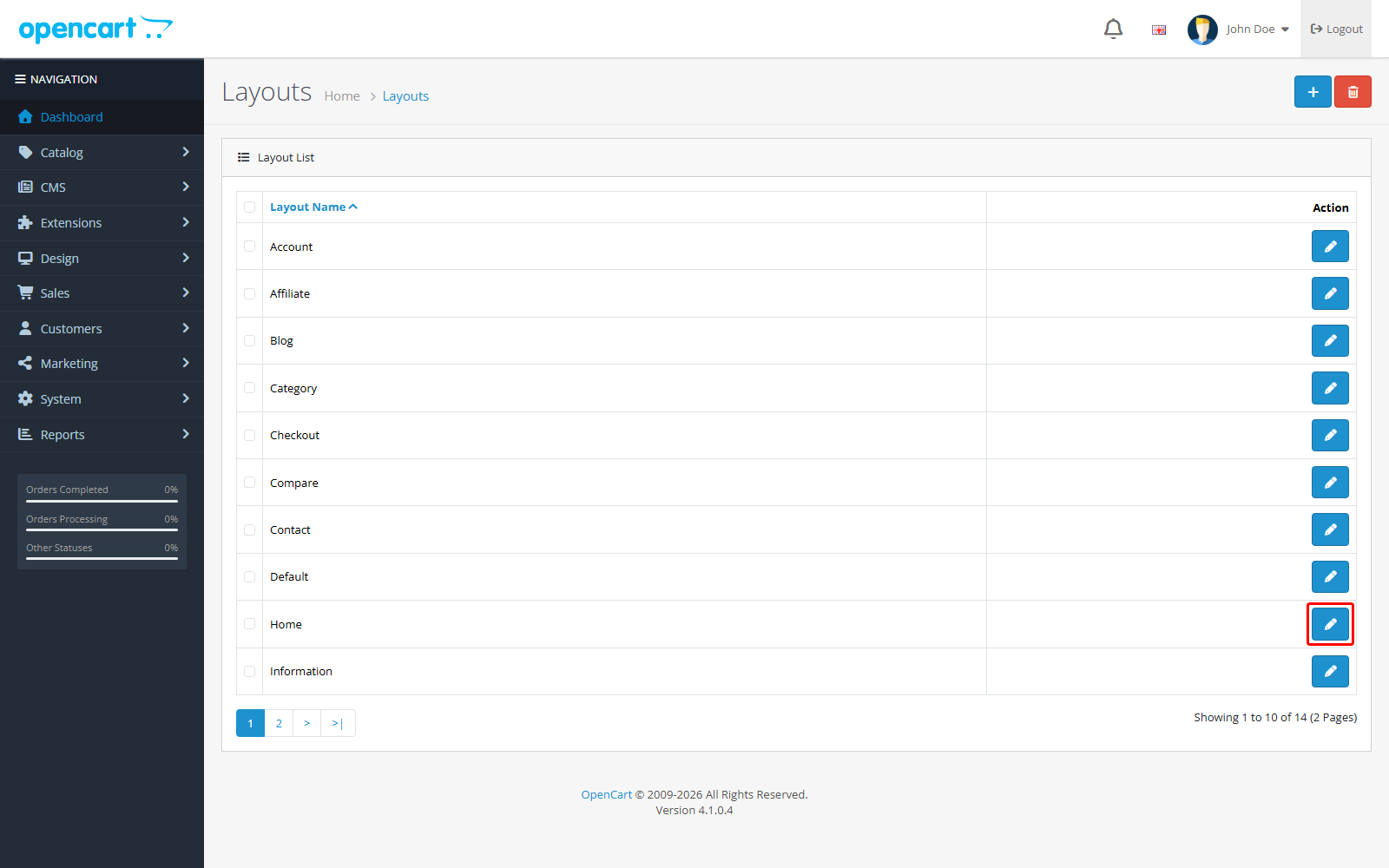
- After that, navigate to Design > Layouts.

- Next, click the edit button for the layout of the page where you want your campaign to appear, like Home.
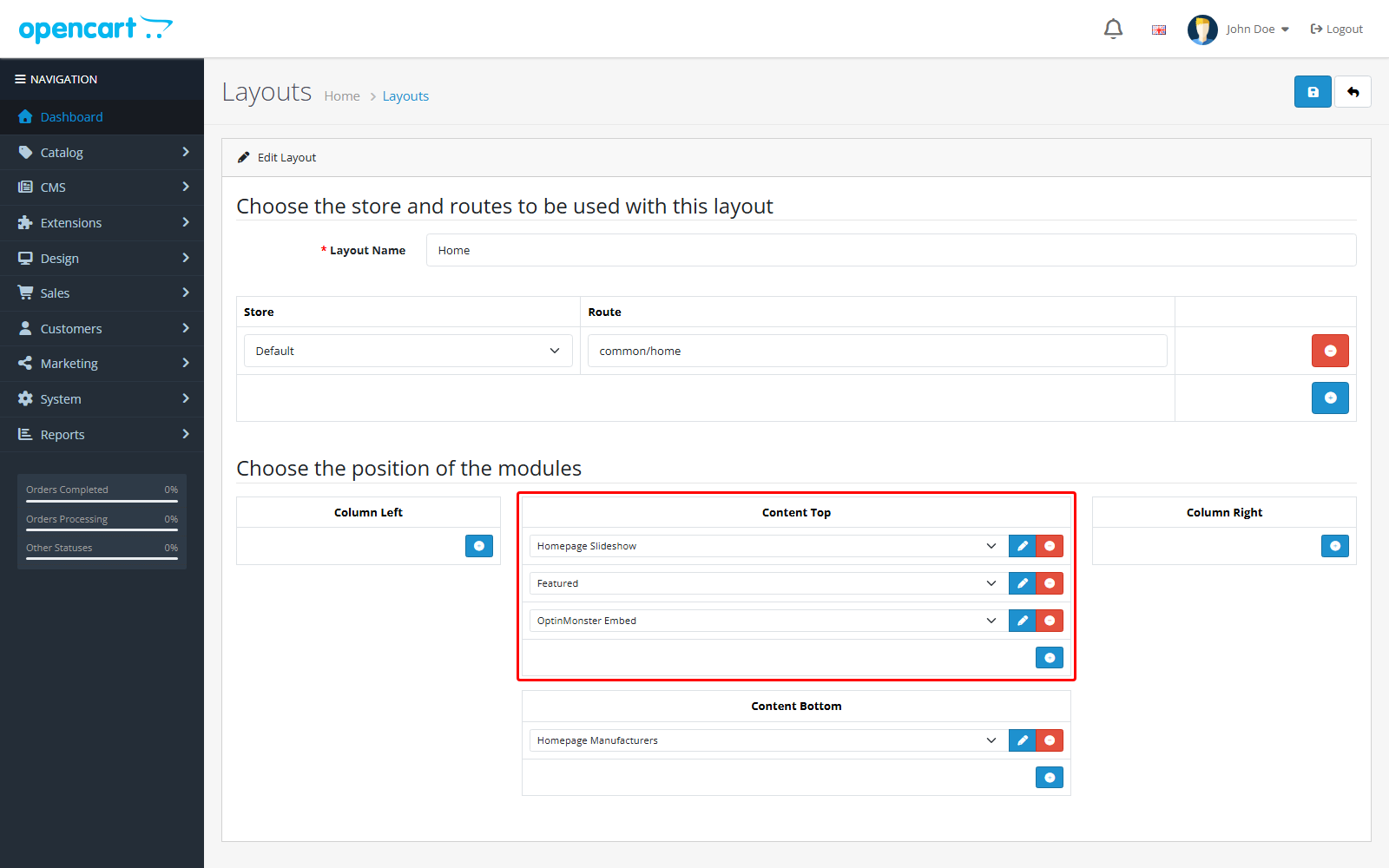
- Then, add your HTML Content module to a position, like Content Top.
- When you’re finished, click Save.
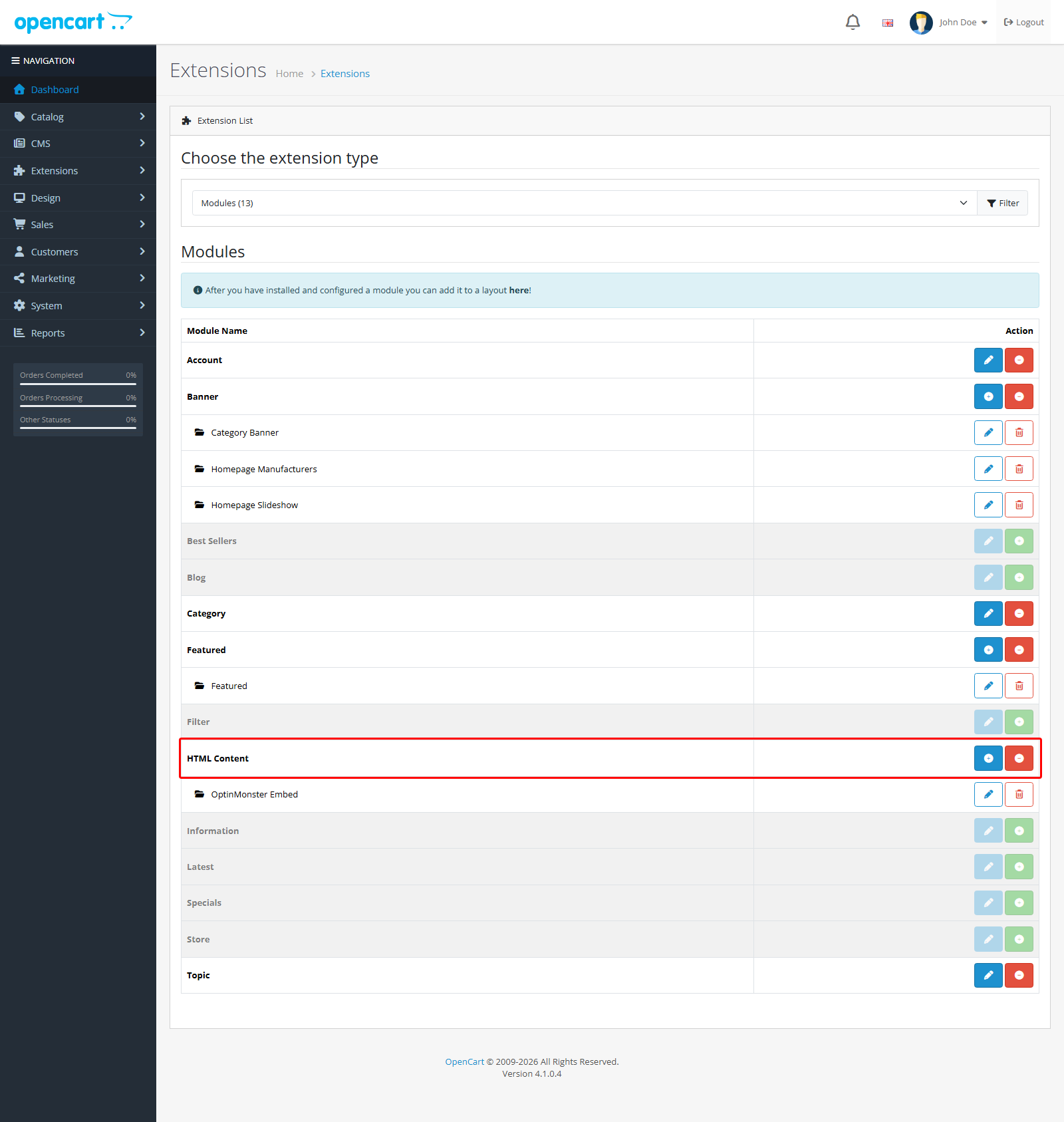
Note: If HTML Content isn’t installed yet, click the green install button next to it in the module list before you edit it.
That’s it! Now you know how to add OptinMonster to your OpenCart store.
How to Test an OptinMonster Campaign
Troubleshooting
What domain do I enter when I create my campaign?
When you add your website to the campaign, enter your OpenCart store’s domain, like example.com.
Why isn’t my campaign showing on my store?
First, make sure your campaign is published and that you saved your embed code. If you used the Theme Editor, check that its Status toggle is on.
Then, use the Live Site Inspector to see which settings might be stopping your campaign from showing. You’ll find the steps in our guide on how to test an OptinMonster campaign.