OptinMonster makes it easy to customize your campaign’s appearance across Desktop, Tablet, and Mobile devices. Creating device-specific designs gives you total control over how your campaign looks on any screen size.
In this article, you’ll learn how to use device-specific design controls in the campaign builder.
Device Specific Designs is currently available through Early Access.
Early Access users get to use and test new features and improvements before other customers (or your competition) in exchange for providing feedback about those features.
Device-Specific Design Controls
To get started, open the campaign you wish to edit in the campaign builder.
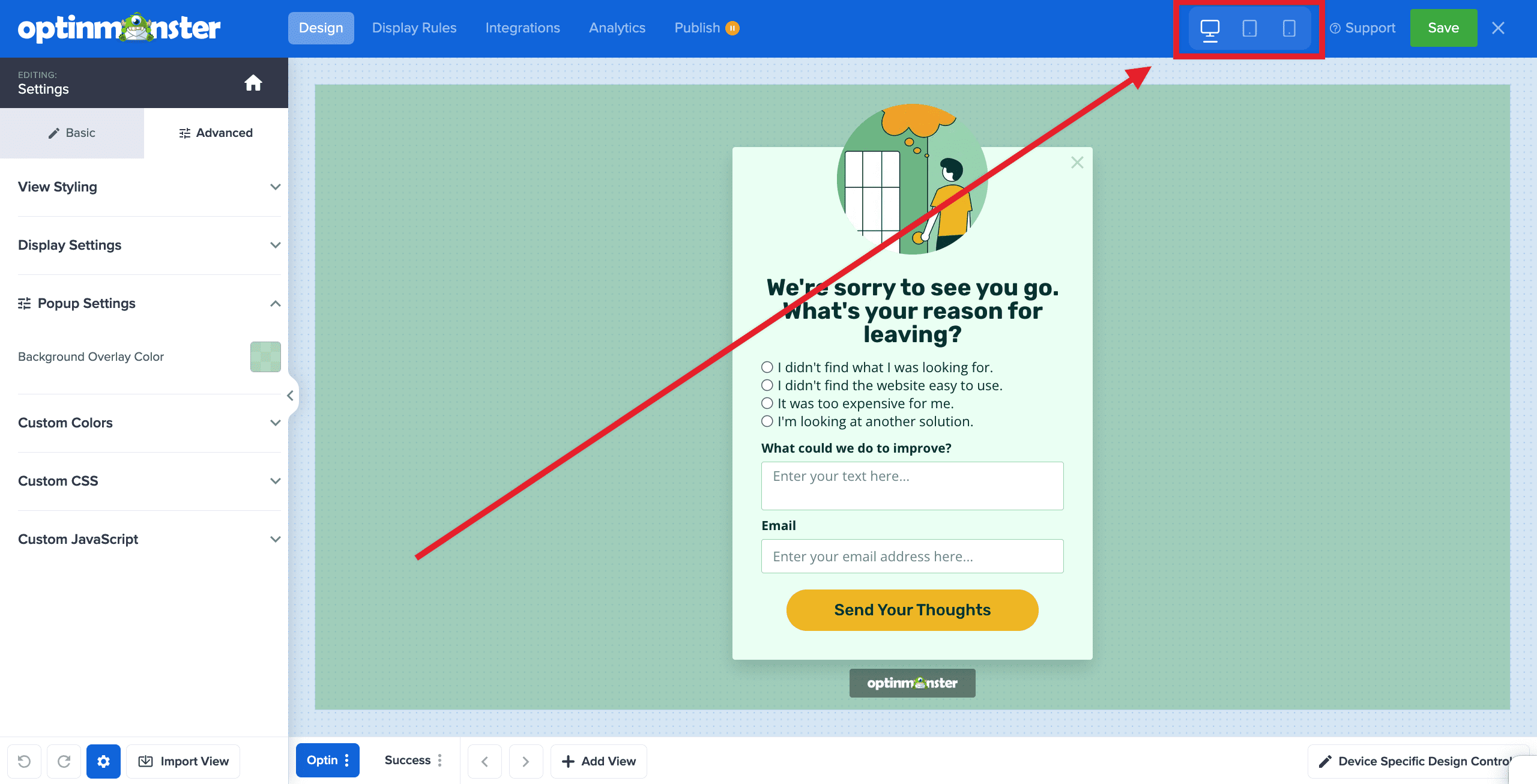
In the upper right-hand corner of the builder, you’ll find individual toggles that allow you to seamlessly switch between Desktop, Tablet, and Mobile design views.
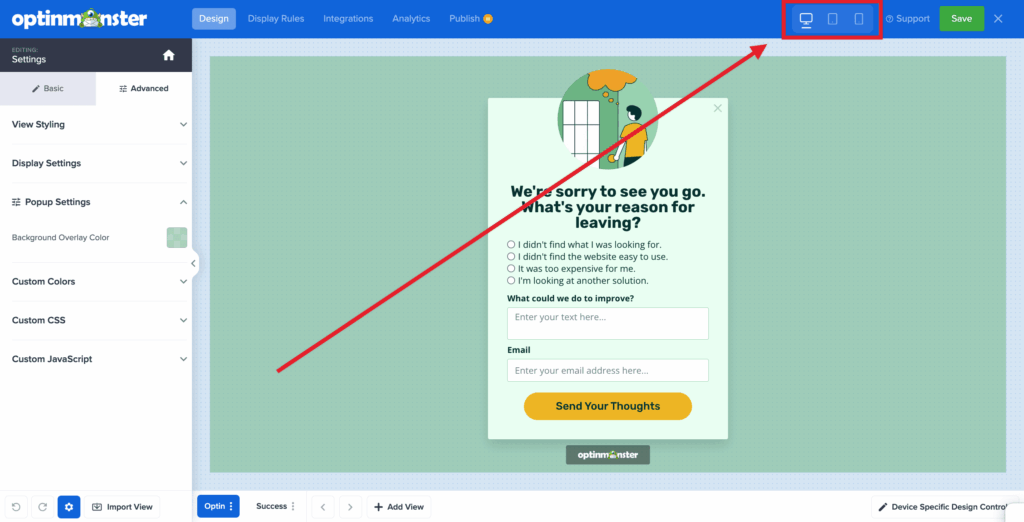
You can now proceed to edit the styling of your campaign.
⚠️ Important: How Style Cascading Works
By default, styles cascade downwards: Desktop > Tablet > Mobile. All three devices are linked until you choose to customize one of the smaller devices (Tablet or Mobile).
When you change a style setting or hide a Block on a smaller device (like Tablet or Mobile), you “break the link” for that specific element. It becomes independent and will no longer inherit changes from the larger device views.
Example 1 (Editing Tablet): If you change a Text Block’s font size from 20px to 16px in the Tablet view, Desktop and Mobile will stay at 20px; only Tablet will update to 16px.
Example 2 (Editing Mobile): If you change a Text Block’s font color to red in the Mobile view, Desktop and Tablet will keep their original color, while only Mobile becomes red.
Example 3: You just created a campaign and have made no edits to any Device yet. At this point, all three Devices are linked, and styles cascade from Desktop. You hide a Block in Desktop. The same Block is hidden in both Tablet and Mobile.
Example 4 (Editing Tablet): You hide a Block on Tablet. That Device is now unlinked from Desktop and Mobile. The Block is hidden only on Tablet, and any further changes applied to Tablet apply only to Tablet. Desktop and Mobile are still linked.
The Golden Rule: Once you separate a device view’s style, it cannot be automatically relinked. Unless you immediately use the “Undo” button during your current editing session, that element’s style must be controlled independently moving forward.
Block Visibility
Beyond styling, you can also choose to show or hide entire block elements depending on the device type.
Quick-Hide Block Elements
You can quickly hide individual block elements directly from the design pane:
- Hover over the element you want to hide.
- Click the eye icon in the element’s toolbar.
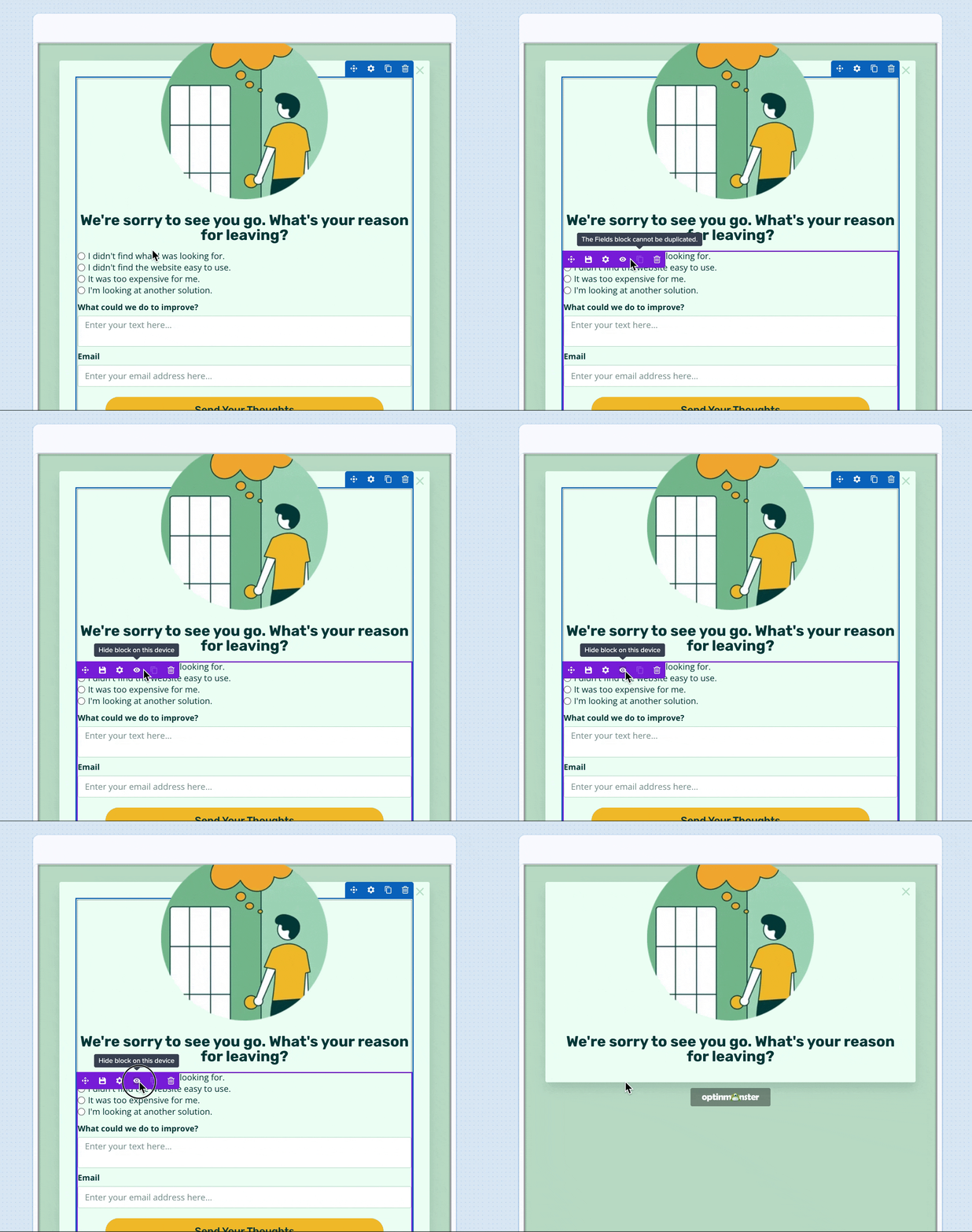
Manage All Block Element Visibility
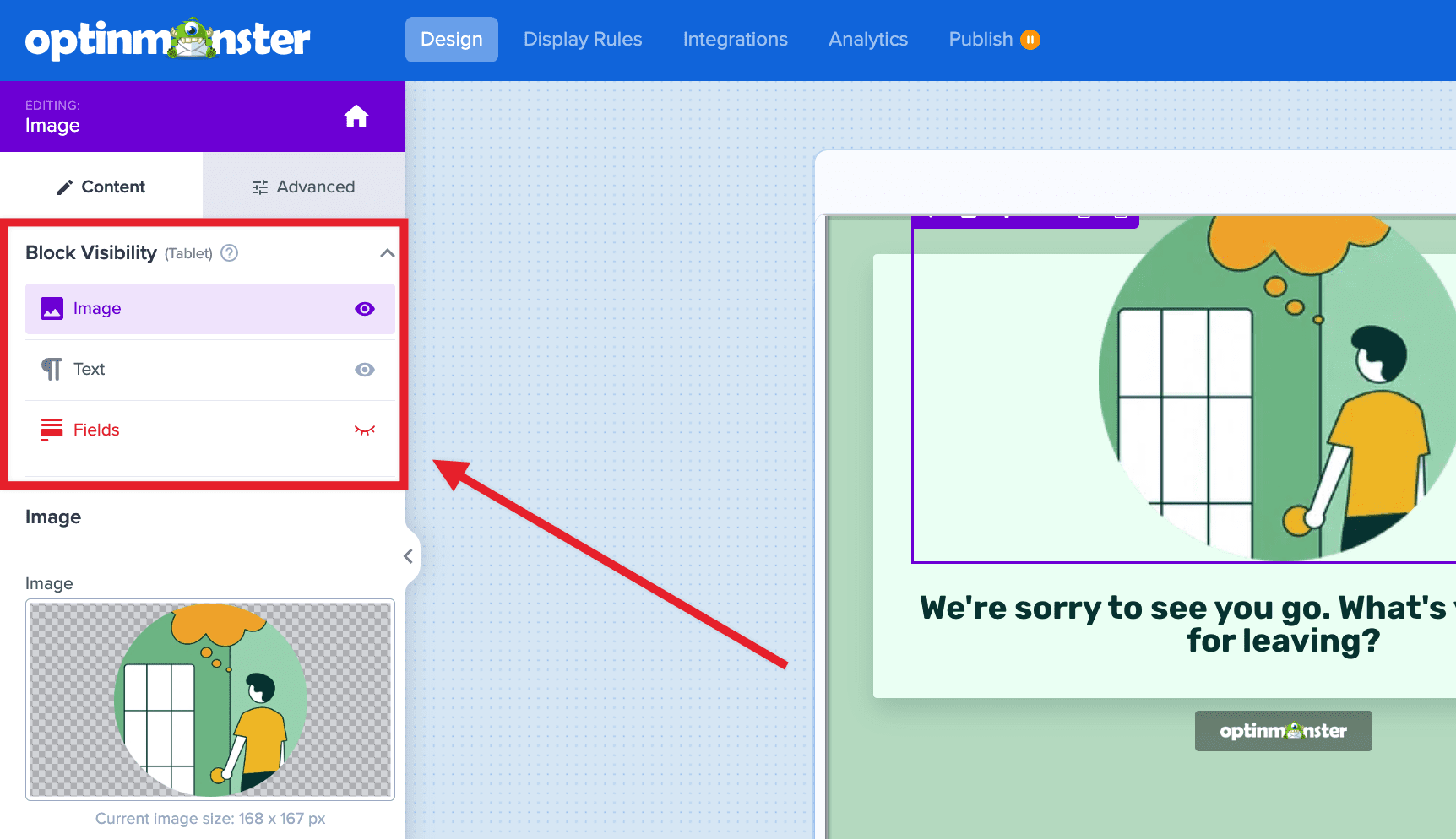
To manage the visibility of all block elements at once (including finding ones you’ve already hidden), follow these steps:
- From the Device Controls in the top right, select the device view you want to edit.

- Click directly on any block element in your campaign.
- In the left-hand sidebar, look at the top for the Content > Block Visibility section. This displays all available blocks, allowing you to easily toggle their visibility on or off for your currently selected device.

How can I tell which Devices’ styles are linked, and which are independent of one another?
When devices are linked together, a light blue background appears behind their icons. Wherever the light blue background appears, those devices share the same styles. Any device without the light blue background has been edited independently and is not synced with the others. A small blue dot also appears on the icon of any independent device. To quickly check the status of a device, hover over its icon — a tooltip will clearly indicate whether it is linked or independent.
FAQs
Am I required to use this approach to manually control the appearance of my campaign by device type?
No. All OptinMonster templates are automatically designed to be responsive across all devices right out of the box. You should use device-specific designs when you want to take full control over your campaign’s appearance beyond the default responsive styles.
I’ve already created mobile-specific campaigns. Do I need to redo those?
Not at all! You can continue using the Mobile-Only and Device Targeting Display Rule features if you prefer and some cases, you should!
There are very valid reasons to want entirely separate campaigns on different device types. As an example, your CTA on desktop might be to Contact Us, while on Mobile, it might be to Call Us (since they have their phone in their hand). In scenarios like that (where you intend to track impressions and conversions on Devices uniquely from one another), separate campaigns are the best options. But now, if the only difference in your needs between Devices is a simple style change, you no longer have to create separate campaigns.
Any campaigns you’ve already created using Mobile-Only Templates or the Device Targeting Display Rule will remain exactly as you built them. Device-specific designs are an added tool in your toolkit, giving you more options to control how your campaigns look and behave for your site visitors.