OptinMonster makes it easy to organize your campaigns on the Campaign Dashboard, with filter and sort options you can combine.
In this article, you’ll learn how to filter and sort OptinMonster campaigns.
Sort Campaigns
To filter or sort your campaigns, follow these steps:
- Navigate to the Campaign Dashboard in the OptinMonster app.
- Next, select the Advanced Filters button above your campaign list.

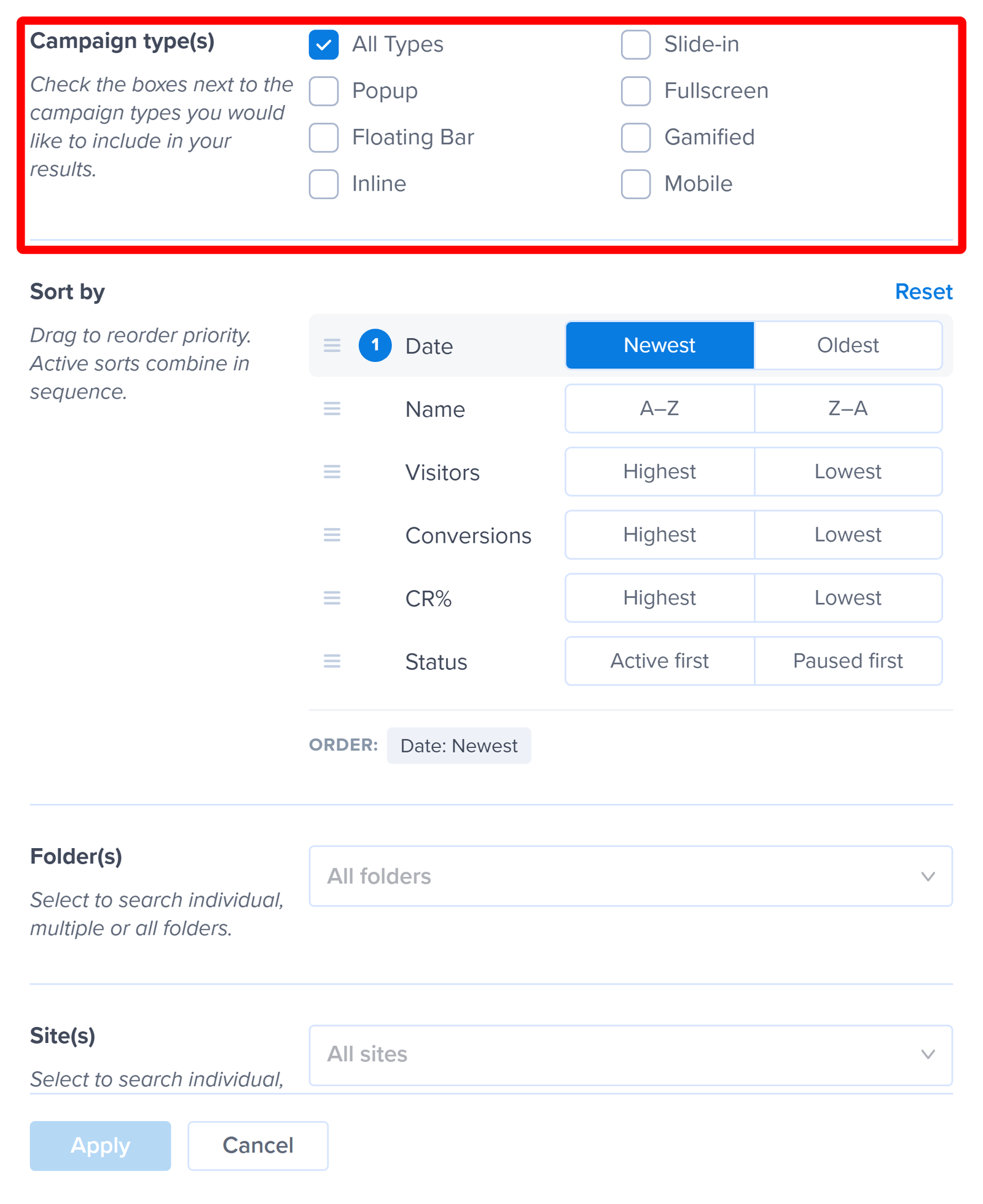
- The Advanced Filters panel opens, where you’ll find every filter and sort option together.

- Once you’ve chosen the options you want, select the Apply button. Your campaign list updates to match. Selecting Cancel closes the panel and leaves your list as it was.
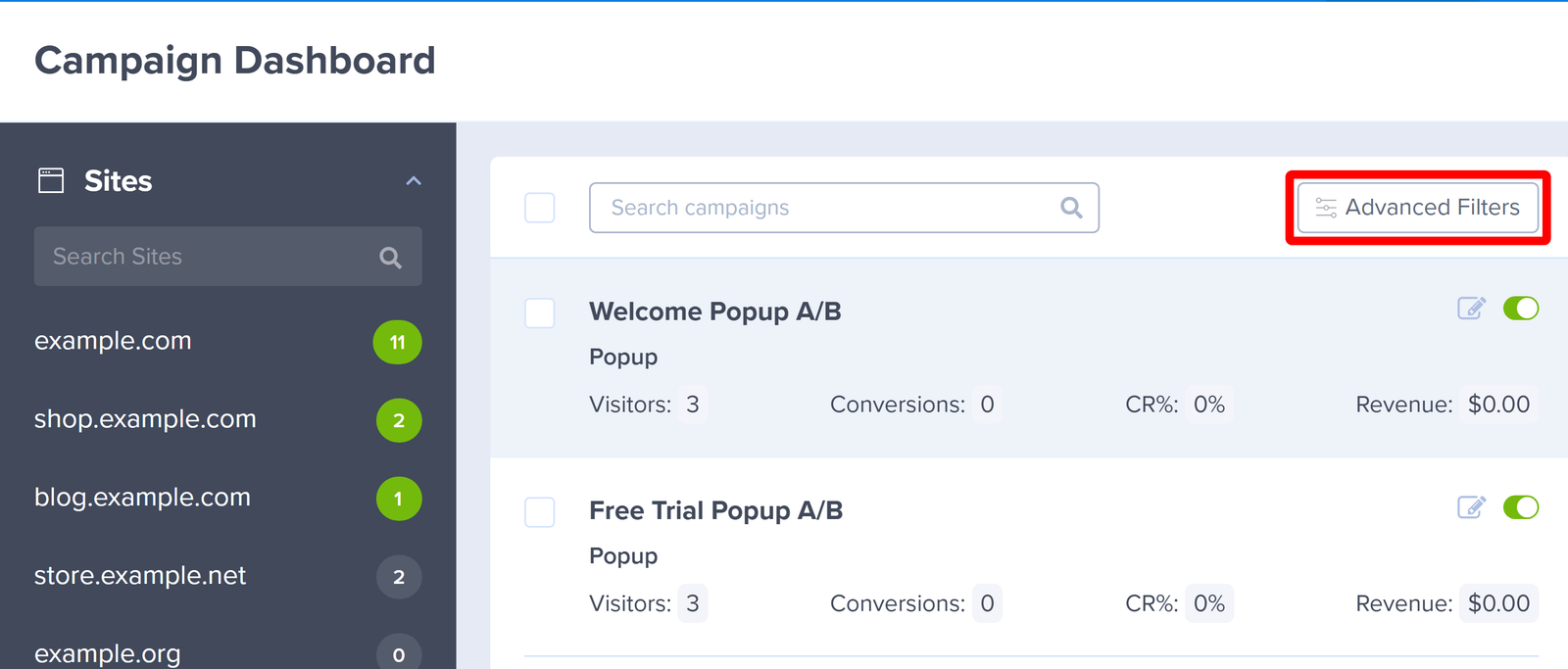
Note: You can also narrow your list without opening the panel. The Search campaigns box above the list matches on campaign name, and the Sites and Folders sections in the left sidebar filter the list to a single site or folder when you select one.
Sort Options
The Sort by section offers 6 options, each with 2 directions:
- Date, either Newest or Oldest
- Name, either A–Z or Z–A
- Visitors, either Highest or Lowest
- Conversions, either Highest or Lowest
- CR%, either Highest or Lowest
- Status, either Active first or Paused first
Sorts combine, which is the part worth knowing. Every option you turn on joins the sort in order of priority, and the numbered badge beside each active option shows where it sits in that order. To change the priority, drag an option up or down by the handle on its left. The ORDER summary underneath spells out the sequence you’ve built, so you can check it before applying.
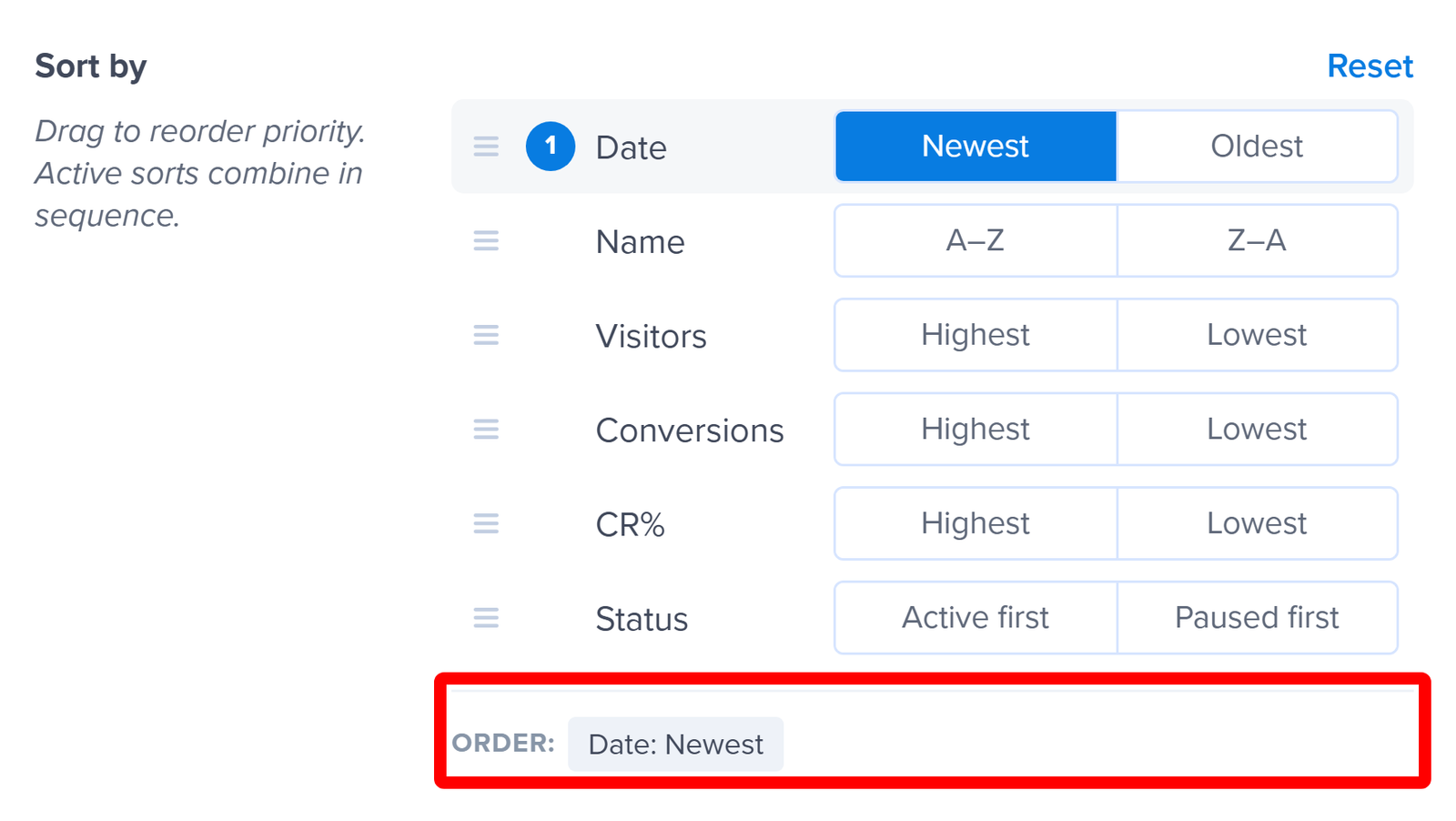
As an example, setting Status to Active first and then Conversions to Highest groups your active campaigns at the top and orders them by conversions within that group.
Selecting Reset clears every sort option and returns the list to its default order.
Filter Options
Alongside the sort options, the panel gives you 3 ways to narrow which campaigns appear.
Campaign type(s)
Checking the boxes next to the campaign types you want limits your results to those types. You can pick from All Types, Popup, Floating Bar, Inline, Slide-in, Fullscreen, Gamified, and Mobile. All Types is selected by default.
Folder(s)
The Folder(s) dropdown limits your results to individual folders, several folders at once, or all of them. Our guide to using folders covers creating folders and adding campaigns to them.
Site(s)
The Site(s) dropdown limits your results to individual sites, several sites at once, or all of them. Our guide to adding a website covers registering the sites that appear here.
FAQs
Why didn’t my list change after I picked a filter?
Your choices in the Advanced Filters panel apply only once you select the Apply button. If you close the panel with Cancel instead, your list stays as it was.
Can I sort by more than 1 thing at a time?
Yes. Every sort option you turn on joins the sequence, and the ORDER summary shows the order they apply in. Dragging an option higher gives it priority over the ones below it.
What happened to sorting by campaign type?
Campaign type is a filter now rather than a sort, so you’ll find it as the Campaign type(s) checkboxes at the top of the panel. Checking the types you want is the equivalent of the old sort, and it hides the types you don’t.