Do you want a less intrusive way to keep your campaign in front of visitors? With Campaign Teasers, your campaign appears as a small element at the edge of the screen, whether it starts out minimized or minimizes when a visitor closes it, so it’s always just a click away. In this article, you’ll learn how to use Campaign Teasers in OptinMonster.
Before you start, Campaign Teasers are available with a Plus or higher subscription.
Before You Start
Here are some things to know before you begin:
- This article assumes you’ve already created a campaign. Teasers work with Popup, Fullscreen, and Floating Bar campaigns.
- Slide-In campaigns have their own slide toggle settings that minimize the campaign in a similar way. To learn more, check out our guide on enabling the minimized state for Slide-In campaigns.
- The Teaser is your campaign’s minimized state. When it’s enabled, closing the campaign can shrink it down to the Teaser instead of hiding it for the rest of the visit, and it can even start out minimized.
Enabling the Campaign Teaser
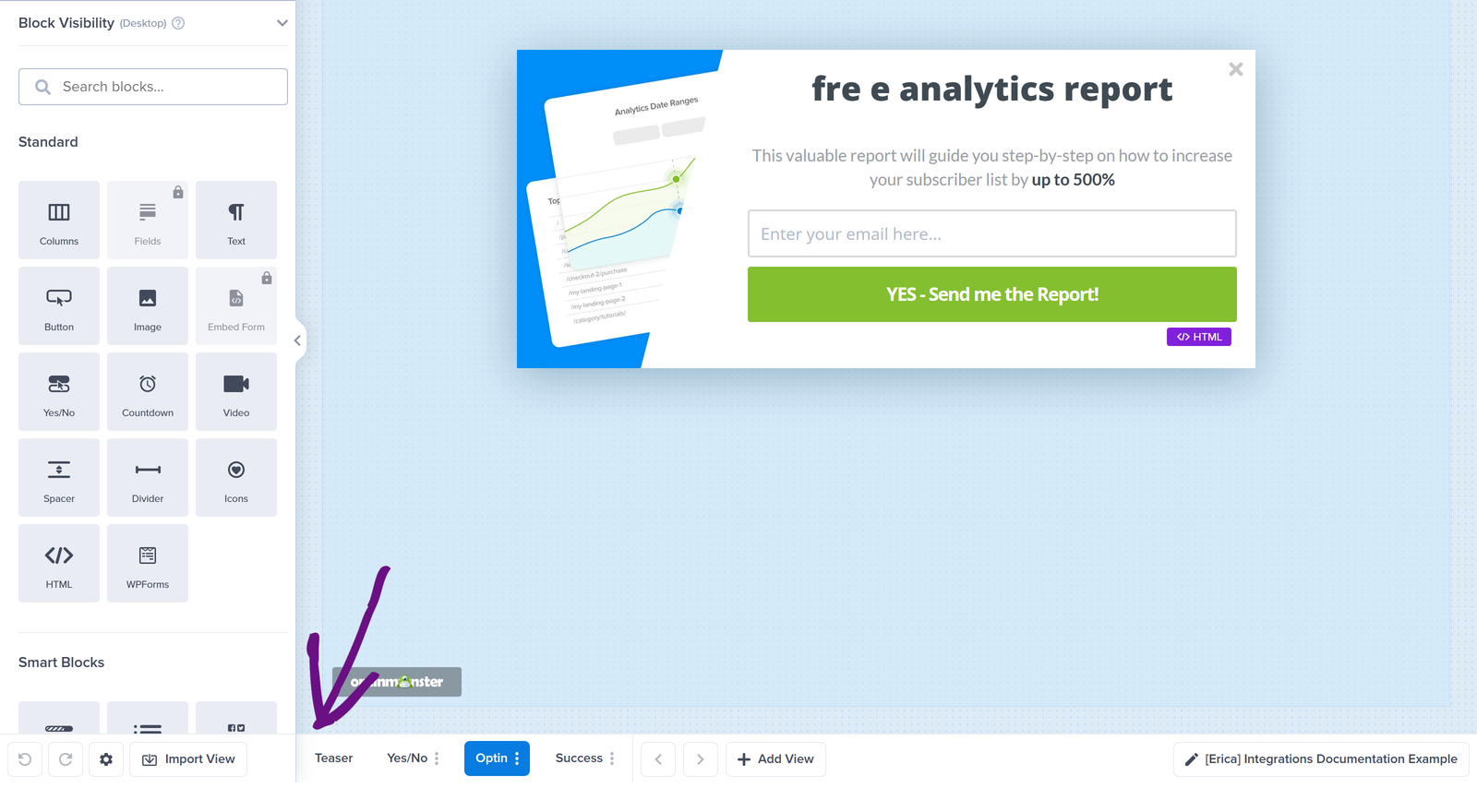
The Teaser is a view of your campaign, just like the Optin and Success views. To enable it, follow these steps:
- In the campaign builder, select the Teaser view at the bottom of the screen.

- Next, toggle the Enable Teaser view option in the View Visibility section of the Basic tab. When this option is off, the close button on your campaign fully closes it.

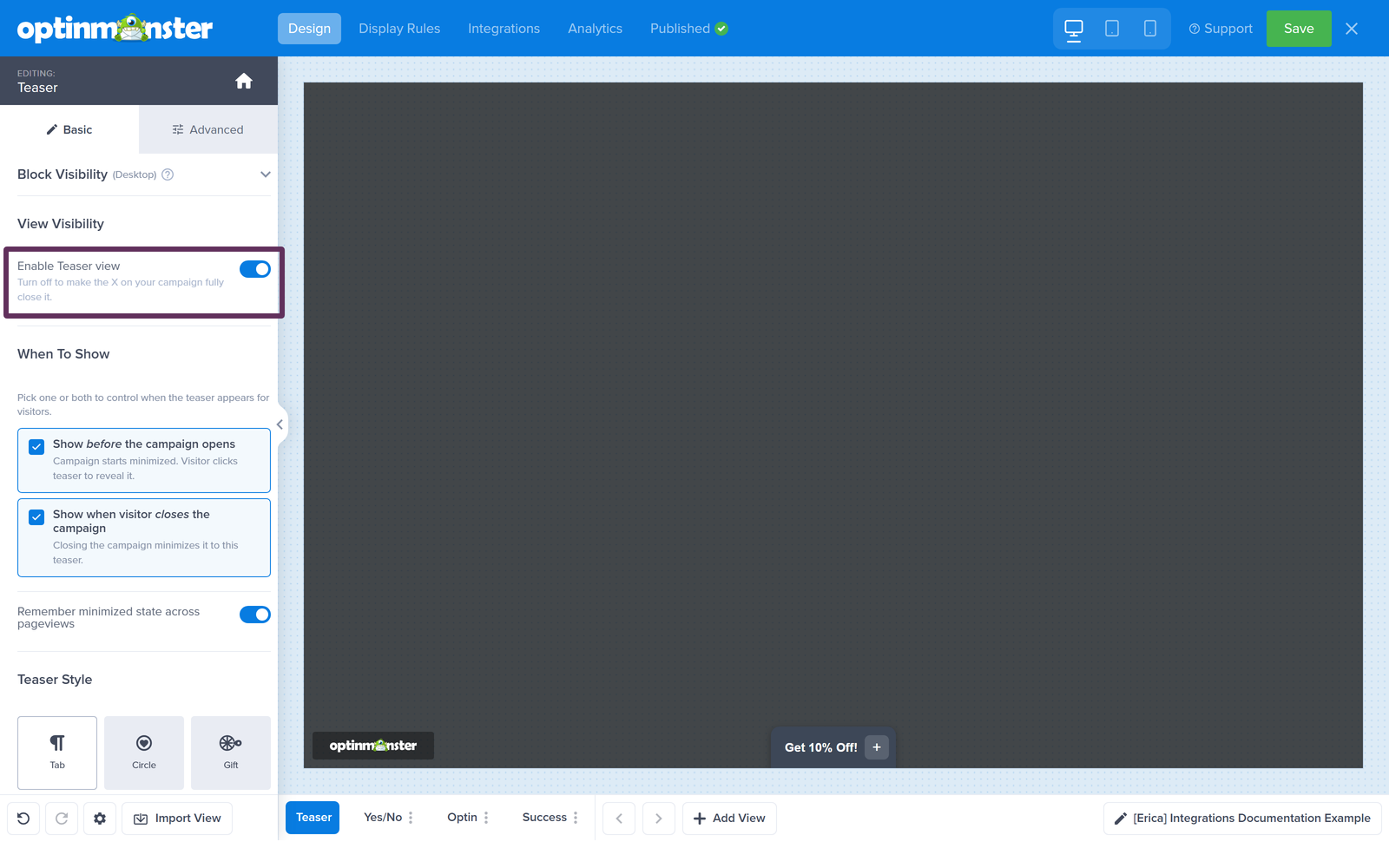
Next, configure when the Teaser shows and how it looks using the options below.
Choosing When the Teaser Shows
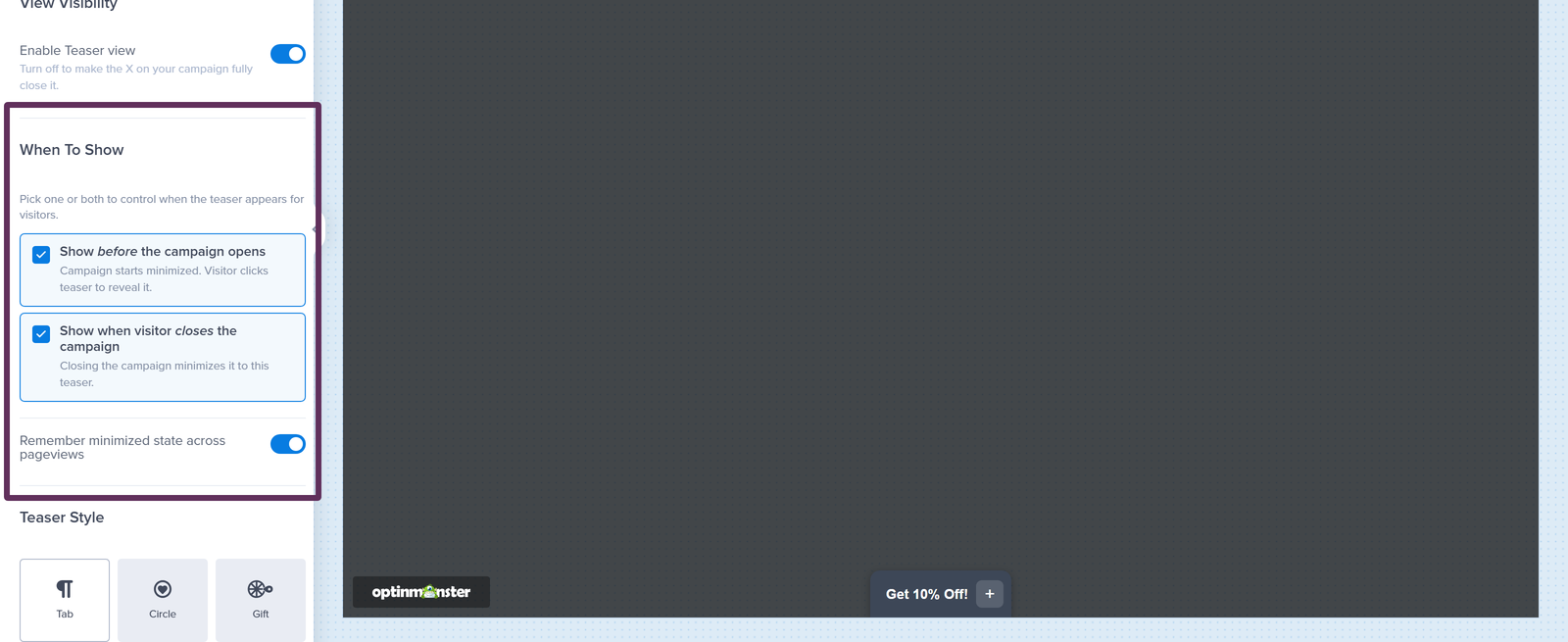
In the When To Show section, you can pick 1 or both of the following options to control when the Teaser appears for your visitors:
- Show before the campaign opens: your campaign starts out minimized, and visitors click the Teaser to reveal it.
- Show when visitor closes the campaign: closing the campaign minimizes it to the Teaser instead of hiding it.
You can also toggle the Remember minimized state across pageviews option so the Teaser stays minimized as your visitor browses from page to page.
Customizing the Teaser
The Teaser Style section of the Basic tab controls how the Teaser looks and behaves.
Choosing a Teaser Style
First, pick the shape of your Teaser: Tab, Circle, Gift, Pill, Handle, or Image.
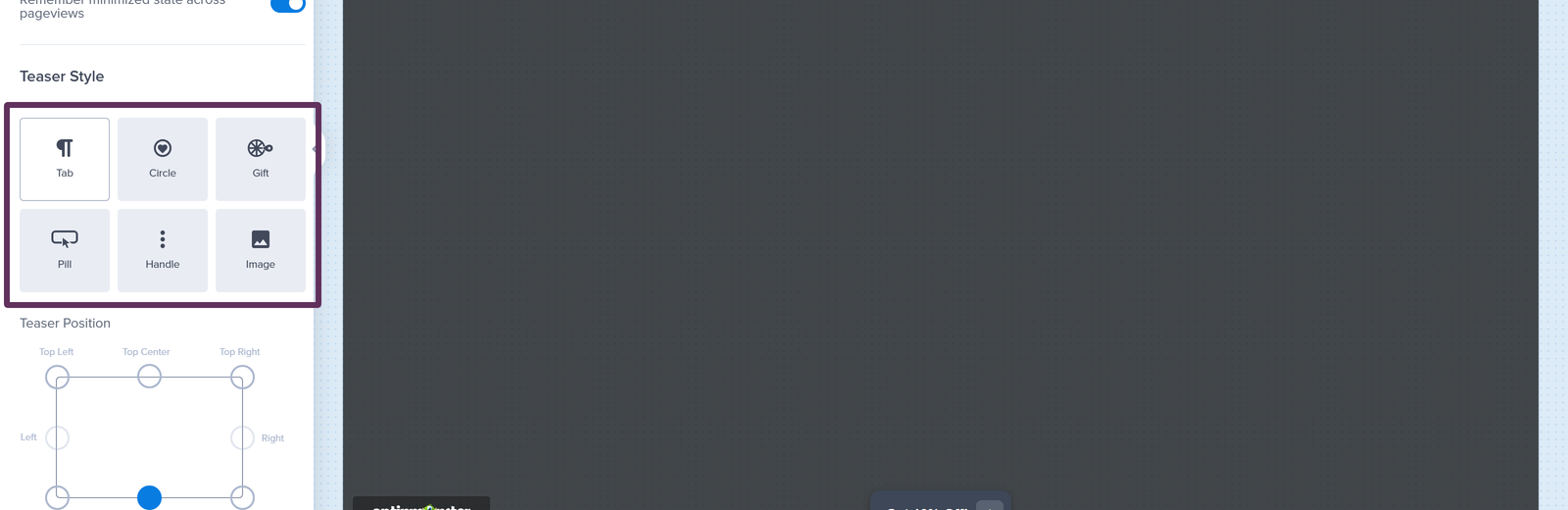
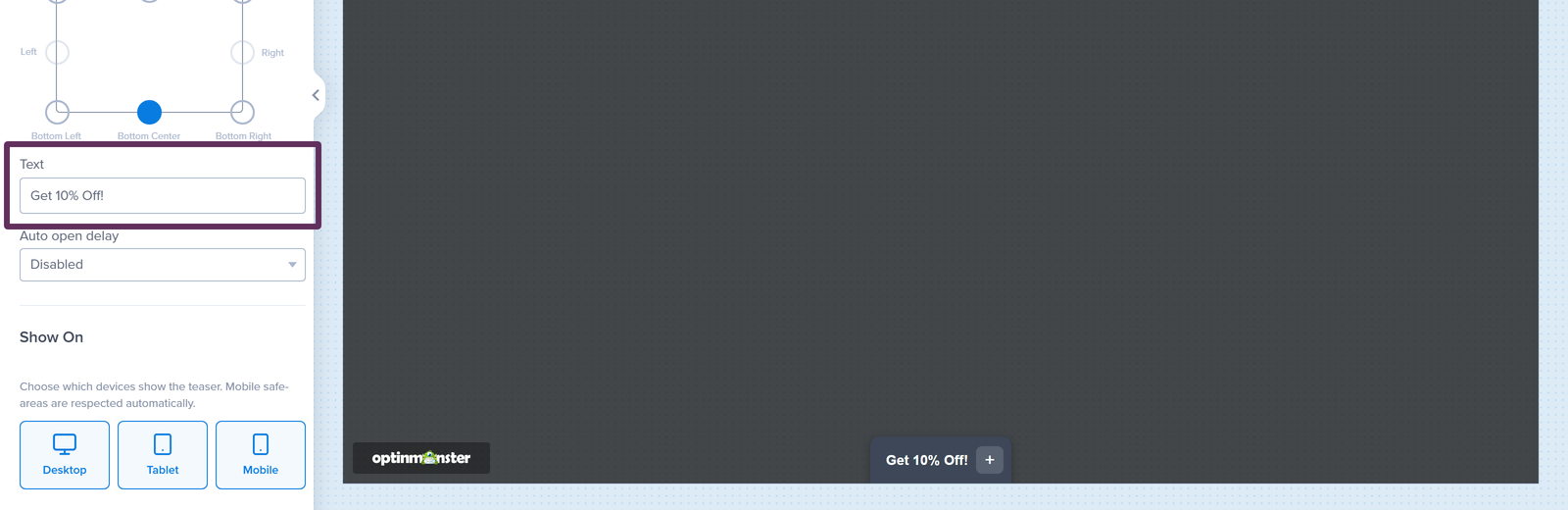
If you choose the Tab, Pill, or Handle style, then you can customize the Text shown on the Teaser. The default is “Get 10% Off!”, and it can be up to 24 characters long.
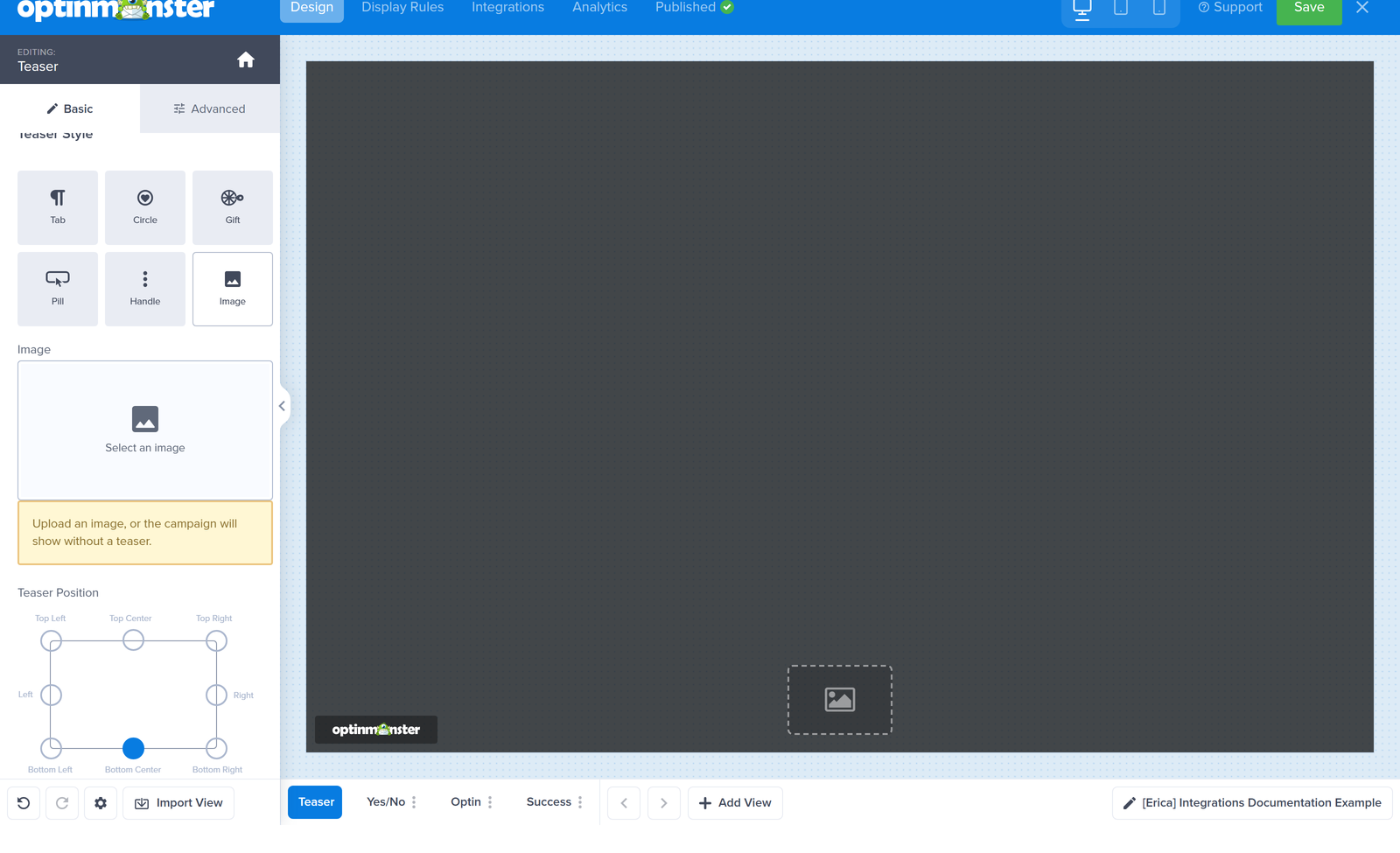
If you choose the Image style, then you’ll upload your own image to use as the Teaser.
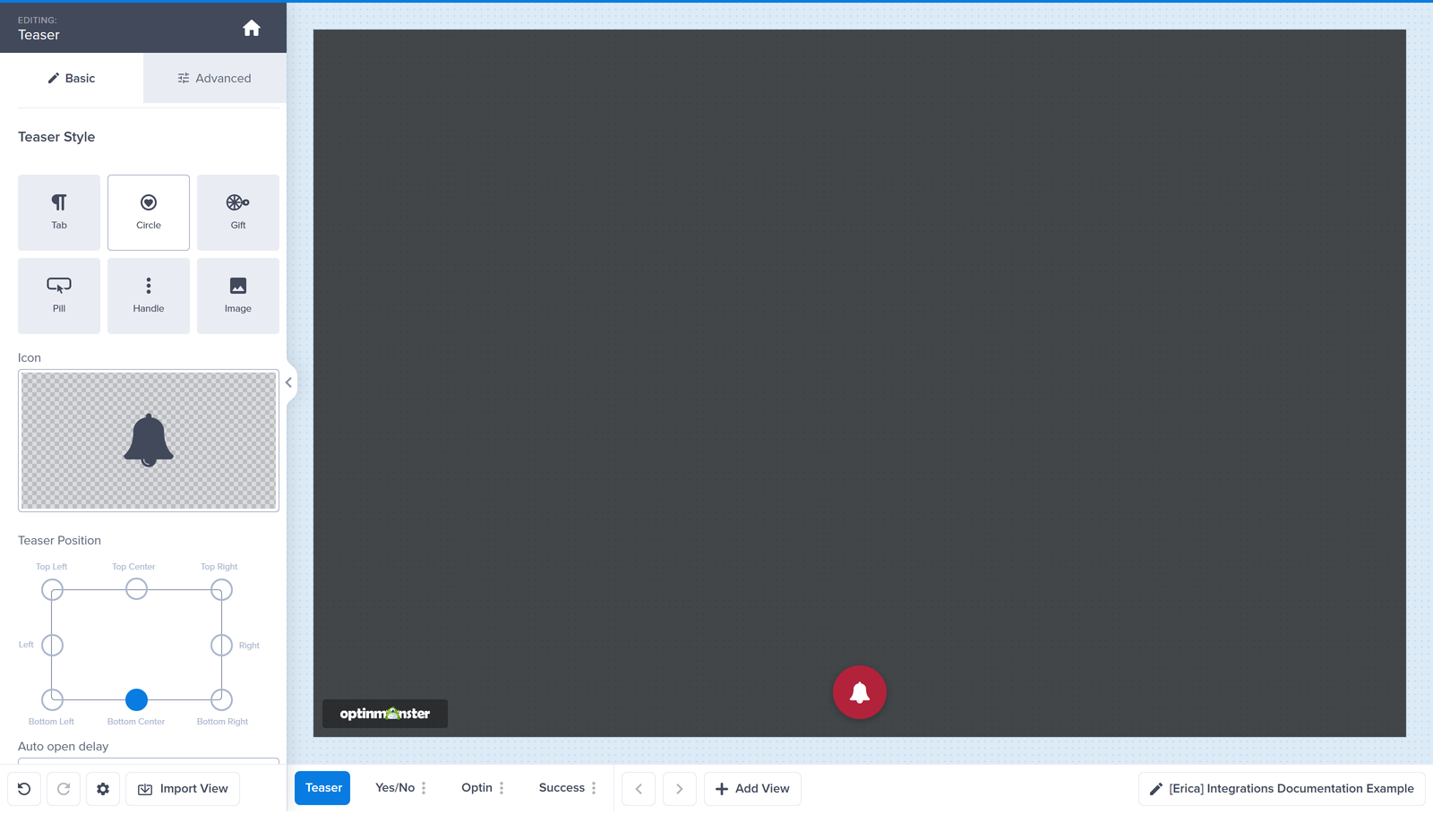
For the Circle style, you can pick an icon from the Icon library instead.
Positioning the Teaser
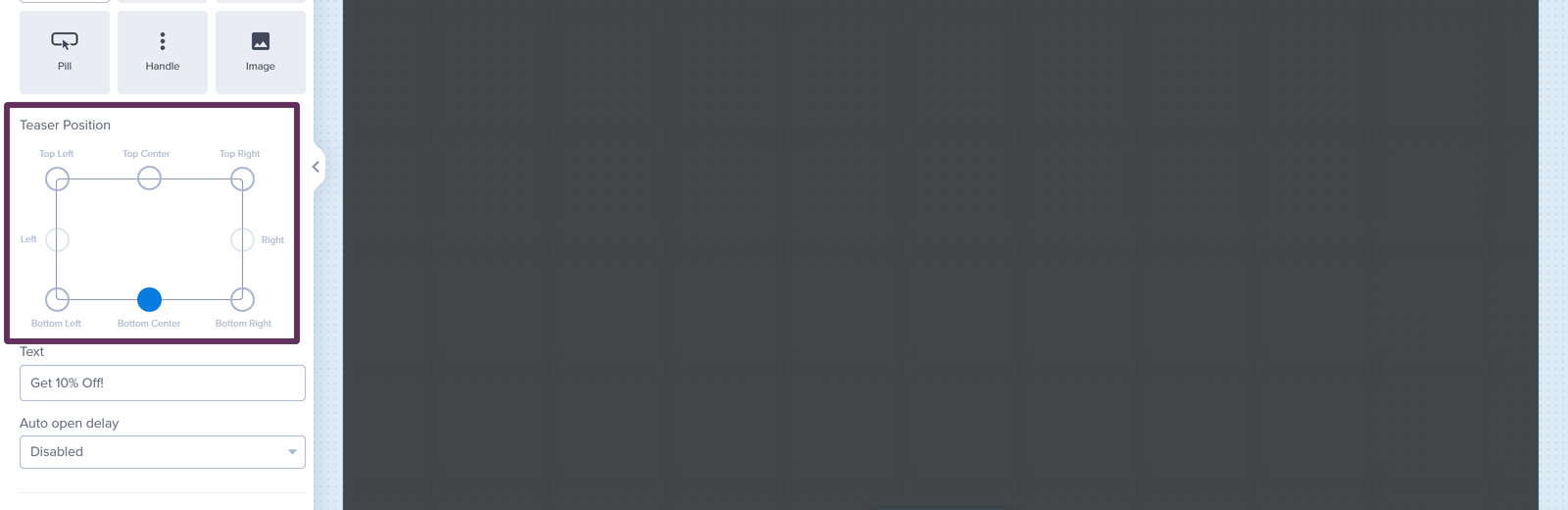
Using the Teaser Position control, you can choose where the Teaser sits on the screen: Top Left, Top Center, Top Right, Left, Right, Bottom Left, Bottom Center, or Bottom Right.
The available positions depend on the style you picked. The Tab and Pill styles sit along the top or bottom of the screen, the Handle style attaches to the Left or Right edge, and the Circle, Gift, and Image styles can use all 8 positions.
Setting the Auto Open Delay
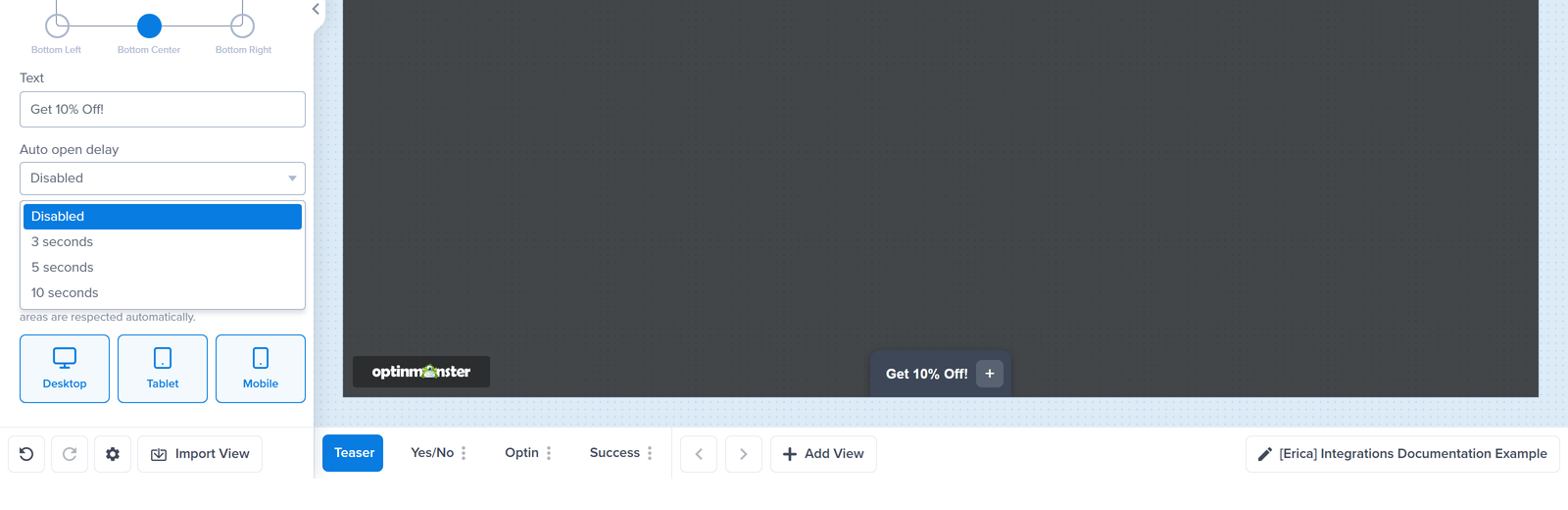
With the Auto open delay dropdown, you can automatically expand the Teaser to the full campaign after a delay of 3 seconds, 5 seconds, or 10 seconds. If you leave it set to Disabled, then the campaign only opens when your visitor clicks the Teaser.
Choosing Which Devices Show the Teaser
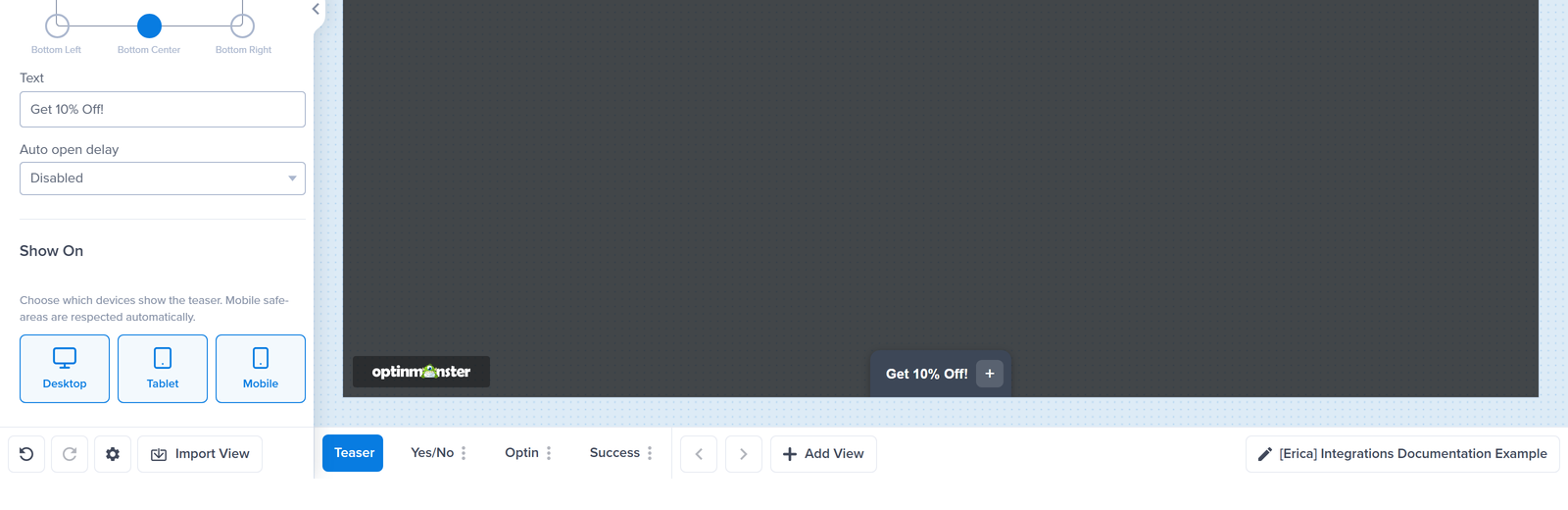
In the Show On section, you can toggle the Teaser on or off for Desktop, Tablet, and Mobile visitors.
Styling the Teaser
To adjust the styling of your Teaser, follow these steps:
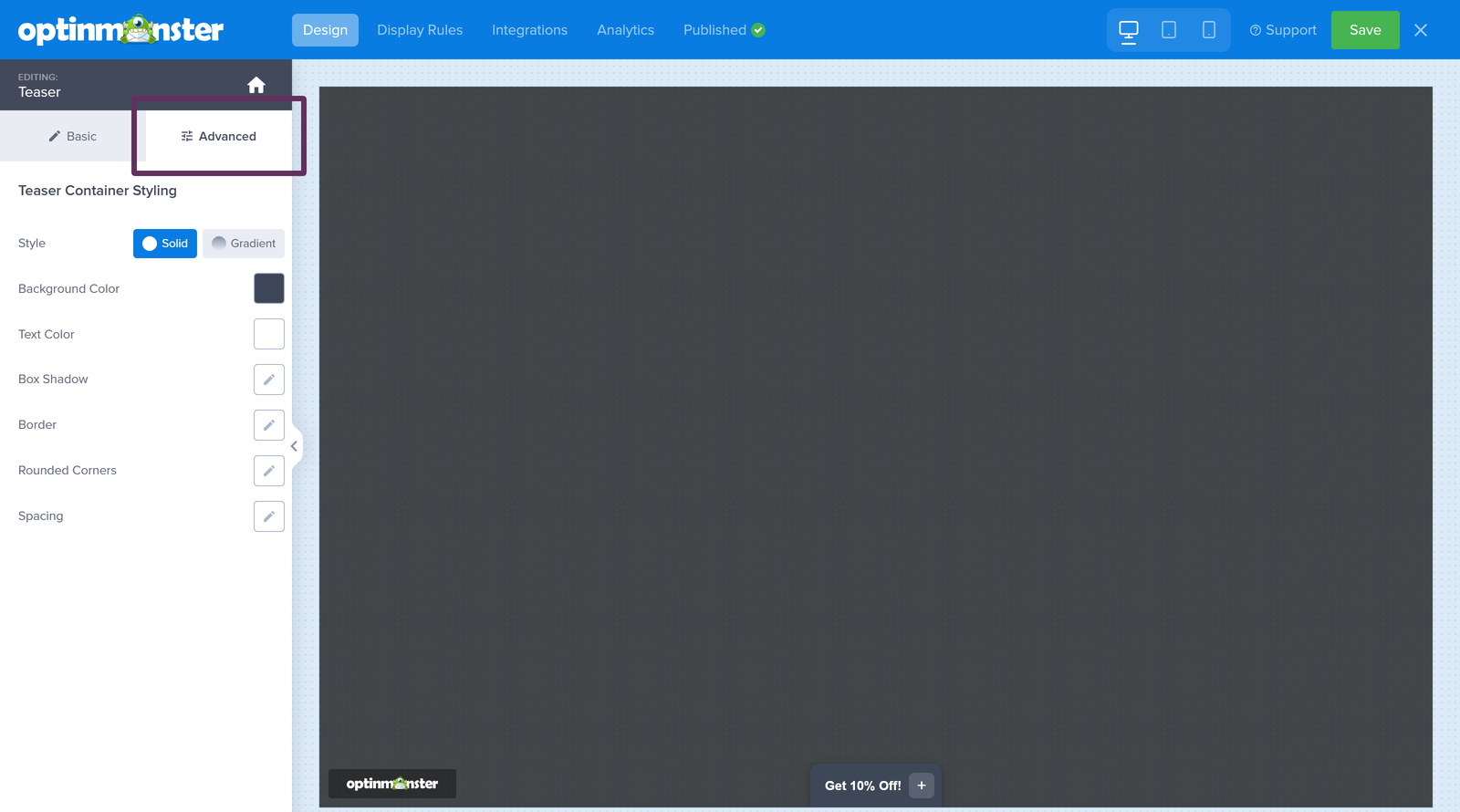
- In the Teaser view, select the Advanced tab in the sidebar.
- Next, expand the Teaser Container Styling section. Here you’ll find options to customize the Teaser’s appearance, including a Solid or Gradient background Style with a Background Color, the Text Color, a Box Shadow, a Border, Rounded Corners, and Spacing.

- When you’re finished, click Save.
If you’re using the Circle or Gift style, then the Text Color option is labeled Icon Color, and the Rounded Corners option doesn’t apply.
Once you’re happy with your Teaser, remember to click Save.
FAQs
Can I use a Teaser with any campaign type?
Teasers are available for Popup, Fullscreen, and Floating Bar campaigns. Slide-In campaigns keep their own slide toggle settings, which minimize the campaign in a similar way.
What happens when my visitor clicks the Teaser?
The campaign immediately expands to its full size and position. If the Show when visitor closes the campaign option is checked, then closing it again returns the campaign to the Teaser.
Will my display rules still apply when the Teaser is enabled?
Yes, your campaign’s display rules and targeting work exactly as before. The Teaser only changes what happens after the campaign loads or is closed, not when or where it appears.
That’s it! Now you know how to use Campaign Teasers to keep your campaigns within easy reach of your visitors.
Want to give your Slide-In campaigns the same treatment?
Learn how to enable the minimized state for Slide-In campaigns