
Are you trying to get more signups and sales on your website but you don’t know which campaign to build?
Maybe that’s an exit popup on the shopping cart, or a welcome discount for first-time visitors. It’s hard to know which one will actually work, so you keep putting off the decision.
In the meantime, your visitors keep leaving without signing up or buying.
That changes now.
Today we’re launching the OptinMonster MCP. Connect Claude, ChatGPT, Cursor, or another AI assistant, and ask it what you should build. It looks at how your OptinMonster campaigns are doing and suggests what to try next. Pick an idea, and it builds the campaign, sets who sees it, and shows you a preview, all inside OptinMonster.
You can go from “what should I try?” to a finished campaign in just one chat. It can also explain the targeting on campaigns you already have, tell you which ones are working, and can manage campaigns across all your websites.
What Is the OptinMonster MCP?
MCP (Model Context Protocol) is what lets an AI assistant like Claude or ChatGPT work inside other apps, with your permission. The OptinMonster MCP is that connection for OptinMonster.
Around here, we’ve nicknamed it the Monster Context Protocol.
It’s like giving a new teammate their own secure login to your OptinMonster account, except the teammate is the AI assistant you already use, and you decide what they’re allowed to do.
Once it’s connected, your assistant can build campaigns, set up targeting, read your results, and manage the campaigns on every website you run. You simply tell it what you want, and the assistant picks the right tools behind the scenes to execute your wishes.
Here are just a few of the things it can do for you:
- Suggest new campaigns based on what’s already working.
- Build a campaign from one of our templates.
- Set up who sees a campaign and when.
- Explain an existing campaign’s targeting in plain English.
- Rank your campaigns by results.
- Copy a campaign to another website, or pause it.
And it all happens in the AI assistant you already have open, so you keep working the way you already do.
Find Out What to Build Next
Not sure what to build? Just ask your AI assistant.
It reads your campaign analytics, top performers, and lead stats, then tells you what’s working and what to try next. You get ideas based on your own results, without opening a report.
You can also ask it to spot patterns. For example, just ask: “Which three campaigns brought in the most leads last month, and what do they have in common?”
You will get the list and what the winners share, so the next campaign you build starts from what already works.
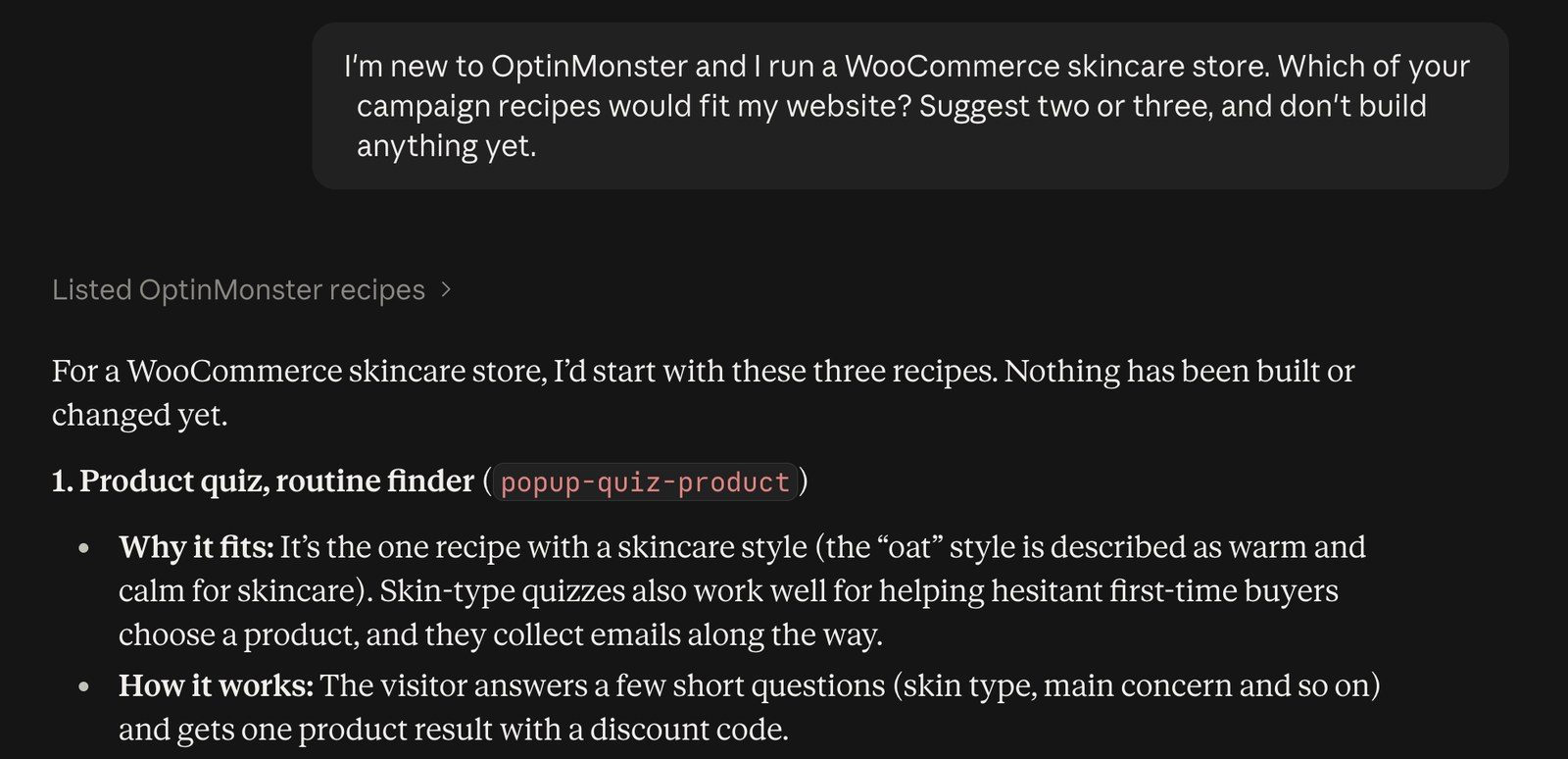
If you’re new to OptinMonster or have no results yet, then you can still ask for ideas. Your assistant can browse our recipes (ready-made campaign setups for jobs like growing your list or recovering abandoned carts) and suggest the ones that fit your website.
Say “pause the bottom two campaigns” and your AI assistant pauses them in the same chat. Ask “How close am I to my pageview limit this month?” and you get the number without going looking for it.
Anything else you’ve connected to your AI assistant works alongside OptinMonster in the same chat. Here are just a few possibilities:
- Your WordPress site. With a WordPress tool such as WPVibe, you can say “Read my post on cart abandonment and build a newsletter popup that fits it, shown only on that post.” Or you can have the landing page for a sale and its exit popup built together.
- Your WooCommerce store. The same WordPress tool can create the coupon your popup offers, so the whole offer is set up in one conversation.
- Your email platform or CRM. Ask your AI assistant to connect a new campaign to your email list, and it sets that up inside OptinMonster. If your CRM has a connector of its own, then it can also follow those leads into your pipeline.
- Google Analytics. If you’ve connected Google Analytics to OptinMonster, then your AI assistant can use your traffic data too when you ask what’s converting.
Build a Campaign by Describing It
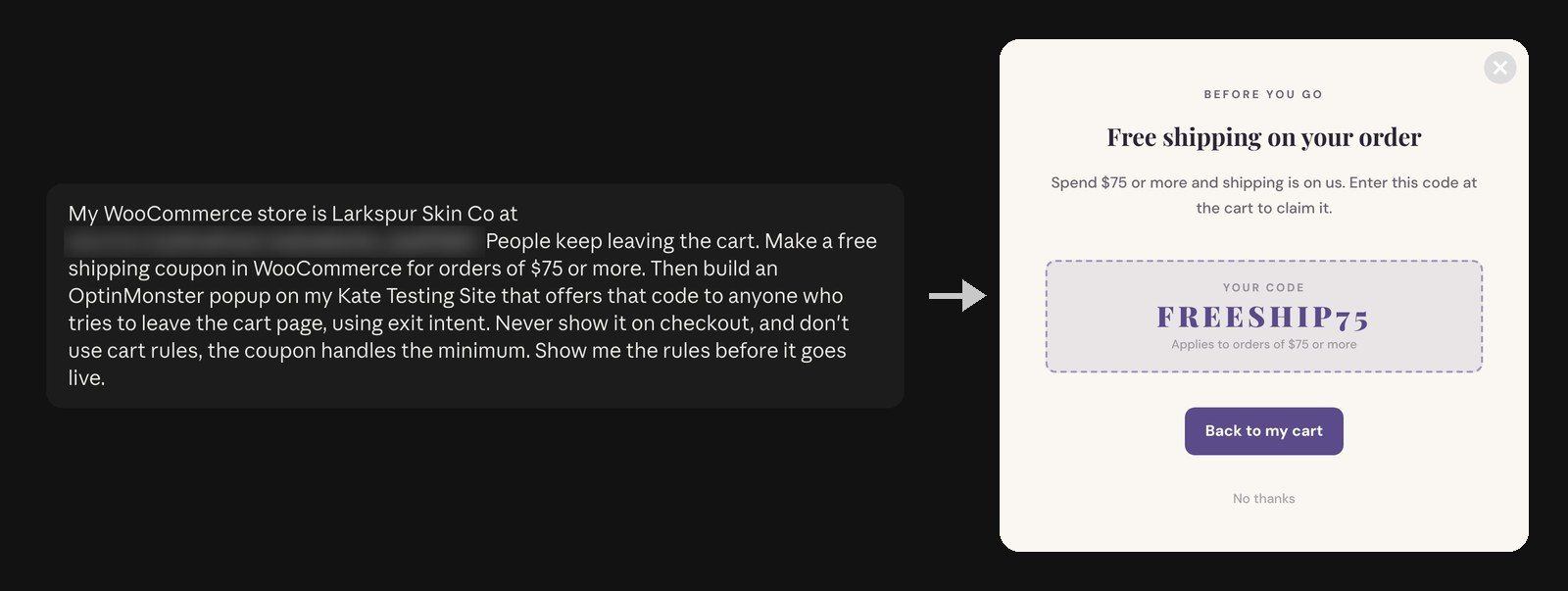
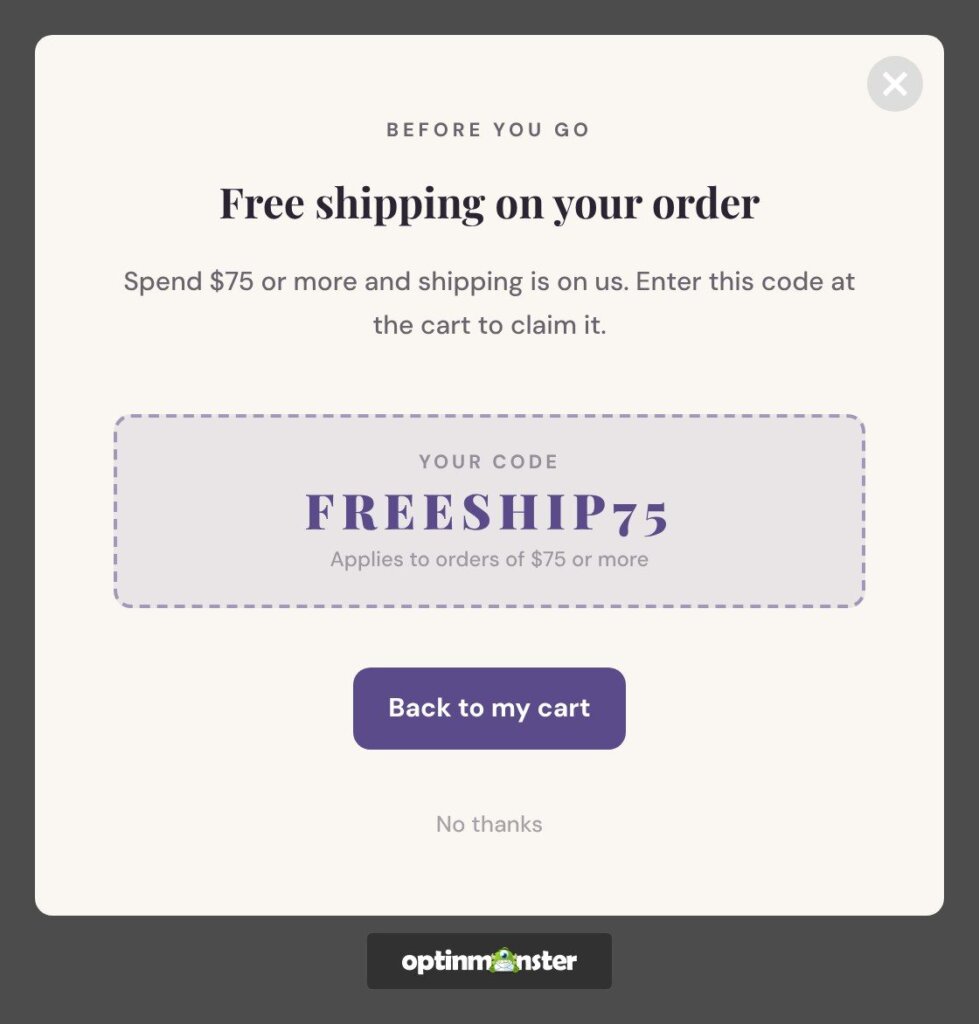
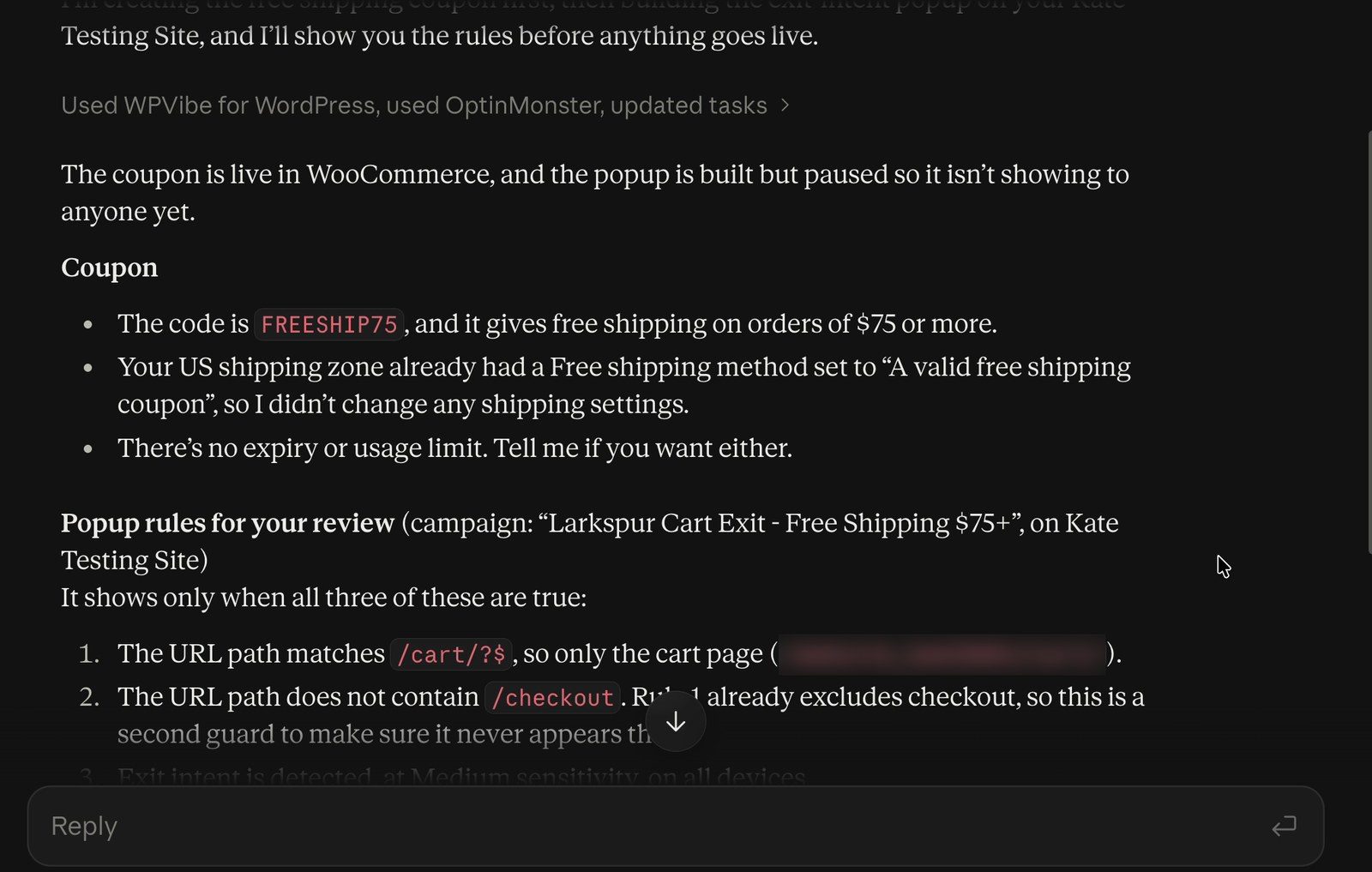
Let’s say you run a WooCommerce store and shoppers keep leaving their carts. Instead of opening the builder to build an abandoned cart campaign, you can ask your AI assistant: “Build a popup that offers our free shipping code when someone tries to leave the cart page. Never show it on checkout.”
Your AI assistant browses our templates and recipes, picks one, writes the copy, finds a free stock image on Unsplash, and styles it. We ran exactly this setup on a WooCommerce test store, and the popup was showing on the cart within the same chat.
The same works for a campaign you already have. Ask your AI assistant to “turn our best-performing popup into a slide-in for blog posts, with a new headline,” and you get your design on a new campaign type. Then you can ask for changes the way you’d ask a designer: “Make the headline friendlier and use our brand blue on the button.”
Every campaign your AI assistant builds starts paused, so nothing reaches your visitors until you’ve seen it. You get a rendered preview first, and the campaign stays paused until you say go.
Keep in mind that OptinMonster can’t create the discount code in your store. If you’ve also connected a WordPress tool such as WPVibe, then your AI assistant can create the WooCommerce coupon in the same chat.
Set Up Targeting in Plain English
Display Rules decide who sees your campaign and when.
Now, you can say it in a sentence: “Show it to visitors from the UK after 30 seconds on the page. Never on checkout.” Your AI assistant turns that into Display Rules, using Exit-Intent®, page targeting, location, and the rest of what the panel offers.
It works in reverse, too. If you’ve inherited a campaign and can’t tell where it’s showing or why, then ask your AI assistant: “Explain the display rules on my newsletter popup and why it shows on the cart page.”
AI tells you which rules the campaign has and why they put it on the cart page. Then you can ask it to fix them in the next message.
Manage Every Website From One Chat
If you look after more than one website, or several clients, then keeping campaigns tidy used to mean a visit to each one. Now “Duplicate our Black Friday popup for the UK store, then pause everything on the blog” is a single request.
Before a client’s redesign, you can ask: “Pause every campaign on the staging website and list what you paused.” You get the work done and a list you can paste into the client update. After the redesign, “Resume them” puts everything back.
Your AI assistant can duplicate, archive, or assign campaigns across every website in your account. So, campaign admin across all your websites takes one message.
You Choose What Your AI Assistant Is Allowed to Do
Handing your campaigns to an AI assistant only makes sense if you control what it can do. So, you approve every connection from your OptinMonster account, and you choose its permissions as you do.
- You can give a contractor or an analyst read-only access to your reports, because editing and deleting are separate permissions.
- Your subscribers’ details stay private unless you grant that permission, which is separate from lead counts.
- Your AI assistant can never do more than your own user role allows, even with every permission granted.
- You can revoke a connection at any time, from the same place you approved it.
Connect Your AI Assistant in Under a Minute
The OptinMonster MCP is available now, and you approve the connection from your OptinMonster account. There’s nothing to install and no code to write.
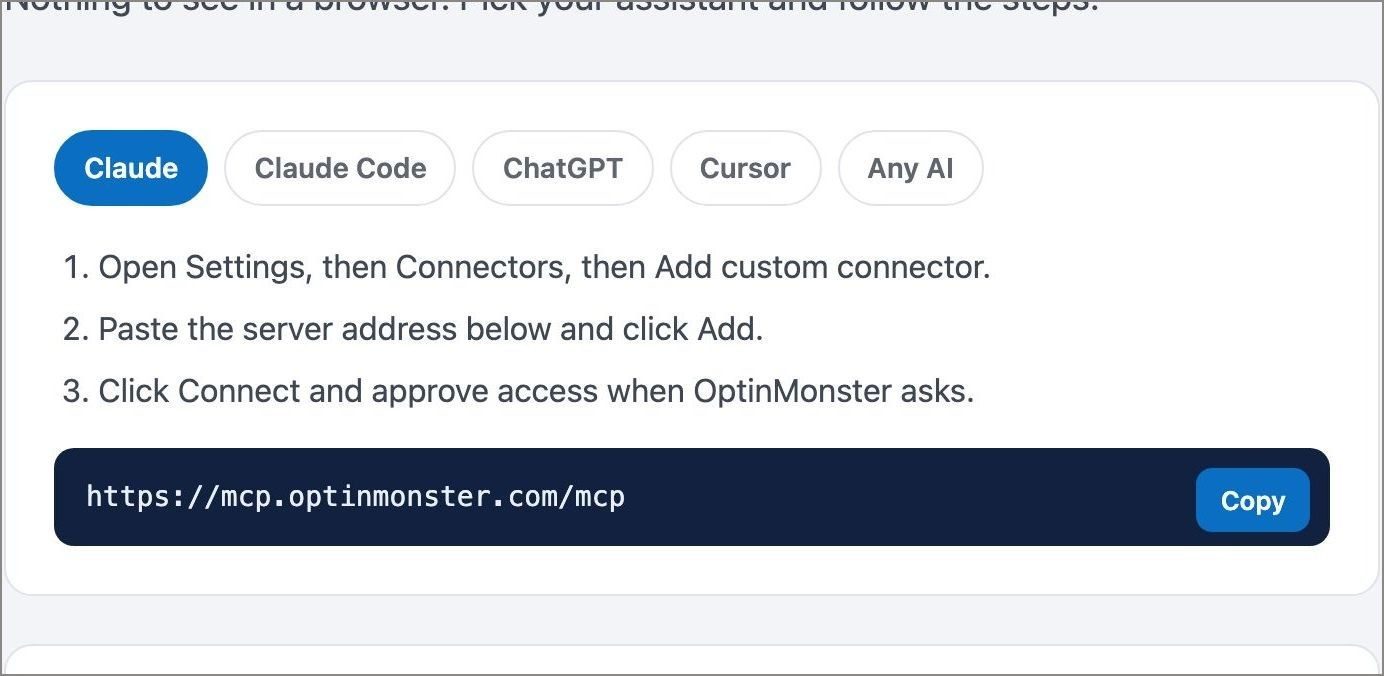
- In Claude, open Settings, then Connectors, then Add custom connector. Other assistants keep the same setting under a similar name.
- Paste https://mcp.optinmonster.com/mcp as the address and select the Add button.
- Select the Connect button, sign in to OptinMonster when asked, and choose the permissions you want to grant.
- Ask your first question. “List my sites and tell me which campaigns converted best this month” is a good one.
If you use Claude Code, then it’s one command in your terminal, followed by /mcp to sign in.
claude mcp add --transport http optinmonster https://mcp.optinmonster.com/mcpThe steps for ChatGPT and Cursor, plus a prompt that works in any AI assistant, are on the OptinMonster MCP page.
Not sure what your next campaign should be? Ask your assistant, then check the preview before you publish.
Your next conversion is one conversation away. Connect your AI assistant at mcp.optinmonster.com.
Until next time,

Angie and the OptinMonster Team