
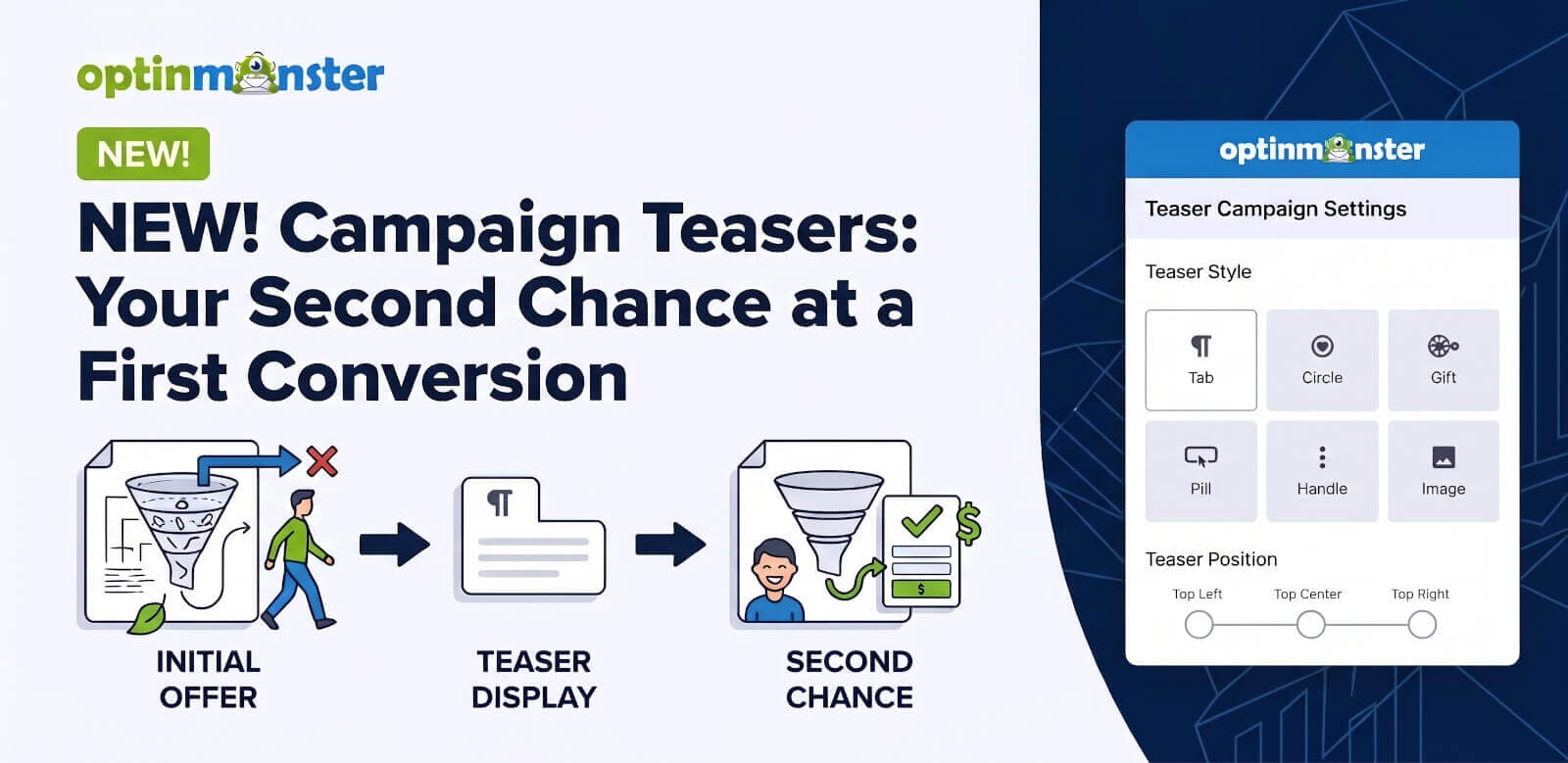
Are you holding off on publishing popup campaigns because you don’t want to interrupt or annoy your visitors?
Popups and Fullscreens are usually the highest-converting campaign types, but they also take over the screen. So you risk annoying your visitors and losing the conversion anyway.
Then there’s the close button. Somebody clicks it on their way past, and your campaign has disappeared for the rest of their visit. They don’t get another look at the offer, and you don’t get another chance to make it.
That changes now.
We’re launching Campaign Teasers, available now on Plus plans and higher. Your Popup, Fullscreen, or Floating Bar can now start out as a small element at the edge of the screen. It can also shrink back down when a visitor closes it, instead of disappearing for the rest of the visit.
Stop choosing between your conversions and the user experience. Your offer just stays one click away. And a campaign that used to be closed for good becomes a non-intrusive, persistent reminder that your visitor can reopen whenever they’re ready.
What Is a Campaign Teaser?
A Teaser is your campaign’s minimized state. It’s a small version at the edge of the screen, like a tab, a circle, or a gift icon, instead of the full campaign displayed on your website.
It’s similar to the chat bubble in the corner of a support site. You know it’s there, it stays out of your way, and you click it when you want to ask a question.
A Teaser works the same way, except it opens your optin. So, the offer is available for the whole visit without taking over the page, and a visitor can access it with a single click.
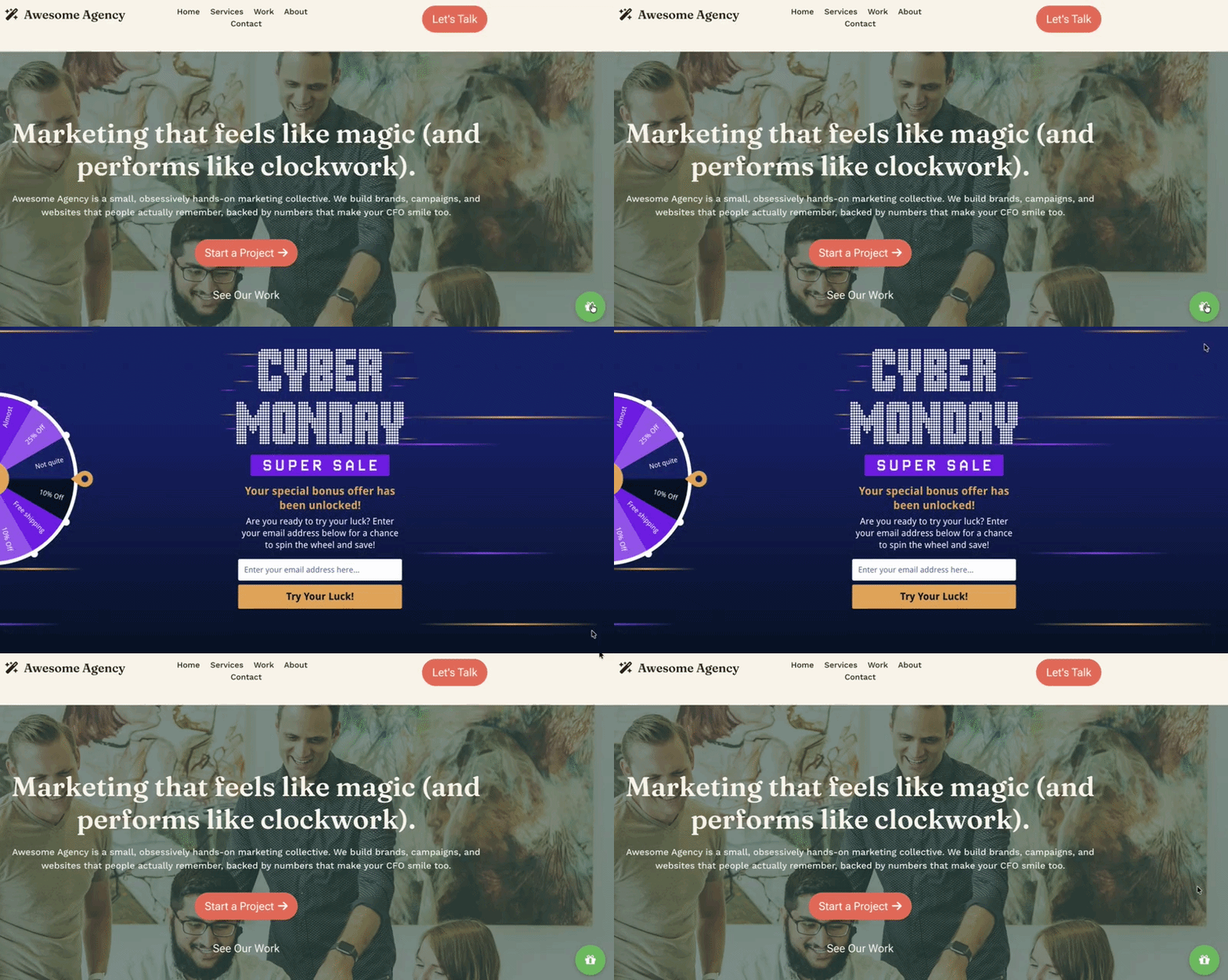
To turn it on, just select the Teaser view, then toggle Enable Teaser view in the View Visibility section of the Basic tab.
While that toggle is off, your campaign’s close button behaves the way it always has and closes the campaign completely.
Let Visitors Come to the Offer, or Come Back to It
Your offer now gets two moments in front of the visitor instead of one. There’s the moment before someone has engaged with anything on your website, which is when a full campaign might have been an interruption.
And there’s the moment just after they close it, when most offers are gone for good.
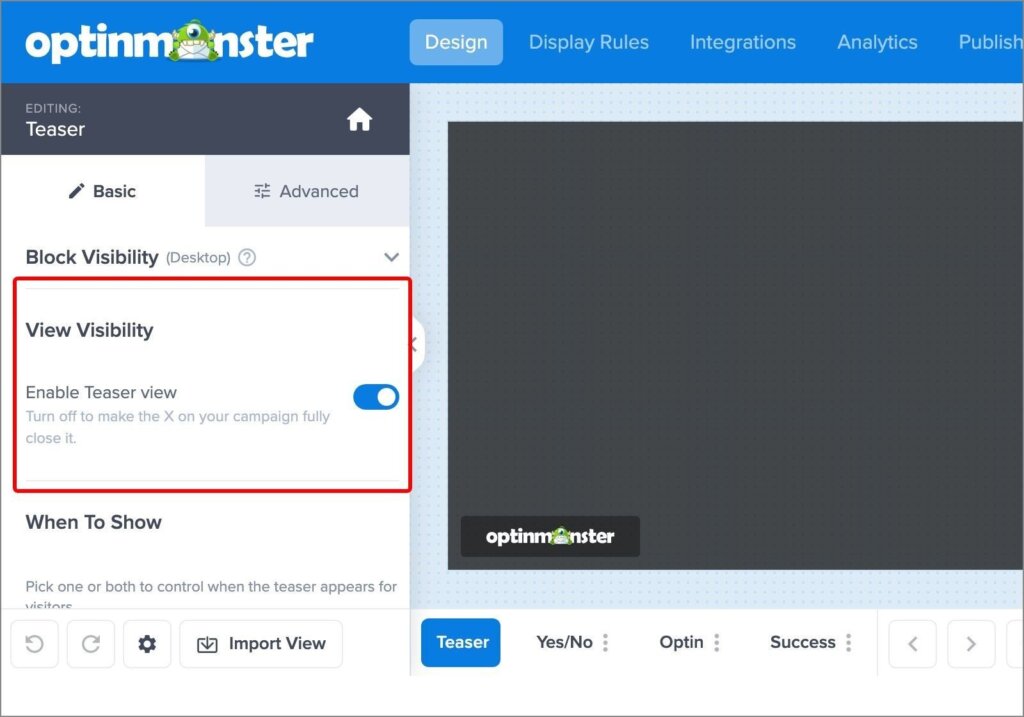
You’ll find two display options in the When To Show section:
- Show before the campaign opens: Your campaign loads as the Teaser, and your visitor clicks it to reveal the offer. That’s the Teaser-first approach, and it’s the gentlest way to run a campaign. Nothing covers the page until somebody asks for it. It’s the same principle behind MonsterLink™ campaigns, where a visitor who chooses to open the offer is more likely to take it. If you’ve given up on Fullscreens because they feel too intrusive, start here.
- Show when visitor closes the campaign: Closing the campaign minimizes it to the Teaser instead of hiding it. Your visitor gets their screen back but the offer is still there, so they can open it again themselves whenever they’re ready.
There’s also a Remember minimized state across pageviews toggle. Turn it on and the Teaser stays minimized while your visitor browses. This means the decision they made on your homepage still applies to the next page.
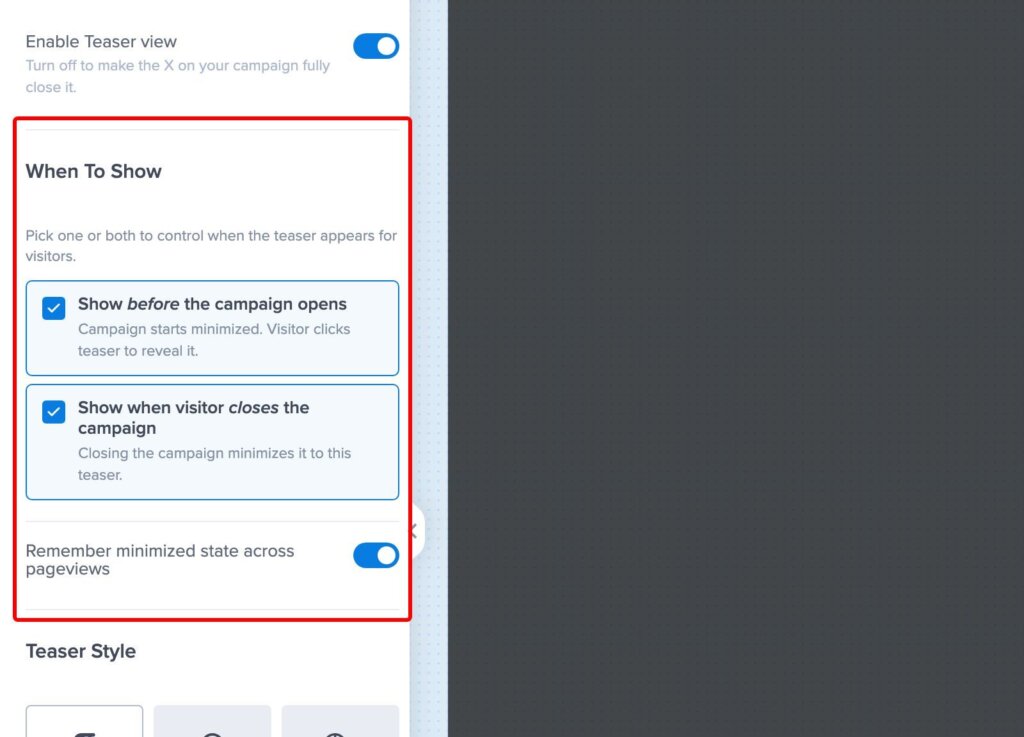
Six Teaser Styles, Eight Places to Put Them
How your Teaser looks and where it appears on your website will decide whether anyone clicks on it, so you can make it as subtle or as obvious as you like.
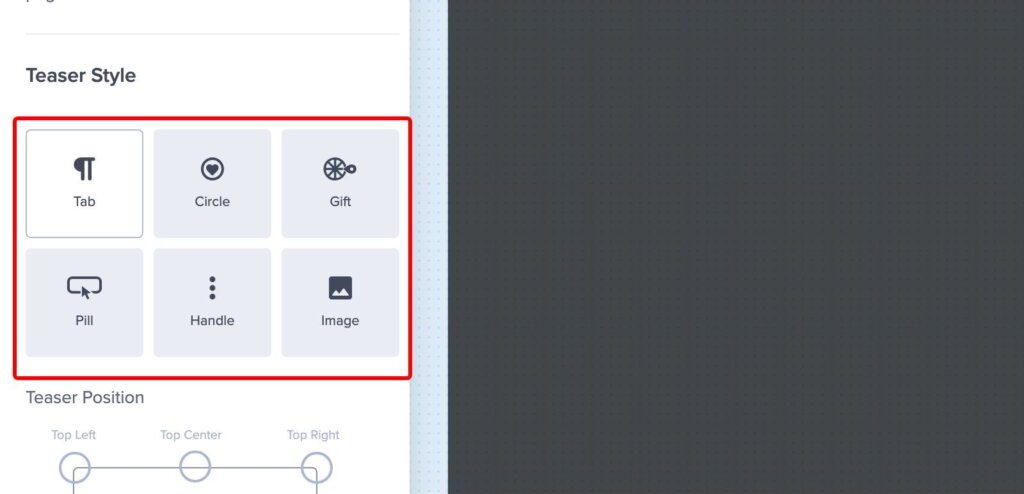
There are six options to choose from:
- Tab, Pill, and Handle contain your own text, up to 24 characters. Make sure to replace the default, because every new Teaser starts out saying “Get 10% Off!”
- Circle swaps that text for an icon from the library, and Gift shows a gift icon.
- Image shows a file you upload, so your Teaser can match your branding exactly.
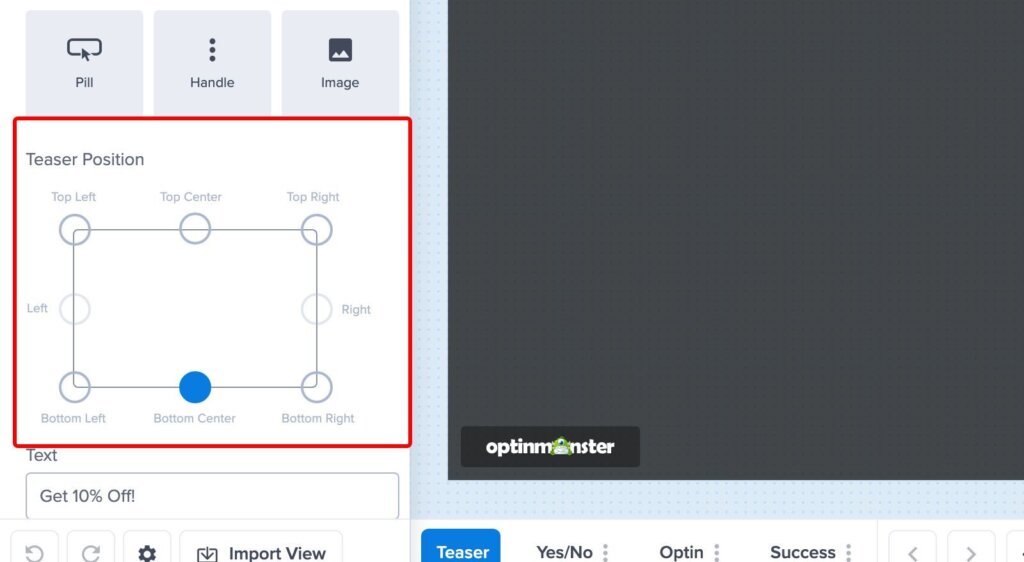
You can also choose where the Teaser sits, from eight positions around the edge of the screen. Keep in mind that Tab and Pill run along the top or bottom, the Handle sits on the left or right edge, and Circle, Gift, and Image can use any of the eight.
Just make sure to check what’s already in that corner first, because the bottom right of your website is usually where your chat widget is.
Choose How Much Attention Each Campaign Asks For
You know which of your offers deserve to be shown immediately to visitors and which ones are better off waiting to be asked. Teasers let you control this setting campaign by campaign, instead of each one behaving the same way.
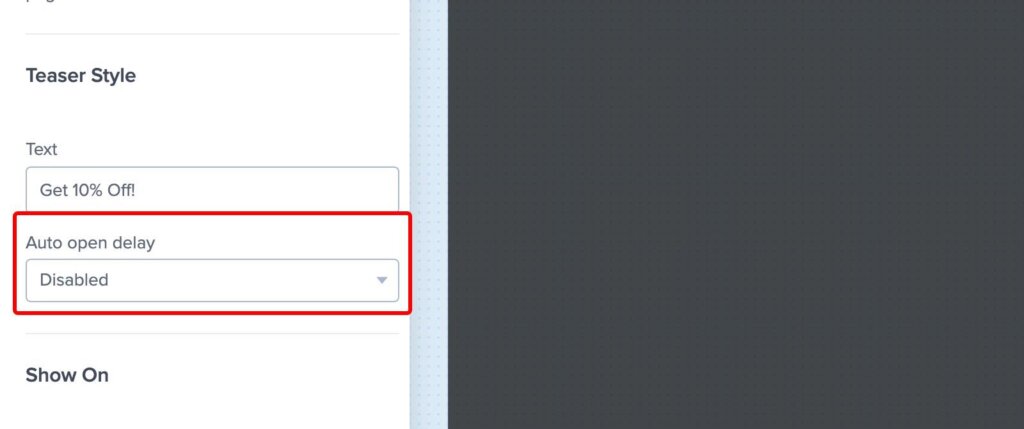
If you leave the Auto open delay switched off, then nothing will open until somebody clicks the Teaser, which keeps your campaign completely out of the way. Or you can set a short delay, and your campaign will open on its own after a few seconds.
Style the Teaser to Match Your Brand
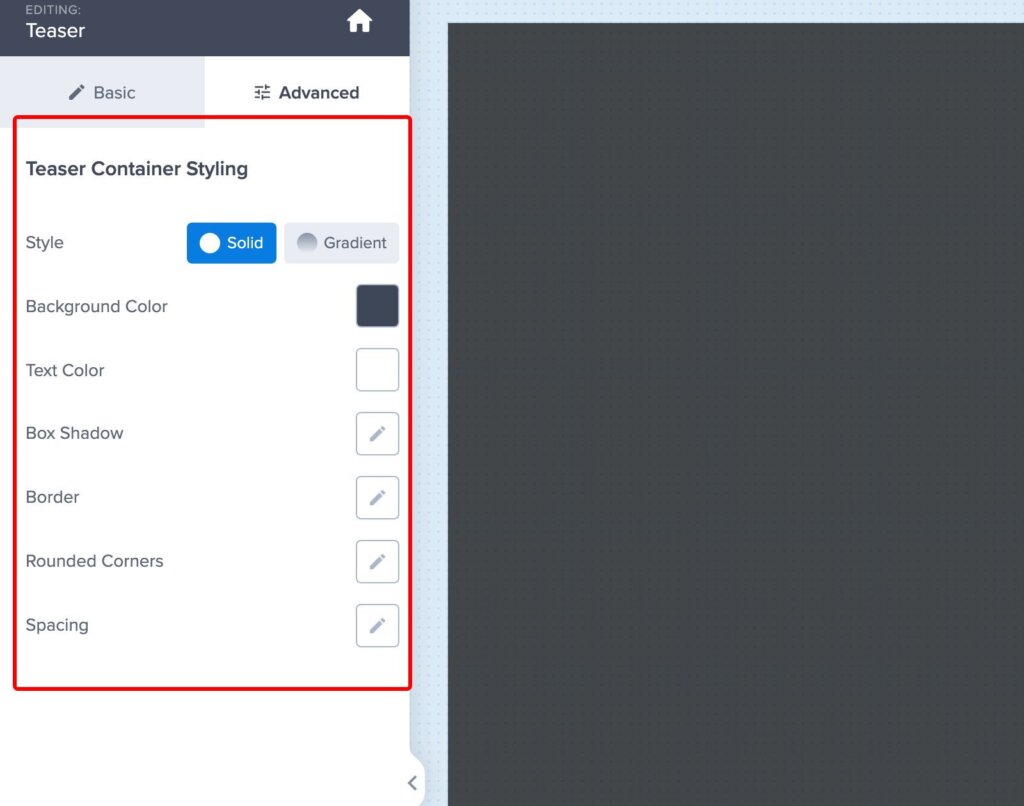
Your Teaser has its own styling controls, so it’s easy to match your branding.
You can set a solid or gradient background, change the colors, and adjust the border, the corners, and the spacing. This is worth a minute of your time, because it’s the part of your campaign your visitors will see most.
Your Display Rules and Targeting Don’t Change
If you’ve already spent time on your display rules, then none of that work is affected. The Teaser only changes what happens after your campaign loads or gets closed, so your targeting still applies exactly as it did before.
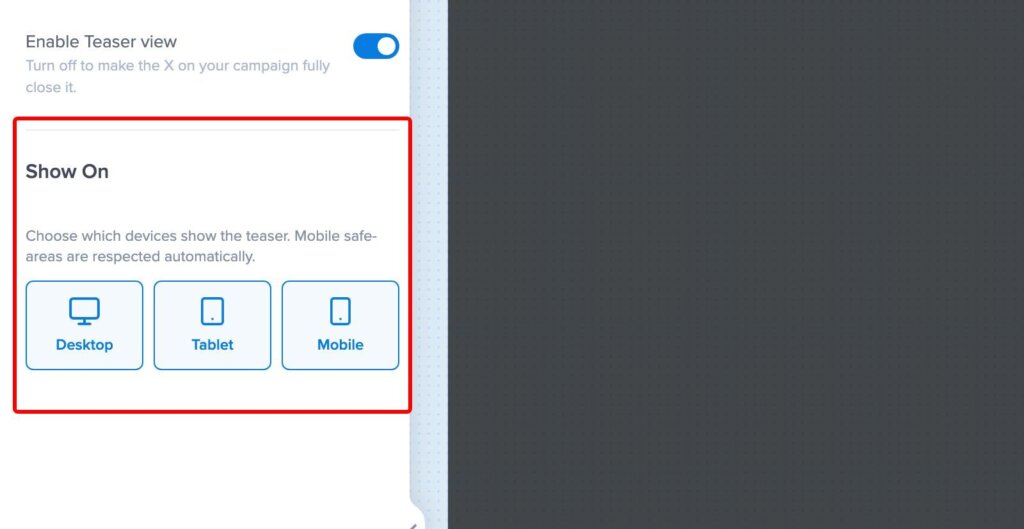
And you decide which devices show it at all. Desktop, Tablet, and Mobile each get their own toggle in the Show On section.
Split Test the Teaser Like the Rest of the Campaign
If you’re adding a Teaser to one of your best campaigns, then you’ll want to know which version of it earns more clicks. Because the Teaser is a view of your campaign, it comes along when you split test, the same way everything else does.
5 Ways to Use Campaign Teasers Right Now
Here are 5 easy ways to get started with Campaign Teasers right now:
- Run a Fullscreen that doesn’t block the first click. Build the Fullscreen campaign you actually want, then check ‘Show before the campaign opens’ so it loads as a gift icon in the corner. The visitor who clicks it is already interested.
- Turn a close into a second chance. On the Popup carrying your offer, check ‘Show when visitor closes the campaign’ and put the offer itself into the Teaser text. Somebody who closes your popup on arrival isn’t the same as a shopper a few pages later with a full cart.
- Let the offer follow your visitor. Turn on ‘Remember minimized state across pageviews’, and the campaign your visitor minimized once stays that way while they browse your website.
- Move the Teaser off your chat widget. If the bottom right position is already taken, try the Handle style on either edge or a Tab along the top. Your Teaser and your chat widget fighting over one corner is the first thing your visitor will notice.
- Treat mobile differently from desktop. In the ‘Show On’ section, let a Popup open normally on desktop and start minimized on mobile, or skip the Teaser on mobile altogether.
Campaign Teasers vs. the Slide-In Minimized State: What’s the Difference?
Campaign Teasers work with your Popup, Fullscreen, and Floating Bar campaigns.
Slide-In campaigns have their own slide toggle settings instead, which minimize the campaign in a similar way. Our guide on how to enable the minimized state for Slide-In campaigns has the details.
So there’s nothing to migrate and nothing to rebuild. If you’re running Slide-Ins with the minimized state today, then they’ll keep working exactly as they are.
Also Featuring: The New Slide-In Position Grid
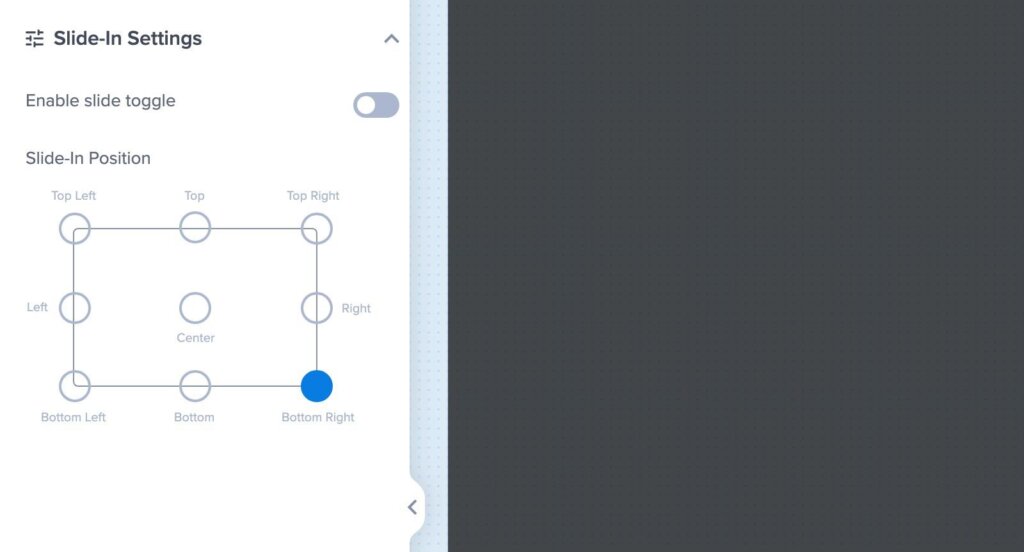
And while we’re on the subject of where things sit on your screen, Slide-Ins have a new position grid too. If you’ve ever wanted a Slide-In somewhere other than the bottom right, that’s a built-in setting now rather than a custom CSS job.
Slide-In campaigns used to be fixed to the bottom right corner. You can now choose from a grid of nine positions instead, including the top, the center, and either side.
You’ll find the Slide-In Position grid under Slide-In Settings in the builder, and our guide on how to reposition your Slide-In campaign has the steps.
Available Now on Plus and Higher
Campaign Teasers are available with a Plus or higher subscription.
If you’re on Plus, Pro, or Growth, the Teaser view is in your campaign builder right now, so go and open a campaign.
Enable Your First Teaser in 5 Steps
You can do all of this on a campaign you already have, without building anything new:
- Log in to your OptinMonster dashboard and open a Popup, Fullscreen, or Floating Bar campaign in the builder.
- Select the Teaser view in the view bar at the bottom of the builder.
- Toggle Enable Teaser view in the View Visibility section.
- Under When To Show, choose whether the Teaser appears before your campaign opens, when a visitor closes it, or both.
- Pick your style, text, position, and auto open delay in the Teaser Style section, then click Save.
For the full walkthrough, see our Campaign Teasers documentation.
Your best-converting campaign types don’t have to be your most intrusive ones anymore. Go and give one of them a Teaser.
Ready to keep your offers within reach? Get started with OptinMonster Plus today.
Until next time,
Angie and the OptinMonster Team
P.S. Curious what campaigns like these actually earn? Our OptinMonster case studies have the numbers, along with the exact setups behind them.